How to Host Presentations Online for Sharing, Control, and Tracking
Published on: February 16, 2026
A presentation is usually created for a moment. A sales call. A quarterly update. A training session. A proposal review.
Then it gets reused. Someone asks for the deck after the meeting. Another team wants the same slides next month. A rep edits one slide and sends a new file. Now you have copies everywhere, different versions floating around, and no way to know which one a client opened.
That is the real problem with presentations. They spread fast, they change often, and they leave your control the second you attach them to an email.
Hosting a presentation online fixes the distribution mess. Instead of passing around a PPTX or PDF, you publish a browser-based version, share a link, and decide who gets access. You can update the content without restarting the share process, and you can measure engagement so you are not guessing what happened after you sent it.
This guide breaks down what online presentation hosting means, when it matters, what security controls to look for, and how to publish public and private decks in a secure flip book format that works for both marketing and IT.
Table of contents
- What does presentation hosting mean?
- Why teams are moving away from sending PowerPoint presentations
- Hosting online presentations vs. sending PowerPoint slide decks
- How to host a presentation online with Flipsnack
- Collaboration and governance for hosted presentations
- Turn your deck into a managed asset
- FAQs on hosting presentations
What does presentation hosting mean?
Hosting presentations means publishing your slide deck on a secure online platform so people can view it through a link, instead of passing around files.
This means:
- Browser-based viewing, no downloads required for access; you can simply share a link
- Clear visibility settings like public, unlisted, password-locked, private by email, one-time passcode, readers only, or single-sign-on support
- Responsive embed options on your website or intranet
- Analytics on views, time spent, clicks, and reader-level behavior
- Branded sharing options with custom domains
- Version and access control with role permissions
- Trackable engagement through analytics metrics
Why teams are moving away from sending PowerPoint presentations
Sending PPTX or PDF files works for one-off sharing, but it causes problems once a deck gets reused or shared across teams.
1. Keeping the “latest deck” is harder than it should be
Presentations change often. When you send a file, you create a copy that can stay in someone’s inbox or drive for months. Hosting keeps one link, so people open the current version even after updates.
2. You do not know what happens after you send it
With attachments, you cannot tell if someone opened the deck or which slides mattered. Hosting can give you basic engagement data, like views, time spent, and clicks, so you can follow up with more context and improve the deck.
3. File sharing gives you limited control
Once a deck is downloaded, it can be forwarded and saved in other places. Hosting lets you set access rules, like public, unlisted, password-protected, invited viewers, or SSO for internal sharing.
4. PPTX and PDF are not ideal for viewing on every device
A PPTX can display differently depending on the app and fonts. PDFs are more consistent, but they can feel rigid on mobile and harder to navigate slide by slide. A hosted presentation is built for browser viewing, which lowers friction for the reader.
5. Some decks should not be downloadable
A public product deck is different from pricing, training, or internal updates. Hosting lets you choose whether viewers can download or print, which helps you share broadly when appropriate and limit actions when the content is sensitive.
Hosting online presentations vs. sending PowerPoint slide decks
| Feature | PowerPoint file (PPTX) | Hosted presentation (link) |
| How it is shared | Attachment or file download | Live link |
| Updates | New file needs to be resent | Content can be updated while keeping the same link |
| Access control | Limited once downloaded | Public, unlisted, password, invited viewers, SSO |
| Tracking | No built-in analytics | Can track views, time spent, clicks |
| Viewing experience | Can vary by app and device | Consistent browser viewing |
| Website use | Not made for embedding | Easy to embed on pages |
How to host a presentation online with Flipsnack
1. Upload your presentation or start from scratch
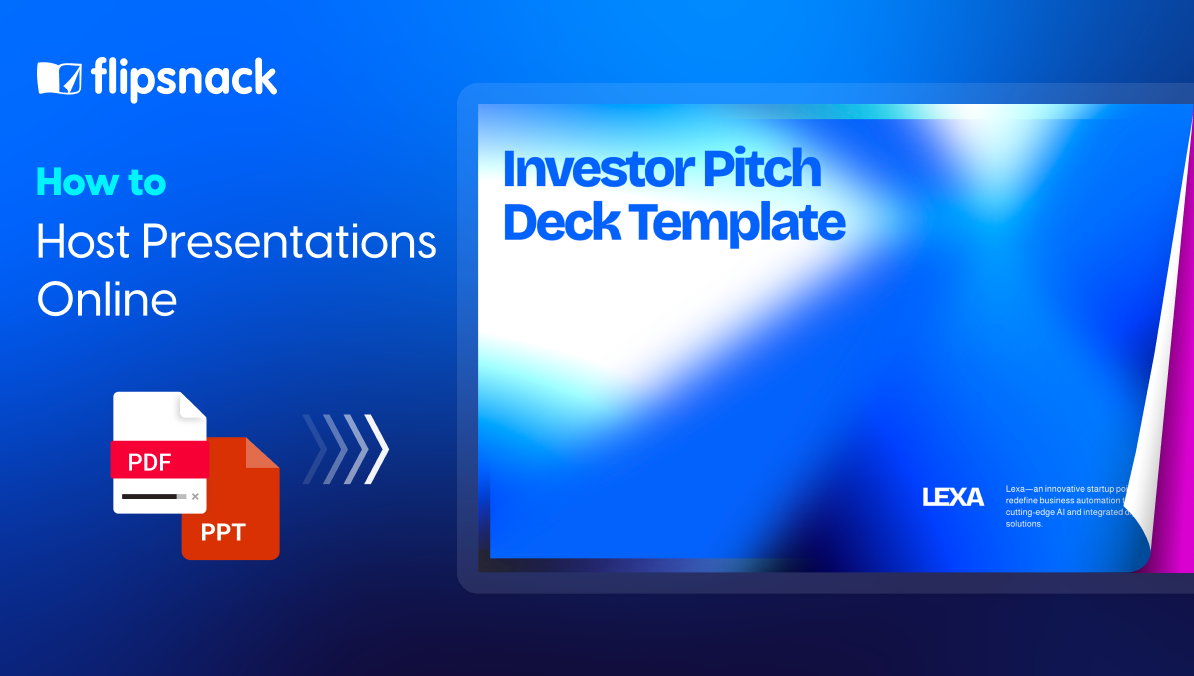
Start by uploading a PPTX or ODP file. Flipsnack converts it into a flipbook format that opens in a browser, so you can share it as a link instead of a file. If you only have a PDF export, you can upload the PDF and convert it the same way. Alternatively, you can start from scratch or use a presentation template.
2. Set your branding
Open the Customize area and set the basics that affect how the presentation looks when someone opens it. You can add a logo, choose accent colors, and set a background color or image so the viewer matches your brand.
3. Add interactive elements
Add interactive elements to drive more action with your online presentation. Flipsnack supports elements like links, buttons, videos, and forms, so the deck is not just something people read, but something they can use.
4. Decide what readers can do
Before you publish, decide if viewers should be able to download, print, or share the presentation. Flipsnack lets you enable or disable these options through menu controls, so the same deck can be more open or more restricted depending on the use case.
5. Choose the right visibility option & share the presentation
Pick the publishing option that fits the audience. Options include:
- Public
- Unlisted
- Password-Locked
- Private
- One-Time Passcode
- Readers only
- SSO only
This is the step that usually decides whether the deck is easy to access or tightly controlled.
Not every presentation should be shared the same way. That’s why you can choose the distribution model based on the audience and the content.
- Public (marketing and sales): share a link widely, embed on your site, use in campaigns.
Note: Private flipbooks cannot be embedded on external sites, so use Public, Unlisted, or Password-locked if you need an embed on your website.
- Restricted (internal or sensitive): limit access with password, invited viewers, one-time passcode, or SSO, and keep the deck out of public indexing.
Note: If you need to share a presentation that contains sensitive information, it’s worth adding an extra layer of protection before you send it out. Flipsnack’s Leak protection watermark helps you do that when you share a flipbook privately with specific readers.
Once enabled, the flipbook player shows the reader’s email address as a visible watermark while they view the content.

This watermark also appears in screenshots or screen recordings, which makes people think twice before sharing your presentation outside the agreed audience. If content still gets leaked, the email watermark helps you trace where it came from, since you can see exactly who accessed that version.
Why Flipsnack works for security-focused teams
When you host presentations online, you need more than a place to store files. You need a platform that supports restricted access, reliable uptime, and security controls that hold up in IT and legal reviews.
Flipsnack security protocols are audited and certified, including ISO 27001, and it processes and stores data in line with GDPR.
Your content is hosted on AWS, and Flipsnack has controls like encryption in transit (TLS and SSL) and strong access limitations.
For enterprise checks, Flipsnack also provides a security portal with compliance documentation and notes that the AWS SOC 2 report can be requested under NDA.
6. Track engagement
Use Statistics to see how the presentation performs over time. Flipsnack reports key metrics such as impressions, views, clicks, time spent, and downloads, so you can spot what gets attention and what gets skipped.
Collaboration and governance for hosted presentations
Hosting helps, but only if teams can work on the same deck without stepping on each other or publishing the wrong thing. The moment you have more than a couple of people involved, you need basic rules: who can edit, who can publish, and who can manage settings. Flipsnack supports team roles like Owner and Admin, plus role-based access for teammates.
Here is what that looks like in practice:
- Define who can publish and who can only edit. Use team roles and permission settings so publishing and account-level changes are not available to everyone.
- Lock what should not change. If people reuse a presentation template, locked templates help protect key elements like layout and brand pieces so edits stay within bounds.
- Review in context, not in email threads. Comments in Design Studio let reviewers leave feedback right on the page, which speeds up approvals and reduces misunderstandings.
- Avoid overwriting edits. Flipsnack shows who is editing a flipbook and supports taking over editing when needed, so teams do not accidentally work over each other.
- Audit changes when something goes wrong. On Enterprise, user logs help track what happened, when it happened, and who did it.
Turn your deck into a managed asset
If your presentations get reused, sending files keeps creating extra copies and extra risk. Hosting keeps one link, lets you match access to the audience, and gives you engagement data you can act on. When you update the deck, you can keep the same URL, so people always land on the current version.
FAQs on hosting presentations
Upload your PPTX or ODP and convert it into a flipbook, then share the full view link or a direct link. This gives people a browser-based way to open the deck, without sending files back and forth.
Use restricted visibility options such as Password Locked, By email, One Time Passcode, Readers only, or SSO only, then disable reader actions like download and print using Menu Controls. If you embed the deck, Domain Restriction helps limit where it can appear. For extra deterrence, enable Leak protection watermark for decks shared via Private, Readers only. It displays each viewer’s email address as a visible watermark inside the player, and it will also appear in screenshots or screen recordings, so you can discourage leaks and trace where shared content came from.
Edit the flipbook, then republish using Share now and Update. With Flipsnack, the URL stays the same, so you do not need to resend a new link after changes.
Upload a PPTX or ODP, and Flipsnack converts it into a flipbook that opens in a web browser. After publishing, you share the link so viewers do not need PowerPoint installed to access it.
Publish the flipbook, open the embed options from the flipbook menu, and copy the embed code into your site. Important detail: Private flipbooks cannot be embedded on external sites, so use Public, Unlisted, or Password-locked if you need an external embed. If the embed does not appear, domain restriction is a common cause to check.
Use Publishing Options to match access to the audience. You can choose Public or Unlisted for broad sharing, Password Locked for simple protection, or tighter options like By email, One Time Passcode, Readers only, and SSO only for restricted access.
For overall performance, use Analytics to see impressions, views, time spent, downloads, and more. For click activity on interactive elements, Flipsnack also reports engagement stats like clicks on links and other elements. If you need individual-level data, use Readers statistics with Track each reader individually enabled, or use SSO for viewers, which supports individual viewer statistics and CSV export.
Start with a restricted visibility option like Password Locked, By email, One Time Passcode, Readers only, or SSO only, depending on who needs access. Then lock down actions with Menu Controls, like disabling download and print. If the deck is embedded anywhere, use Domain Restriction to limit approved domains, and consider DRM options like watermarking for additional protection.