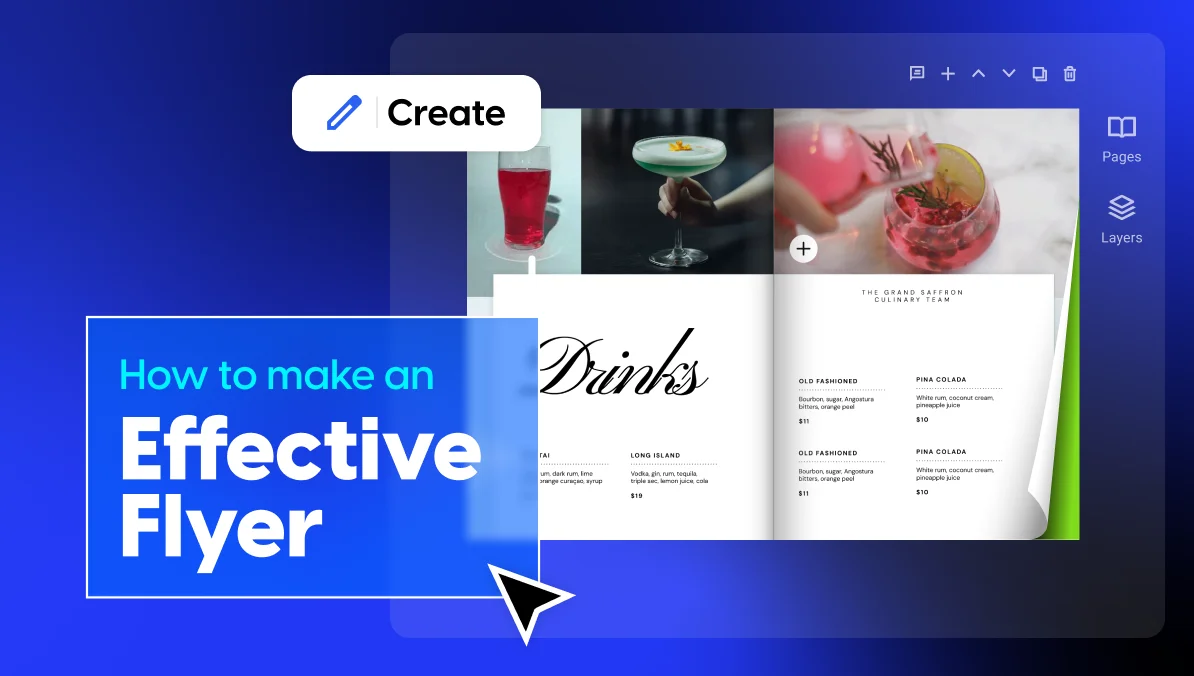
How to Make an Effective Flyer Without Photoshop
Published on: March 31, 2026
Creating a professional flyer doesn’t require Photoshop or advanced design skills. What it requires is a clear purpose, the right message, and a flyer maker that helps you turn both into a clean, focused design.
This guide will show you how to plan and create a flyer that looks professional, scans easily, and drives one action.
We’ll cover both print and digital flyers — but spend more time on digital, since it’s faster to produce, easier to distribute, and gives you more flexibility after publishing.
For the design steps, we’ll use Flipsnack, an online flyer maker with a built-in editor, interactive features, and sharing tools all in one place.
Table of contents
Why flyers still work
Flyers work because they’re simple. One page, one message, one action. Anyone can make one, anyone can read one, and there’s no barrier to receiving it — print or digital.
That simplicity scales in both directions. A local business can use a flyer the same way a large event organizer can. The format doesn’t care about budget or audience size. It just needs a clear message and the right person in front of it.
When flyers are effective
- Local promotions. A flyer in the right neighborhood reaches exactly the right people.
- Events. Whether it’s a concert, a workshop, or a community meetup, an eye-catching flyer creates buzz fast.
- Store openings. A physical or digital flyer makes a new business feel real and worth visiting.
- Campus announcements. Students still stop and read bulletin boards. Flyers work on campuses. You can also embed digital flyers on your school or university website.
- Real estate. Open house flyers give buyers something to hold onto and refer back to. For real estate, digital flyers work great as well.
- Restaurant offers. A discount flyer near a restaurant can fill tables the same day.
- Service businesses. Plumbers, cleaners, tutors, and landscapers all benefit from a flyer in the right place at the right time.
What a flyer should do
A good flyer does three things:
1. Grab attention. If someone doesn’t stop to look, nothing else matters. A strong headline and a clean composition earn the second glance that gets everything else read.
2. Deliver one message. What do you want people to know? Say that, and nothing else. The moment a flyer tries to say too much, it says nothing. Single message focus isn’t a creative constraint — it’s what makes a flyer work.
3. Push one action. Should they visit your store? Scan a QR code? Call a number? Your flyer CTA needs to be obvious. A flyer with a clear next step gets results. A flyer without one gets ignored.
Print flyers vs digital flyers
Not every flyer needs to be printed. And not every flyer works better on screen. Here’s how to decide.
When print works better
Print flyers make sense when your audience is in a specific location. A flyer on a community board, a handout at a local event, or a door drop in a neighborhood — these work because the audience is already there. Print is also useful when you want something people can hold onto, like a menu or a real estate handout.
When digital works better
Digital flyers are easier to create, update, and share. You don’t pay for printing or distribution. You can send them via email, post them on social media, or share them as a link. If your audience is online — and most are — digital gets your message out faster and to more people.
Digital also gives you flexibility print doesn’t. You can update a flyer after it’s been shared, add clickable links or contact buttons, and reuse the same design across different channels without reprinting anything.
When to use both together
Some campaigns benefit from both. A local event might use printable flyers around the area, and a digital version shared online. A restaurant promotion might hand out print flyers nearby and post the same offer on social media. The design work is the same — the distribution is just wider.
What makes a good flyer? Plan your flyer before opening any design tool
Most flyer design mistakes happen before the design even starts.
People jump straight into choosing colors and fonts before they know what they’re trying to say. The result is a flyer that looks fine but doesn’t actually work.
Take ten minutes to answer these questions first. It’ll save you a lot of time later.
1. Define your goal
Start with one question: what do you want the reader to do?
Visit your website. Register for an event. Call your number. Come into your store. Every flyer needs one clear purpose. If you can’t name it in a single sentence, you’re not ready to design yet.
2. Define your audience
A flyer that tries to speak to everyone ends up connecting with no one.
Before you write a single word of flyer copy, think about who you’re actually talking to:
- Who are they? A student, a homeowner, a local business owner? Be specific.
- What problem do they have? What are they looking for, or what would make their life easier?
- What would make them care? A discount? A deadline? A solution to something frustrating?
Your answers shape everything — the tone, the flyer headline, the offer, and even the images you choose.
3. Define the main message
Your flyer has one job: deliver one idea clearly.
A good way to find it: finish this sentence. “After seeing this flyer, I want people to know that ___.”
Whatever goes in that blank is your main message. Everything else on the flyer should support it, or it shouldn’t be there.
4. Gather the content first
Don’t start designing a flyer with empty placeholders. Have everything ready before you open your flyer maker.
Here’s what most flyers need:
- Headline. The first thing people read. A strong headline is direct, specific, and impossible to skim past.
- Offer. What are you giving them? A discount, an event, a service, a deal?
- Key details. Date, time, location, price — whatever’s relevant.
- Contact info. Phone number, email, website, or social handle.
- Brand assets. Your logo and any brand colors or fonts you use.
- Images. A photo, an illustration, or a graphic that fits the message.
- QR code. Useful for flyers that bridge print and digital — more on that below.
- CTA. A short, clear line that tells people exactly what to do next.
Having all of this ready means you can focus on a good flyer design instead of hunting for content halfway through.
5. Decide where the flyer will appear
Where your flyer lives affects how you design it. A flyer shared as a social post is viewed on a phone screen. A flyer on a street board is read from a distance. Each situation changes what works — the flyer layout, the text size, the amount of detail.
- In store. People are close, so finer detail works.
- On campus. Pinned to a board among dozens of others — it needs to stand out fast.
- On a street board. Viewed from a distance, often while moving. Keep it big and simple.
- In mailboxes. It needs to earn attention the moment someone picks it up.
- As a social post. Viewed mid-scroll on a small screen. High readability and a scannable layout are non-negotiable.
- As an email attachment. The reader chose to open it — but their attention still won’t last long.
If your flyer will appear in more than one place, design for the hardest one first. A flyer with balanced spacing and a scannable layout that works on a street board will work everywhere else, too.
How to design a flyer using Flipsnack
With your plan in place, it’s time to build the flyer. Flipsnack is an online flyer maker with a built-in design editor, interactive features, and sharing tools — no Photoshop, no external apps, no switching between tools. No design skills required.
Here’s how to make a good flyer:
Step 1: Start your flyer
Go to Flipsnack.com, create a free account, and click Create.
You’ll have three ways to begin:
- Choose a template. Browse editable flyer templates organized by industry, layout, and style. Template availability is broad — from event flyers and business promotions to real estate and restaurant offers. Select one and start customizing.
- Start from scratch. Open a blank canvas, set your custom dimensions, and build from the ground up.
- Upload a PDF. Already have a design? Upload it as a PDF, and Flipsnack converts it for you. You can also edit the PDF (currently in Beta) by changing text, images, or rearranging pages before adding interactive elements.
Once you’re in the Design Studio, you can edit text, swap images, adjust colors, and rearrange elements using drag and drop. When a marketer customizes a flyer or a designer chooses a template and adjusts it to their brand, the process is the same — fast, visual, and entirely in-browser.
Step 2: Add interactivity
This is where a digital flyer does things a printed one can’t.
Open the Interactions panel and add interactive elements that give your audience something to act on:
- Links. Connect to a website, landing page, or booking form.
- Buttons. Add a tappable CTA — “Register Now,” “Get the Offer,” “Book a Table.”
- Social media buttons. Link directly to your social profiles.
- Videos. Embed a video that plays inside the flyer.
- Photo slideshows. Display multiple images in one spot without cluttering the layout.
- Captions. Add context to any image without taking up extra space in the design.
- Tags. Label elements in your flyer and link them to additional information.
Add what supports your one action, and leave the rest out.
Step 3: Add your branding
Before you publish, make sure the flyer looks like it came from you.
Upload your brand kit — logo, custom fonts, and brand colors — and apply them directly in the Design Studio. When a brand applies its logo and color palette consistently, every flyer reinforces the same visual identity. If you’re creating flyers regularly, you can also save your design as a reusable flyer template.
Step 4: Share it
Click Publish, add a title, set your privacy preferences, and hit Save & Share.
From there, you have a few ways to distribute:
- Share a link. Send it via email, messaging apps, or newsletters. If you update the flyer later, the link stays the same.
- Embed it. Display the flyer directly on a website or landing page.
- Post to social media. The flyer is mobile-responsive, so it looks good on any screen.
- Generate a QR code. Add it to a printed version so people can scan through to the live digital flyer.
Need a print version too? Download a print-ready PDF, JPG, or PNG. Flipsnack automatically removes interactive elements from the exported file, so you get a clean, printable version without any extra steps.
How Flipsnack compares to other flyer makers
Flipsnack isn’t the only option out there. The best flyer maker depends on what you actually need — whether that’s ease of use, template quality, a generous free tier, or specific features like print-ready downloads or collaboration tools. For a deeper breakdown, check out our full article on the best software to create flyers online.
| Tool | Best for | Main strength | Main tradeoff | Paid plans from |
| Flipsnack | Teams that want flyers for both digital and print | Interactive flyers with branding, collaboration, and print export in one workflow | Best suited to digital-first use cases | $16/month |
| Canva | Beginners, freelancers, and teams that want speed | Very easy to use, huge template library, strong print support | Free plan pushes premium assets; advanced control is limited | $15/user/month |
| Marq | Teams that need brand control at scale | Locked templates, approvals, and repeatable brand-safe workflows | Less flexible for quick one-off designs | $10/month |
| PosterMyWall | Small businesses that want design plus promotion | Combines flyer making with email, social publishing, and scheduling | Credit-based pricing adds complexity | $13/month |
| Adobe Express | Users who want quick creation with simple tools | Fast editing, AI help, print support, and easy exports | Less control than more advanced design tools | €11.89/month |
| VistaCreate | Small businesses that want quick template-based design | Simple editor, large asset library, easy personalization | Free plan has limits; advanced controls are lighter | $10/month |
| Venngage | Business and nonprofit teams | Strong for formal, information-rich flyers with accessibility focus | Free plan is very limited | $10/month |
| Visme | Users who need detailed, data-rich flyers | Good for structured layouts, data, interactivity, and brand control | Can feel heavy for simple flyer projects | $12.25/month |
| Piktochart | Educators and analysts making informational flyers | Strong for charts, AI drafts, and clarity-focused design | Less flexible for highly visual promo flyers | $14/month |
| Desygner | Budget-minded teams that want solid value | Low-cost plans, stock assets, PDF editing, and collaboration | Smaller review base than bigger competitors | $4.95/month |
Conclusion
A good flyer doesn’t try to do everything. It does one thing well.
It grabs attention fast. It delivers a message anyone can understand in seconds. And it points the reader toward a single, obvious CTA.
Everything else — the flyer layout, the images, the flyer copy, the composition — exists to support those three things. When all the pieces work together, the flyer works.
Start with a clear purpose, keep the flyer design focused, and make the next step impossible to miss. Do that, and your flyer will do its job.
FAQs on flyer design
Yes. Flipsnack’s Design Studio is built for exactly that. Start with a ready-made flyer template, swap in your content, and adjust colors and fonts to match your brand. The editor is drag and drop, so no design background is needed to get a professional result.
It depends on how you plan to use it. For sharing online, a link to your Flipsnack flyer is the easiest option. If you need a file to attach or upload elsewhere, export as a JPG or PNG. For print, export as a PDF — Flipsnack generates a print-ready file and automatically removes any interactive elements from it.
Start with a flyer template sized for the platform you’re posting on, or set custom dimensions in Flipsnack to match. Keep the design simple — text should be readable at a small size, and the main message needs to land at a glance. Once it’s ready, export it as a JPG or PNG and post it directly, or share your Flipsnack link.
You can. Design your flyer once in Flipsnack, add interactive elements for the digital version, then export a separate PDF for print. Flipsnack strips the interactive elements from the print export automatically, so you get two usable versions from one design.
Flipsnack generates a QR code for your published flyer. You can add it to a printed version so people scan through to the live digital flyer — useful when you’re running print and digital together and want to connect both.