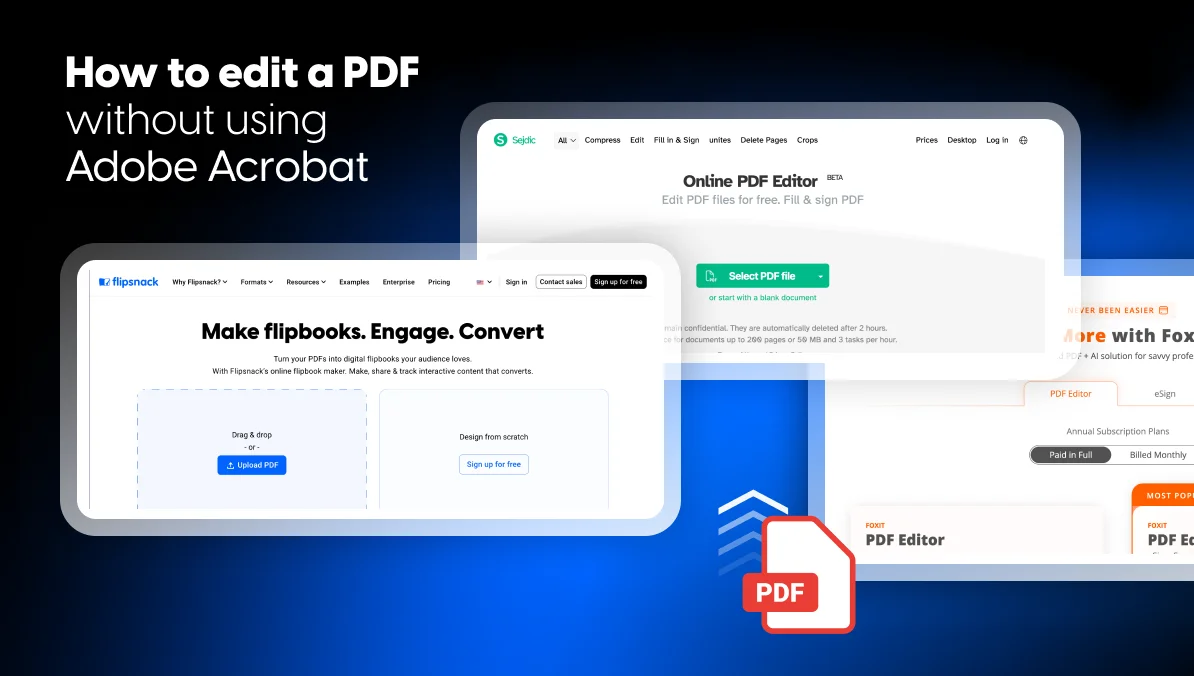
How to Edit a PDF Without Adobe Acrobat: 7 Free and Paid Options
You opened a PDF. You spotted a typo or an old price. And you don’t have Adobe Acrobat. You also don’t want to pay $19.99 to $29.99 a month for a tool you might use twice all year. The good news? You don’t have to.
Today, PDFs don’t always stay static—they’re often shared as interactive formats, such as a flip books, digital brochures, or online catalogs.
That’s why being able to edit them matters.
There are now dozens of ways to edit a PDF without Adobe Acrobat. Many of them are free. This guide walks through the best options. It shows what each one does well and where each one falls short. You can pick the right tool in under five minutes.
Table of contents
- What does “editing a PDF” actually mean?
- Why look for an Adobe Acrobat alternative in the first place?
- What are my options for editing a PDF without Adobe Acrobat?
- How does Flipsnack let you edit a PDF without installing anything?
- What is the best free PDF editor?
- How do I change text in a PDF using free desktop software?
- Can I edit a PDF in Microsoft Word or Google Docs?
- How do I edit a PDF on a Mac without Adobe Acrobat?
- How do I edit a PDF on an iPad without a subscription?
- What is the safest online PDF editor for confidential documents?
- How does Flipsnack compare to Foxit, Nitro, and PDF Expert?
- How do I sign a PDF document electronically without Adobe Acrobat?
- Which option should I actually pick?
- Frequently asked questions
What does “editing a PDF” actually mean?
“Editing a PDF” can mean two very different things, and most free tools only handle one of them.
- Annotation means adding new content on top of an existing file. You add text boxes, highlights, sticky notes, signatures, stamps, or drawings. The original content stays untouched. Most free tools are annotation tools.
- True editing means changing the existing content. You rewrite paragraphs. You swap images. You fix typos in place. You reflow a layout. True editing is harder. The tool has to parse the PDF’s internal text streams and fonts. According to industry analysis, true text editing requires parsing the PDF text streams and is significantly more complex. Most free tools offer annotation; full editing typically requires paid software or converting to Word first.
Knowing which task you face saves a lot of trial and error. If you only need to sign a contract, almost anything works. If you need to update prices in a 40-page catalog, your shortlist is much shorter.
Why look for an Adobe Acrobat alternative in the first place?
Adobe Acrobat Pro is powerful. But it isn’t a great fit for everyone. Acrobat Pro starts at $19.99 per month on an annual plan and goes up to $29.99 month-to-month. There is no perpetual license for the current version. Reviewers on G2 and Capterra flag the same issues again and again:
- The subscription is expensive for individuals and small teams.
- Free trials roll into paid plans on their own.
- Canceling mid-cycle revokes access right away. There is no prorated refund.
- Many features people want, like full text editing and OCR, sit behind the top tier.
If you only edit a PDF a few times a year, an alternative makes more sense. If you edit PDFs as part of a publishing workflow, a tool like Flipsnack can replace several steps Acrobat doesn’t cover. That is especially useful when you need to convert a PDF to a flipbook, add interactive content, and share the finished version from one place.
What are my options for editing a PDF without Adobe Acrobat?
Seven realistic paths exist: free browser editors, free desktop apps, macOS Preview, Microsoft Word, Google Docs, dedicated paid editors, and Flipsnack. The table below summarizes how they compare. The rest of the article goes into each one in detail.
| Option | Best for | Price | True text edit? | Install required? |
| Flipsnack Edit PDF | Catalogs, brochures, magazines, branded docs | Free trial available | Yes (vector PDFs) | No |
| Smallpdf | Quick annotations, signing | Free with limits; $15/mo | Pro only | No |
| iLovePDF | Batch merge, split, convert | Free with limits; from $5/mo | Premium only | No |
| Sejda | Quick browser text edits | Free: 3 tasks/hour; from ~$7.50/mo | Yes (free, limited) | Optional desktop app |
| LibreOffice Draw | Offline editing, privacy | Free, open source | Yes | Yes |
| macOS Preview | Mac users, annotations, signing | Free, built in | No | Pre-installed |
| Microsoft Word / Google Docs | Simple text-heavy PDFs | Free / included | Yes (after conversion) | Word: yes; Docs: no |
How does Flipsnack let you edit a PDF without installing anything?
Flipsnack now lets you upload a PDF and edit its text, images, and shapes right inside your browser. The new Edit PDF feature has been launched, and it is available on every plan, including the free trial. When you upload a vector PDF, Flipsnack picks up the text blocks, images, fonts, and shapes on its own. It then turns them into editable elements in its Design Studio.
Here is what it looks like in practice:
- Upload your PDF. From the Flipsnack homepage, click Create, choose PDF, then upload your file. The conversion takes a few seconds.
- Edit text. Click any text block and change the content, font, font size, alignment, or color from the right-hand panel.
- Edit images. Click any image to replace it, crop it, apply filters, or restyle it. You can pull replacement images from your own Uploads panel or from the built-in library.
- Add interactivity. Drop in videos, links, slideshows, forms, or shopping list items to turn the static file into an interactive flipbook.
- Publish or download. Click Share now, choose Public, Unlisted, Password locked, or Private visibility, and publish. Your updated version is live immediately, or you can export it back to PDF.
“For the first time, you can edit PDFs directly inside Flipsnack. No more recreating your publication from scratch. No more switching back to external design software and re-uploading files.” — Flipsnack
What makes Flipsnack different from a regular PDF editor?
Most PDF editors stop at the file. Flipsnack is built around the whole life cycle of the document. Once you edit your PDF, you can also:
- Turn it into an interactive HTML5 flipbook with a page-flip effect.
- Share it as a link, embed it on your website, or send it as a QR code.
- Track views, clicks, reading time, and reader location with built-in analytics.
- Capture leads with built-in forms that sync to your CRM through Zapier.
- Manage brand assets in one place so every publication stays on-brand.
- Re-edit the file later without re-uploading or re-publishing the link.
That last point matters more than it sounds. With Adobe Acrobat, every edit makes a new file. With Flipsnack, the link stays the same after edits. Anyone who saved or shared the original always sees the current version. Brands like Electrolux, Estée Lauder, and JW Marriott use this exact workflow for catalogs, employee benefits guides, and product brochures.
What are the limits of Flipsnack’s Edit PDF feature?
A few practical limits apply:
- It works best with vector PDFs that have embedded, live text. Scanned PDFs or files with text converted to outlines won’t be fully editable.
- Advanced effects like clipping masks, complex gradients, and drop shadows on text may not render well.
If your PDF was exported from InDesign, Illustrator, Canva, or any modern layout tool with fonts embedded and text kept “live,” you will get the best results.
What is the best free PDF editor?
There is no single “best.” The right answer depends on what you’re editing and how often. According to a review by exactpdf.com, Smallpdf free tier: 2 tasks/day, files uploaded to servers, watermarks on some tools, while Sejda caps you at 3 tasks per hour, 50MB file size, and 200 pages per document. Those caps decide more than feature lists do.
Smallpdf: cleanest interface, tightest task limits
Smallpdf is the most popular online PDF tool. It has over 50 million monthly users. The free tier lets you compress, merge, split, annotate, and sign. To change existing text, you need a Smallpdf Pro plan. That starts at around $15 per month. The free plan limits you to 2 tasks per day across the whole toolkit. Files are uploaded to Smallpdf’s servers. They are auto-deleted after one hour, per their policy.
iLovePDF: great for batch operations
iLovePDF shines when you need to merge ten files, split a 100-page document, or convert a batch. The free tier covers more daily tasks than Smallpdf. But the file size cap sits around 15-25MB on the web. Editing existing text is gated to Premium, which starts at $5 per month. Like Smallpdf, files are processed on iLovePDF’s servers.
Sejda: rare free text editing, with strict caps
Sejda is one of the few free tools that lets you edit existing text in your browser. You can change words, fix typos, and swap fonts. The catch is the throttling: 3 tasks per hour, 50MB file size, and 200 pages per document on the free plan. Some tools add a Sejda watermark. The desktop app removes the upload step but keeps the 3-tasks-per-hour limit. Paid plans start at about $7.50 per month.
PDF24: generous free use, basic editing
PDF24 is one of the most generous free PDF toolkits available. According to multiple 2026 comparisons, PDF24 applies no task limits or watermarks on either the web or the desktop version. Editing features are basic. Mostly annotations, simple text boxes, and page management. But for everyday merges, splits, and compressions, it is hard to beat for the price of zero.
How do I change text in a PDF using free desktop software?
Two desktop options stand out if you’d rather not upload files to anyone’s server.
LibreOffice Draw: the open-source workhorse
LibreOffice Draw is a free, open-source app. It opens any PDF as a vector file. You can edit text and images directly. It works offline, has no usage limits, and doesn’t track you. The trade-off is that LibreOffice is around 300MB to install. Fidelity on complex layouts is imperfect. For simple text documents or invoices, it is excellent. For glossy brochures, it can mangle fonts.
PDFgear: a full-featured desktop editor
PDFgear has quietly become a leading free desktop PDF editor in 2026. It edits text and images directly. It includes an AI reading assistant. It runs on Windows, Mac, iOS, and Android. It is free with no watermarks. It is the closest free tool to Adobe Acrobat Pro on pure features. It is still a younger product than Adobe.
Can I edit a PDF in Microsoft Word or Google Docs?
Yes, and many people don’t realize this is built into tools they already pay for.
Microsoft Word can open most PDFs since the 2013 release. Word turns the PDF into an editable document. Some formatting may shift. You edit as normal. Then you save back to PDF. It works best on text-heavy files like contracts, reports, or letters. Scanned PDFs need OCR first. Word can attempt OCR, but it doesn’t always nail it.
Google Docs follows a similar pattern. Right-click any PDF in Google Drive. Choose “Open with Google Docs.” Google turns it into a Doc. You edit it, then download it back as PDF through File > Download > PDF Document. This is free and works in any browser. The downside is the same: complex layouts often break. Multi-column brochures and catalogs with tight image-text wrapping are the worst offenders.
Rule of thumb: if the PDF would look fine as a plain Word document, Word or Docs will edit it well. If the PDF relies on a designed layout, use Flipsnack or a dedicated editor instead.
How do I edit a PDF on a Mac without Adobe Acrobat?
Every Mac ships with Preview, which handles a surprising amount of PDF work for free. Preview lets you:
- Add text boxes, shapes, and highlights.
- Reorder, rotate, or delete pages by dragging thumbnails in the sidebar.
- Sign documents by drawing on the trackpad or capturing a signature with the camera.
- Fill in form fields.
- Combine multiple PDFs into one.
Preview is excellent for annotations and signing. It is not a true text editor. So it won’t let you rewrite paragraphs inside an existing PDF. For that, Mac users can pair Preview with Flipsnack for branded documents and catalogs, with PDFgear, or with PDF Expert. For sensitive files you don’t want to upload, Preview plus LibreOffice Draw is a strong combination.
How do I edit a PDF on an iPad without a subscription?
iPad has solid built-in tools. Open any PDF in Files, Mail, or Safari. Tap the Markup icon. You can now annotate, highlight, sign, and add text. The Apple Pencil makes this even smoother. For real editing without a subscription, three browser-based options stand out:
- Flipsnack. Sign in via Safari, upload the PDF, edit text and images in the Design Studio, and re-export. No app install needed.
- Sejda for quick browser-based text edits, within the free-tier limits.
- PDFgear iPad app for a more full-featured local experience.
What is the safest online PDF editor for confidential documents?
Any tool that uploads your file to a server adds some risk. So the question becomes: how is that server secured? Where is data processed? What compliance certifications does the provider hold? According to a 2026 privacy analysis, Smallpdf, iLovePDF, PDF24 (web version), and Sejda all upload your file to their servers for processing. Their policies state that files are deleted within 1 to 24 hours. But that is a policy, not a technical guarantee.
For confidential documents, three approaches reduce risk:
- Use a local-processing tool. LibreOffice Draw, PDFgear desktop, and macOS Preview all run on your own device. The file never leaves it.
- Use a provider with strong compliance. Flipsnack is SOC 2, ISO 27001, ISO 9001, and GDPR compliant. It also offers HIPAA-ready options, SSO authentication, and a 99.9% uptime SLA. For internal HR documents, employee benefits guides, or sales materials shared with prospects, that compliance posture matters.
- Lock down sharing. Even after editing, restrict who can read the file. Flipsnack supports password-protected flipbooks, unlisted links, one-time passwords (OTP), and SSO-restricted access. Few PDF editors offer this depth of sharing control.
How does Flipsnack compare to Foxit, Nitro, and PDF Expert?
These are different categories of product, and the right comparison depends on what you’re trying to do.
| Tool | Primary use | Starting price | Browser-based? | Built-in analytics and sharing? |
| Foxit PDF Editor | Office PDF editing, forms, signatures | Around $14.99/mo | Hybrid (desktop primary) | Limited |
| Nitro Pro | Enterprise PDF workflows, e-sign | Around $14.99/mo | Hybrid | Limited |
| PDF Expert | Mac and iOS native PDF editor | From €63.74/year | No (Apple-only) | No |
| Flipsnack | PDF editing plus publishing, branding, tracking, sharing | Free trial; paid plans available | Yes | Yes |
If you live in legal contracts, redactions, and signed forms, Foxit or Nitro is the right fit. If you are a Mac and iOS power user who reads PDFs all day, PDF Expert is a delight. If you are editing brochures, catalogs, magazines, employee handbooks, sales decks, lookbooks, or any document you will also share, embed, brand, and track, Flipsnack covers the full job in one place.
How do I sign a PDF document electronically without Adobe Acrobat?
Signing is the easiest PDF task to handle outside Acrobat. The shortest paths in 2026:
- On Mac: open the PDF in Preview, click the Markup toolbar, choose the Signature icon, and draw your signature on your trackpad or capture one with the camera.
- On iPhone or iPad: open the PDF, tap Markup, choose the Signature tool, and sign with your finger or Apple Pencil.
- In any browser: use Smallpdf’s eSign, iLovePDF Sign, or Sejda’s Sign & Fill. All offer a free tier for basic signing.
- For legally tracked signatures with multiple parties: use DocuSign, Dropbox Sign, or Adobe Sign. Their compliance audit trail is stronger than a free annotation tool’s.
None of these require an Adobe Acrobat subscription.
Which option should I actually pick?
Three quick recommendations:
- One-off annotation or signature. Use what’s already installed. macOS Preview on Mac. Markup on iPhone or iPad. Edge or Acrobat Reader on Windows. Don’t pay for anything.
- Occasional text edits, no design layout. Sejda free tier or Google Docs handle the job for free, with clear limits.
- Editing branded documents, catalogs, brochures, or anything you’ll also share, embed, or track. Use Flipsnack. The Edit PDF feature gives you true text and image editing inside the browser. Once you are done, you can publish the same file as an interactive flipbook. You get analytics, lead capture, password protection, and SSO. You don’t need a separate publishing tool, a separate PDF editor, and a separate analytics platform. One link does all three.
If you want to try Flipsnack’s Edit PDF feature, create a free account. The feature is available on every plan, including the free trial.
Frequently asked questions
Yes. You can edit a PDF without Adobe Acrobat using free browser tools like Smallpdf, iLovePDF, Sejda, or PDF24, desktop apps like LibreOffice Draw and PDFgear, built-in tools like macOS Preview or Microsoft Word, or specialized platforms like Flipsnack. The right choice depends on whether you need to annotate, edit existing text, or also publish and share the result.
There is no single best free PDF editor. Sejda lets you edit text in the browser. But it caps free users at 3 tasks per hour and 50MB. Smallpdf has a clean interface. But it limits free users to 2 tasks per day. PDF24 has no task limits or watermarks. But it offers only basic editing. Flipsnack is the best choice when the PDF is a brochure, catalog, magazine, or branded document. It lets you edit, publish, share, and track in one place.
Most free tools only let you add new text on top of a PDF. To change existing text, use the Sejda free tier (3 tasks per hour limit). Or convert the PDF to Word using Google Docs or Smallpdf, then edit there. Or upload a vector PDF to Flipsnack, which turns text into fully editable elements on its own.
It depends on the tool. Smallpdf, iLovePDF, Sejda, and similar services upload your file to their servers. Their policies state files are deleted within 1 to 24 hours. But that is a policy, not a technical guarantee. For sensitive documents, choose providers with strong compliance like Flipsnack. It is SOC 2, ISO 27001, and GDPR compliant. It also supports password-protected, unlisted, or SSO-restricted access.
Yes, but the results depend on scan quality. Word uses OCR (optical character recognition) to detect text in scanned images and turn it into editable text. The tech works well on clean, high-resolution scans of standard fonts. It struggles with handwriting, low-resolution scans, and unusual layouts. Always proofread the result before saving back to PDF.
Yes. This is one of the most reliable free workflows. Use Google Docs, Smallpdf, or iLovePDF to convert the PDF to Word. Edit the Word file as normal. Then use the same tool, or Word’s “Save as PDF” feature, to convert it back. Expect minor layout shifts on documents with complex formatting.
On iPad, open any PDF in Files, Mail, or Safari. Then tap the Markup tool. You can now annotate and sign at no cost. For real text and image editing without a subscription, open the file in a browser-based editor like Flipsnack. Or use the Sejda free tier. Or install the free PDFgear iPad app.
For maximum safety, choose a tool that processes files on your own device. LibreOffice Draw, PDFgear desktop, and macOS Preview all do this. If you must use an online tool, pick one with strong compliance certifications. Flipsnack is SOC 2, ISO 27001, ISO 9001, and GDPR compliant. It also offers SSO authentication and a 99.9% uptime SLA.
The Edit PDF feature works best with vector PDFs that have embedded, live text. Same for files with text converted to outlines, or documents with complex effects like clipping masks. Files exported from InDesign, Illustrator, Canva, or any modern layout tool with embedded fonts give the best results.