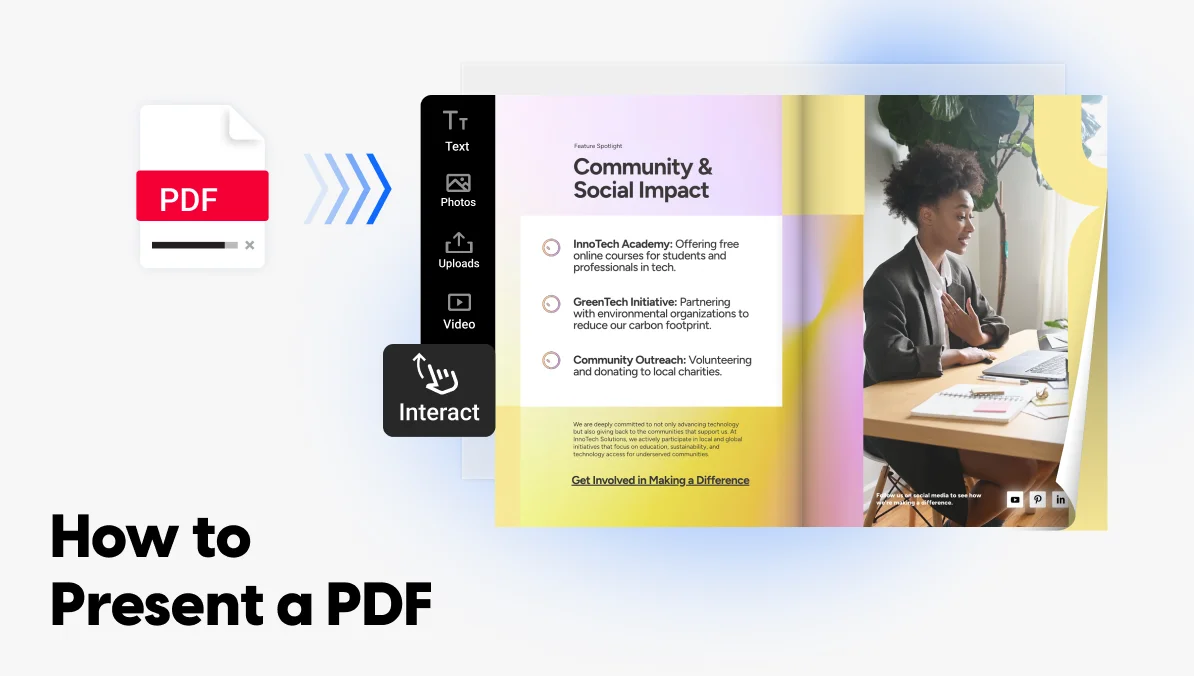
How to Present a PDF: 5 Methods, From Full Screen to Flipbook
Published on: May 6, 2026
You’ve spent hours polishing a PDF, a pitch deck, a report, a portfolio, and now you need to actually present it. Then you hit the wall every PDF user knows: double-clicking opens it in a reader with toolbars, sidebars, and a tiny zoom percentage in the corner. Not exactly the polished moment you were going for.
The good news: you don’t need to rebuild it in PowerPoint. A PDF can be presented well: live on a call, on a big screen, or sent as a self-running experience, as long as you pick the right method for the situation.
In this guide, you’ll find multiple ways to present a PDF, from the built-in full-screen mode in Adobe Acrobat to converting it into an interactive flipbook your audience can flip through on their own. We’ll cover when to use each method, what it looks like in practice, and the small mistakes that make a PDF presentation feel clunky. By the end, you’ll know exactly which option fits your meeting, your audience, and your file.
Table of contents
Why presenting a PDF can be tricky
PDFs were built to be read, not presented. That’s the root of the problem. The format was designed in the early ’90s to preserve how a document looks when printed or shared across devices — fixed layout, fixed fonts, fixed page size. Presenting wasn’t part of the brief.
So when you open a PDF to share on a call or project on a screen, you’re fighting the format:
- The reader interface gets in the way. Toolbars, scroll bars, page thumbnails, and comment panels all stay visible by default, eating into your slide space and pulling focus from the content.
- Navigation feels clunky. Scrolling through a PDF mid-presentation is awkward — you either creep page by page or jump around with a tiny page-number field while your audience watches.
- Pages aren’t slides. A PDF page is sized for paper (A4 or US Letter), not a 16:9 screen. You get black bars on the sides, or content that’s too small to read from the back of the room.
- It’s static. No animations, no clickable elements, no way to embed a video or link out — which makes a 20-page PDF presentation feel like watching someone read a brochure out loud.
- Sharing it later is its own problem. Email a 30 MB PDF and half your recipients won’t open it. Send a link and you lose any sense of who actually viewed it.
None of this means PDFs are bad. They’re excellent for what they were built for: fixed, portable documents. But presenting one well takes a bit of setup, and the right method depends on whether you’re presenting live or sending the file for someone to flip through on their own.
The next sections walk through both scenarios.
Best methods to present a PDF online
Option 1: Open the PDF in full-screen mode
The fastest fix, and the one most people miss: Adobe Acrobat and Acrobat Reader both have a built-in full-screen mode that hides the interface and turns your PDF into something close to a slideshow.
How to do it in Adobe Acrobat (Windows or Mac):
- Open your PDF.
- Press Ctrl + L (Windows) or Cmd + L (Mac). You can also go to View → Full Screen Mode.
- Use the arrow keys or click to advance through pages. Press Esc to exit.
How to do it in Preview (Mac):
- Open your PDF in Preview.
- Go to View → Slideshow (or press Shift + Cmd + F).
- Use the arrow keys to navigate.
Best for: Quick, in-person presentations where the PDF is already polished and you don’t have time to convert it to anything else. Job interviews, internal review meetings, or a last-minute pitch where the file is what it is.
What to watch out for: Full-screen mode shows one page at a time, but pages designed for print (A4 or US Letter) will leave black bars on a 16:9 screen. If you know in advance you’ll be presenting, design the PDF in a 16:9 page size from the start — most design tools let you set custom dimensions before exporting.
You can also tweak the full-screen behavior under Edit → Preferences → Full Screen in Acrobat: set page transitions, looping, or auto-advance timing if you want a hands-free walk-through.
Option 2: Convert your PDF into a presentation
If your PDF was originally a presentation — say, a deck someone exported to PDF before sending it to you — converting it back into PowerPoint or Keynote gives you full presenter tools: speaker notes, transitions, animations, and a clean 16:9 layout.
How to convert PDF to PowerPoint:
- Adobe Acrobat (paid): Open the PDF, go to Export PDF → Microsoft PowerPoint, save the .pptx file.
- Free online tools: Smallpdf, iLovePDF, and PDF2Go all offer free PDF-to-PPTX conversion. Upload the file, download the result.
- Google Slides: Upload the PDF to Google Drive, then use a converter like Smallpdf to get a .pptx, and import it into Slides.
How to convert PDF to Keynote: Convert to PowerPoint first using one of the methods above, then open the .pptx file in Keynote — it imports natively.
Best for: Long presentations where you need speaker notes, builds, or animations. Also useful when the original deck is lost and the PDF is all you have left.
What to watch out for: Conversion is rarely perfect. Fonts get substituted, layouts shift, and any custom design elements (icons, charts, infographics) often come through as flattened images you can’t edit. Budget time to clean up the output before presenting — and if the PDF is heavy on visuals, the conversion may not be worth the cleanup.
Option 3: Share your PDF via screen share on Zoom, Teams, or Google Meet
For remote presentations, screen sharing is the default — but how you share matters more than people realize. Sharing your full desktop reveals notifications, browser tabs, and whatever else is on your screen. Sharing a specific window keeps things clean.
How to do it well:
- Open the PDF in full-screen mode (Option 1) before you start sharing.
- In Zoom, Teams, or Meet, choose Share Screen → Window and select the Adobe Acrobat or Preview window specifically.
- Mute notifications and close any other apps that might pop up.
Best for: Remote pitches, client review calls, internal team walk-throughs — any live, online presentation where you’re talking through the document in real time.
What to watch out for: Screen sharing compresses video, so dense pages with small text can look fuzzy on the other end. Zoom in (Ctrl/Cmd + scroll) on detailed sections instead of expecting your audience to squint. And test your setup once before the meeting starts — discovering your microphone is muted while you’re three slides in is a classic PDF-presentation moment.
Option 4: Embed your PDF on a webpage or landing page
If you want people to access your PDF without downloading it — directly from your website, a landing page, or an internal portal — embedding is the move. It’s also useful when you want the document to live alongside other content (a product page, a blog post, a help center article).
How to embed a PDF:
- Google Drive: Upload the PDF, set sharing to “Anyone with the link,” then use File → Share → Publish to web → Embed. Copy the iframe code into your page.
- HTML iframe: If the PDF is hosted somewhere public, you can embed it directly with <iframe src=”your-pdf-url.pdf” width=”100%” height=”600px”></iframe>.
- Website builders: Most platforms (WordPress, Webflow, Squarespace) have PDF embed blocks or plugins that handle this with a few clicks.
Best for: Product spec sheets, downloadable guides on a landing page, board documents in an internal portal — situations where the PDF is part of a larger page experience.
What to watch out for: Native PDF embeds look like… a PDF inside a frame. The reader still has to scroll, the toolbars still show up, and on mobile the experience often falls apart entirely. If presentation quality matters and you’re embedding on a public-facing page, the next option fixes most of these problems.
Option 5: Turn your PDF into an interactive flipbook
This is where the experience changes completely. Instead of presenting a PDF as a PDF, you convert it into a digital flipbook. A browser-based version of your document with realistic page-turn animations, clickable elements, and a clean reading interface that works on any device.
A flipbook keeps the layout of your original PDF but removes everything that makes a PDF awkward to present. There are no toolbars, no scroll bars, no download prompts. Pages turn like a real book, the file lives at a single shareable link, and you can embed videos, links, GIFs, and forms directly into the pages.
How to turn a PDF into a flipbook with Flipsnack:
- Upload your PDF to Flipsnack (drag-and-drop, no software to install).
- The PDF auto-converts into a flipbook with page-turn animations and a responsive reader.
- Use the Design Studio to add interactive elements — embedded videos, clickable buttons, links to your website, lead capture forms, GIFs, or product tags.
- Customize the branding (logo, colors, background) so the flipbook matches the rest of your materials.
- Publish and share via a public link, embed it on your website, or download the HTML5 version for offline use.
Best for: Async presentations where the audience flips through on their own: sales decks sent after a call, investor pitches, product catalogs, annual reports, client proposals, portfolios. Also strong for live presentations when you want richer interactivity than a static PDF can offer.
What flipbooks solve that PDFs can’t:
- Trackable engagement. See who opened the flipbook, which pages they spent time on, and where they dropped off — useful for sales follow-ups and content performance reporting.
- No file size limits for recipients. A flipbook is a link, not a 30 MB attachment. It opens instantly in any browser, on any device.
- Branded experience. Your logo, your colors, your domain (with custom URLs on paid plans) — not an Adobe Reader window.
- Interactivity that actually works. Embed a product demo video on page 4, a calendar booking link on the last page, or a lead form mid-document. None of that survives in a flat PDF.
- Mobile-friendly by default. The reader adapts to phone and tablet screens automatically, so a recipient opening your pitch on the train sees something readable, not a pinch-and-zoom mess.
Tips for presenting a PDF effectively
The method matters, but so does how you handle the actual presentation. A few things that consistently separate a smooth PDF presentation from a clunky one:
Test your setup before the meeting starts. Open the file, switch to full-screen, share your screen, check what your audience will see. Five minutes of testing prevents the “can everyone see this?” moment that kills momentum in the first thirty seconds.
Pace the page turns. PDFs invite a habit of flipping fast because there’s so little visual change between pages. Slow down. Stay on each page long enough for the audience to read the headline and one or two key points before you move on.
Don’t read the page out loud. Your audience can read. Use the page as a visual anchor and talk around it — share the context, the why, the example that didn’t make it into the document. If you’re just narrating bullet points, you don’t need a presentation.
Zoom in on details. Charts, screenshots, and dense data are unreadable from across a room or through a compressed screen share. Zoom in on the specific section you’re discussing, then zoom out before moving on.
Have a backup plan. Adobe Acrobat crashes. Wi-Fi drops. The conference room TV refuses to recognize your laptop. Keep a copy of the PDF locally, a flipbook link bookmarked, and ideally both — so when one method fails, you switch without losing the room. This is one reason it helps to turn a PDF into a flipbook before an important presentation: the link gives you another clean way to share the same material.
Match the format to the audience. A board reviewing a 40-page report wants to flip at their own pace — send a flipbook link, not a screen share. A sales prospect on a 20-minute call wants you driving — full-screen mode and screen share. Pick the method that fits the moment, not the one you used last time.
Common mistakes to avoid when presenting a PDF
A short list of things that quietly ruin PDF presentations:
- Sharing your full desktop instead of a single window. Notifications, browser tabs, and Slack messages all become part of your presentation.
- Presenting a PDF designed for print. A4 pages on a 16:9 screen leave black bars and shrink your content. If you know it’ll be presented, design at 16:9 from the start.
- Sending a 30 MB PDF as an email attachment. Half your recipients won’t open it, and the ones who do will judge the file size before they judge the content. Use a link instead.
- Skipping the cover page. The first thing your audience sees sets the tone. A blank or default cover signals that the rest probably isn’t polished either.
- Not checking how it looks on mobile. A growing share of recipients open links on a phone. If your PDF or flipbook is unreadable on mobile, you’ve lost them before they reach page two.
- Forgetting to follow up. A presentation isn’t the end of the conversation. Send a flipbook link or a recap with the document attached so the audience can revisit the material later.
Final thoughts
Presenting a PDF well isn’t about finding one perfect method, it’s about matching the method to the situation. Full-screen mode handles the quick in-person pitch. Screen sharing covers the remote call. Conversion to PowerPoint helps when you need presenter tools. Embedding fits when the document lives inside a larger page. And a flipbook handles everything you send for someone to read on their own — with the added benefit of analytics, branding, and interactivity that a flat PDF can’t offer.
The PDF you’ve already designed doesn’t need to be rebuilt. It just needs the right delivery method. Pick the one that fits your meeting, test it before you go live, and let the document do its job.
If you’re sending PDFs regularly, to clients, prospects, investors, or internal stakeholders, turning them into flipbooks gives you a consistent way to share, track, and brand every document, without changing how you create them in the first place.
Frequently asked questions about PDF presentations
You have two options. The first is to use Acrobat’s full-screen mode, which mimics a PowerPoint slideshow, one page at a time, no toolbars, arrow-key navigation. The second is to convert the PDF into a .pptx file using Adobe Acrobat’s export feature or a free tool like Smallpdf, which gives you full PowerPoint presenter tools (speaker notes, transitions, animations). For an interactive alternative, a flipbook offers page-turn animations, embedded videos, and clickable links that PowerPoint can’t replicate.
Not with a standard PDF — once you send the file, you have no visibility into who opened it or which pages they read. To track engagement, you need to convert the PDF into a flipbook or host it on a platform that supports analytics. Tools like Flipsnack show you views, time spent on each page, drop-off points, and (on paid plans) lead capture data, which is especially useful for sales follow-ups and content performance reporting.
All five methods in this guide work offline except the flipbook, which lives in the browser. For offline presentations, stick with full-screen mode in Adobe Acrobat or Preview, both run locally and don’t need a connection. If you want the flipbook experience offline, Flipsnack lets you download an HTML5 version of your flipbook on paid plans, which you can open from your laptop without Wi-Fi. As a backup, always keep a local copy of the PDF on your machine in case the venue’s internet drops mid-presentation.