Accessible University Documents: How Flipsnack Helps Create ADA-Compliant Flipbooks
Published on: November 28, 2025
Last updated: July 29, 2026
In higher education, creating accessible documents is both a moral imperative and a legal necessity. Universities serve diverse audiences, including students and staff with visual, auditory, motor, or cognitive impairments.
In the U.S. alone, over 61 million adults live with a disability – equivalent to roughly 1 in 4 people. If course materials, syllabi, brochures, or reports aren’t accessible, a significant portion of potential readers and learners are effectively excluded.
Beyond inclusivity, accessibility impacts a university’s reputation and compliance status. Laws such as ADA Title III (for public-facing content in the U.S.), Section 508 (for U.S. federal institutions), and the WCAG 2.1 AA guidelines set clear standards that academic content must meet.
Failing to provide accessible digital content (for example, a PDF without alt text or a document that can’t be navigated via keyboard) can not only undermine student success. It exposes institutions to legal and reputation risks.
Accessibility also has practical benefits for universities. When documents are readable by assistive technologies and easy to navigate, more people can find, use, and trust the content, improving engagement and reach.
With Flipsnack universities can transform their existing PDFs or create digital publications from scratch and add accessibility features that help make their content easier to access and navigate.
Table of contents
- Why accessible documents matter in higher education
- The legal and compliance landscape
- What makes a document accessible?
- Why traditional documents often fail accessibility requirements
- How Flipsnack supports accessible publishing
- How universities use these accessible flipbooks made in Flipsnack
- Free templates you can use (accessible or ready to be made accessible)
- Put accessibility into practice with Flipsnack
- FAQs about accessible university documents
Why accessible documents matter in higher education
Accessible documents are an important part of creating an inclusive digital experience in higher education. Students and staff may access university information in different ways and with different technologies, so documents need to be designed with a range of users in mind.
Accessibility can help universities:
- Make digital content easier to navigate and discover
- Provide more equitable access to educational and institutional information
- Support students and staff who use assistive technologies
- Improve the usability of documents for everyone
- Reduce barriers in admissions, learning, and student services
- Support institutional accessibility goals and compliance efforts
The four principles of accessibility
A useful way to understand why accessible documents matter in higher education is through the four principles outlined in the Web Content Accessibility Guidelines (WCAG): Perceivable, Operable, Understandable, and Robust, often referred to as POUR.
These principles provide a framework for creating digital content that can be accessed and used by people with different abilities and different ways of interacting with technology. For universities, applying the POUR principles to documents and digital publications can help remove barriers to essential information and create a more inclusive experience for students, faculty, staff, and prospective students.
1. Perceivable: Make information easy to access
University documents should present information in ways that different users can access. A recent multi-country study of university teaching staff found that inaccessible educational materials significantly restrict students with disabilities from acquiring the knowledge they need for academic success.
Accessibility features can help remove these barriers. For example, a student using a screen reader needs properly structured text and descriptive alt text to access information. A student with low vision may benefit from high-contrast text that is also easier to read on a mobile device or in bright light. Captions and transcripts can also help make multimedia content more accessible.
2. Operable: Make documents easy to navigate
Users should be able to navigate documents in ways that work for them. Keyboard navigation, clear links, and logical layouts can help people move through content with ease. This is especially important for users who cannot use a mouse.
Studies in user behavior indicate that younger audiences (like Gen Z students) will quickly leave content that is hard to navigate.
Good navigation also helps everyone. Students and faculty can find information faster when a long course catalog or handbook has clear navigation and an easy-to-follow structure.
3. Understandable: Make information clear
University documents often contain complex information. Clear headings, simple language, descriptive links, and consistent layouts make content easier to understand and navigate.
These practices can also keep readers engaged. A well-organized document is easier to scan, whether someone is reading a 60-page course catalog or a short admissions guide.
4. Robust: Make content work with assistive technology
Accessible documents should work across different devices and with assistive technologies such as screen readers. Proper PDF tags, a logical reading order, and a clear document structure can help.
A document may look fine but still be hard to use if its underlying structure is not accessible. Making content machine-readable also helps ensure that people can access it across different devices and technologies.
Together, the four POUR principles give universities a practical framework for creating digital documents that more people can access, navigate, and understand.
How does Universal Design for Learning (UDL) support accessibility?
Universal Design for Learning (UDL) is an educational framework that encourages universities and educators to create learning experiences that support different ways of accessing information, engaging with content, and demonstrating knowledge.
Accessible documents can support UDL by making information easier for more students to access and use. For example, a well-structured document can be easier to navigate with a screen reader, while clear headings and searchable text help all students find information faster.
Accessibility focuses on removing barriers for people with disabilities. UDL takes a broader approach by encouraging flexible learning experiences that account for different learner needs from the start.
For universities, combining accessibility and UDL can create more inclusive learning environments. When documents are clear, flexible, and accessible, more students can engage with the information they need in ways that work for them.
Improved discoverability
An often overlooked advantage of accessible documents is better SEO and discoverability. Content that is machine-readable (with proper text structure and alt tags) will be indexed more thoroughly by search engines.
For universities, this means that accessible flipbook brochures or reports are more likely to appear in search results, helping prospective students or researchers find relevant information.
In short, accessible content not only broadens your human audience but can also boost your online visibility.
The legal and compliance landscape
Universities face growing pressure to meet digital accessibility requirements. Depending on the country, institution, funding, and type of content, different laws and standards may apply.
The main frameworks universities may need to consider include:
- ADA and Section 504
In the United States, the Americans with Disabilities Act (ADA) and Section 504 of the Rehabilitation Act play an important role in protecting access for people with disabilities.
For higher education, this means universities may need to ensure that students with disabilities can access educational programs, services, and information.
- Section 508
Section 508 sets accessibility requirements for certain electronic and information technology used by federal agencies and other covered organizations. Universities may encounter these requirements in specific contexts involving federal programs or agencies.
- WCAG 2.2
The Web Content Accessibility Guidelines (WCAG) provide technical guidance for making digital content more accessible. WCAG is widely used as a benchmark for digital accessibility and it’s built around the four principles previously mentioned: Perceivable, Operable, Understandable, and Robust (POUR).
- PDF/UA
PDF/UA is an international standard for creating accessible PDF documents. The standard focuses on the structure and features that help PDFs work with assistive technologies.
This can include document tags, logical reading order, accessible text, and other elements that support screen readers.
- European Accessibility Act
The European Accessibility Act (EAA) sets accessibility requirements for certain products and services in the EU. Its application depends on the organization, product, and service involved.
What makes a document accessible?
Accessibility is a set of requirements that work together to make a document easier to access and use with assistive technology.
The core building blocks include:
Tagged structure and reading order
Headings, lists, tables, and reading order should be defined in the document structure, not just shown visually. This helps screen readers:
- Identify different types of content
- Navigate between sections
- Present information in the right sequence
Alt text for images and charts
Meaningful images, charts, and graphics should have useful descriptions that screen readers can read aloud. Decorative images should be marked as decorative so they can be skipped.
Color contrast
Text should have enough contrast against the background to make it easier to read, especially for people with low vision or color vision deficiencies.
Keyboard navigation
Interactive elements should be reachable and usable for people who rely on keyboard navigation or other input methods. This includes:
- Links
- Forms
- Menus
- Other interactive controls
Captions and transcripts
Multimedia content should provide alternative ways to access information:
- Videos should include captions
- Audio content should have a transcript
These features help people who are deaf or hard of hearing, as well as those who cannot play audio.
Accessible forms and hyperlinks
Forms and links should provide clear information about where to go and what to do.
- Form fields should have clear labels that assistive technology can identify
- Links should use descriptive text
Searchable, non-scanned text
Scanned documents often contain images of text rather than real, selectable text. Optical character recognition (OCR) can create a text layer that assistive technology can access. However, OCR is only a first step. It does not automatically add the tags or structure needed for full accessibility.
Why traditional documents often fail accessibility requirements
A typical PDF of a syllabus or annual report may look professional, but if it’s just a scanned image or missing proper tagging, screen readers can’t interpret it. In fact, most PDFs and digital documents lack the necessary tags and structure for accessibility, which excludes millions of users who depend on assistive tech.
Common issues with traditional documents include:
- Lack of alt text: Images, charts, or graphics in a PDF or slide deck often have no alternative text descriptions. Someone using a screen reader will only hear “image” with no context, losing the information entirely.
- Keyboard unfriendly: Many PDFs or online documents assume a mouse or touchscreen for navigation. For users who rely on a keyboard or assistive switch devices, it can be impossible to jump to a specific section or link. For example, a long course catalog PDF might not let a keyboard user easily skip to the desired program page.
- Inflexible layouts: Traditional static files often aren’t mobile-responsive or easily zoomable. A student viewing a PDF on a phone may need to scroll in multiple directions to read the content. If text can’t reflow or adjust, it’s a problem for readers with low vision who need enlargement.
- No multimedia accommodation: A static document can’t accommodate captions or transcripts for multimedia content, while an interactive format could. If a PDF prospectus links to a video message from the university president without captions, that’s an accessibility gap.
While PDFs and other static formats are familiar, they often require significant remediation (adding tags, alt text, etc.) to meet accessibility standards. Without the right tools or expertise, a university could unknowingly publish content that screen reader users, keyboard-only users, or colorblind users struggle with or cannot use at all.
This is where digital publishing platforms like Flipsnack come into play as a solution.
How Flipsnack supports accessible publishing
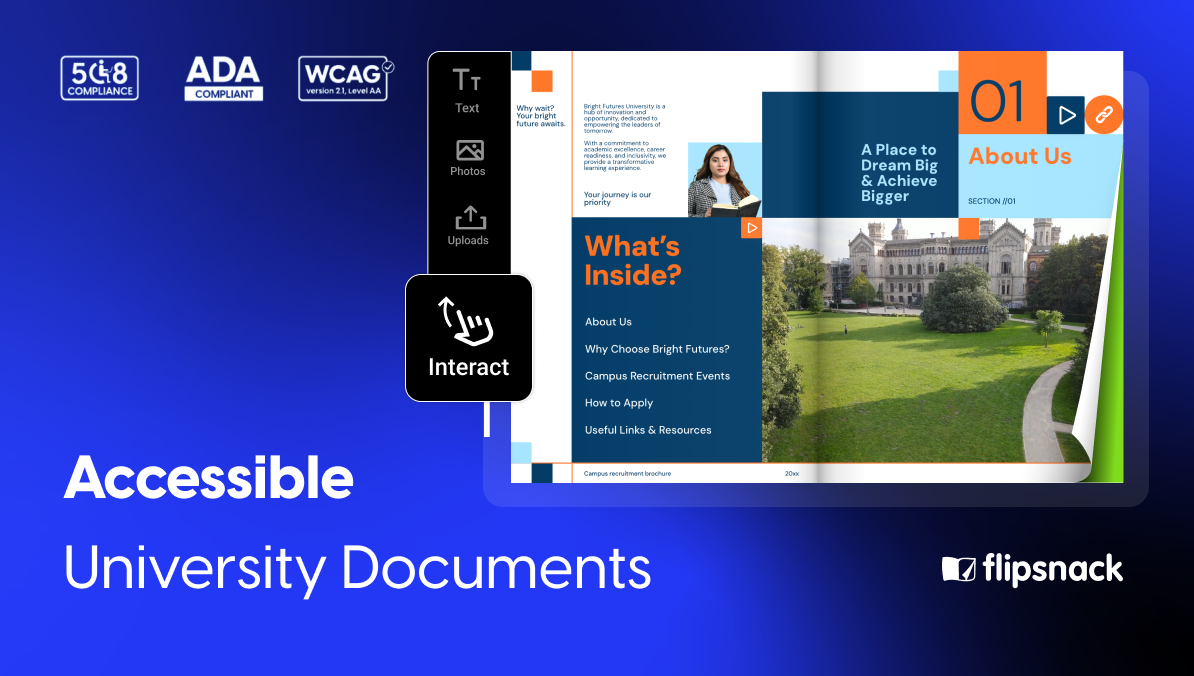
Flipsnack turns PDFs or templates into interactive, mobile-friendly flipbooks while keeping accessibility in focus. You can publish course materials, brochures, magazines, and reports as flipbooks that still meet WCAG 2.1 AA and ADA requirements, so you do not trade accessibility for interactivity.
1. Compliance foundation
Flipsnack’s Design Studio viewer, and website are built to follow WCAG, ADA, and Section 508. Universities still need to test their own flipbooks, yet they begin from a platform that already respects core accessibility rules. Each new publication can then be both engaging and inclusive by default.
2. Screen reader support
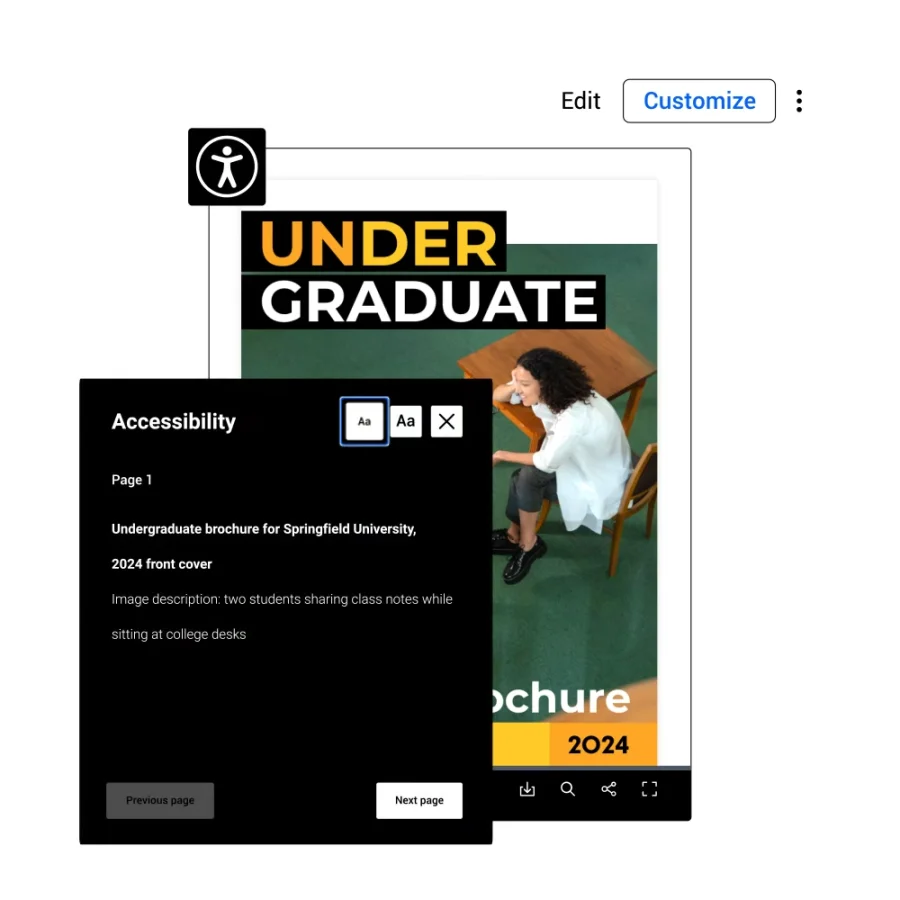
When accessibility is enabled, readers can open an Accessibility Panel in the viewer. This shows the content in a clean text view that works well with screen readers and presents the page in a logical reading order, even if the visual layout is complex.
3. Keyboard navigation
Flipsnack’s viewer can be used entirely with a keyboard. Readers can move between pages, follow links, open the Accessibility Panel, and use controls without a mouse. This is essential for users with motor impairments and also improves usability for power users who prefer keyboard shortcuts.
4. Alt text and images
Creators can add or edit alternative text for images, charts, and other non-text elements directly in the editor. That means a campus map, data chart, or photo in a digital magazine can always have a meaningful description that a screen reader will read aloud.
5. Structure and tagging
Flipsnack keeps a clear structure behind the scenes. It preserves headings, lists, and other semantic elements from an accessible PDF and adds an accessibility layer so assistive technologies can parse the content correctly. This helps the flipbook meet WCAG requirements for document structure and navigation.
6. AI-assisted accessibility
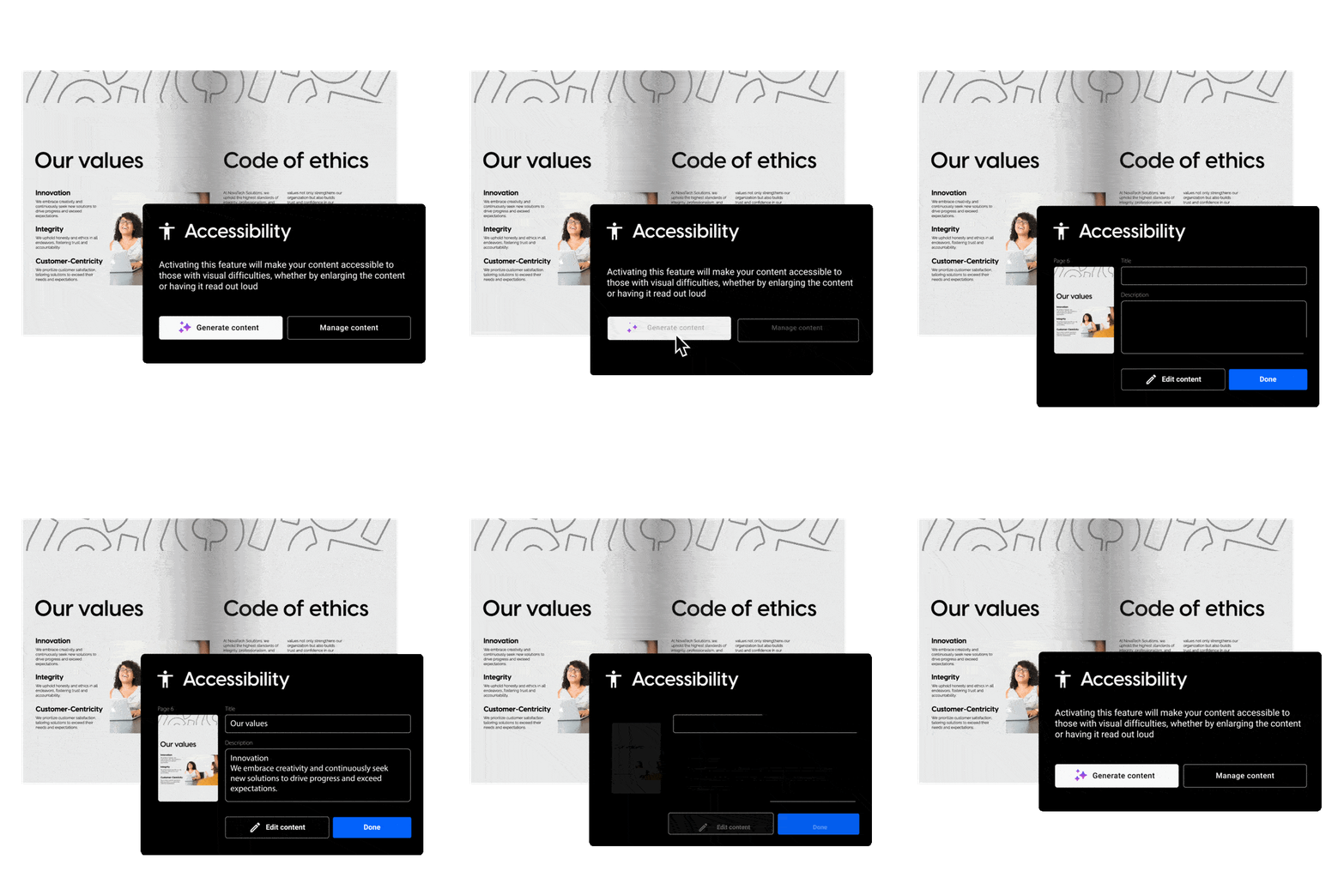
AI tools can help speed up parts of the accessibility process. For example, AI-generated page summaries can provide a starting point for making visual or text-heavy publications easier to understand.
Human review is still important. Universities should check AI-generated content for accuracy and make sure accessibility features correctly describe the original content.
Tools like AI detection software can help ensure that students’ work remains original. For instance, learning how to design chatgpt-proof assignments can complement accessible digital materials, ensuring both inclusivity and authenticity in educational content.
How universities use these accessible flipbooks made in Flipsnack
Universities already publish a steady flow of magazines, guides, and reports. Universities create more engaging reading experiences by turning these documents into accessible flipbooks with Flipsnack. The content becomes easier to access and navigate with features such as screen reader support and keyboard navigation.
UCLA
UCLA’s Division of Graduate Education publishes its graduate studies brochure as a flipbook. It also creates program booklets for Graduate Admitted Student Days.
This format gives prospective and admitted students an easy way to explore information online. Publications can include links to program pages, videos, and inquiry forms, helping students find the next step without leaving the digital publication.
For universities, this type of interactive content can also support a more accessible experience when publications are created with features such as screen reader support, keyboard navigation, clear structure, and alternative text.
Dartmouth College
The Hood Museum of Art at Dartmouth College uses flipbooks for exhibition brochures, collection guides, and accessibility resources. Its digital resources include large-print gallery labels for visitors with visual impairments, as well as educational materials such as coloring pages.
This shows how universities can use digital publications to provide information in formats that meet different audience needs. Large-print materials can support visitors with low vision, while digital publications can also provide features that make content easier to navigate and access.
For university museums and other departments, accessible digital publishing can help extend the reach of educational and cultural resources beyond the physical campus.
Other ways universities can use Flipsnack for accessible documents
Beyond these examples, universities can use accessible flipbooks for many other materials, for example
- Course catalogs and program guides
- Student handbooks and academic regulations
- Orientation guides and student life information
- Housing, dining, and campus services guides
- Internal newsletters and HR or policy manuals
- Research highlights, case study collections, and impact reports
All of these start as documents the university already creates. Publishing them as accessible flipbooks simply makes them easier to use for everyone, including people who rely on screen readers or keyboard navigation.
With these in mind, let’s see some free templates from Flipsnack you can use and make accessible.
Free templates you can use (accessible or ready to be made accessible)
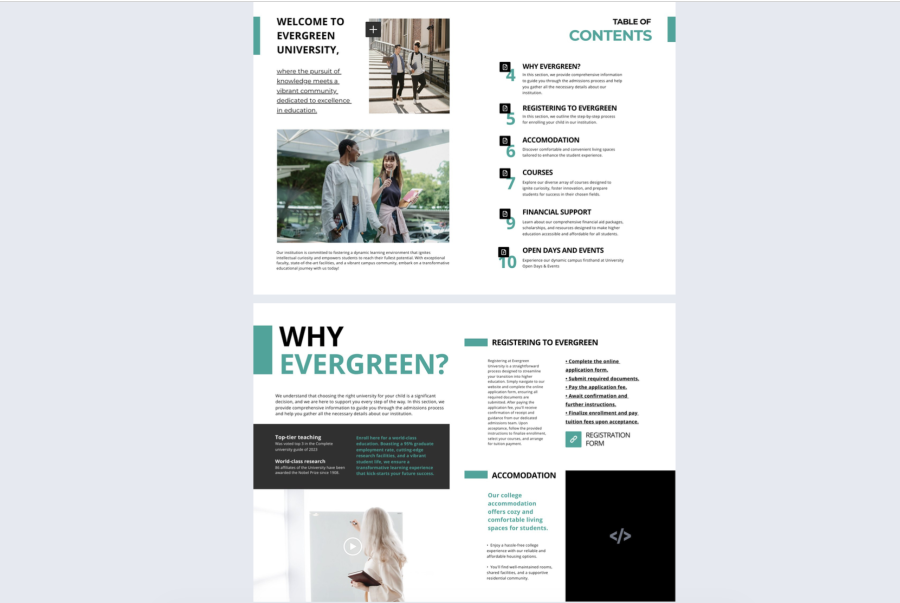
1. Online Admissions Handbook Guide Template
Help new students navigate their first semester with less stress. This admissions handbook template covers the essentials: registration, accommodation, courses, and financial support.
Simply add your university’s specific details to this ready-made template. You can share it publicly on your website or send it directly to incoming students.

2. Interactive Online University Prospectus Template
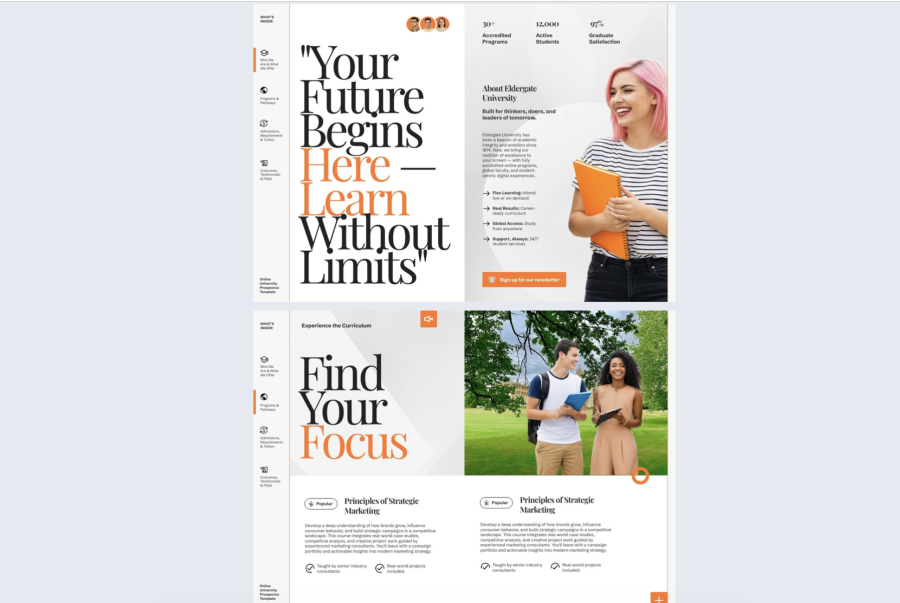
A modern prospectus designed for showcasing your programs and campus life. This template supports interactive elements like embedded videos, clickable links, contact forms, and page navigation—making it easy for prospective students to explore what your university offers.
The layout includes space for program details, admission requirements, campus highlights, and student support services. Perfect for universities that want to create an engaging digital first impression.
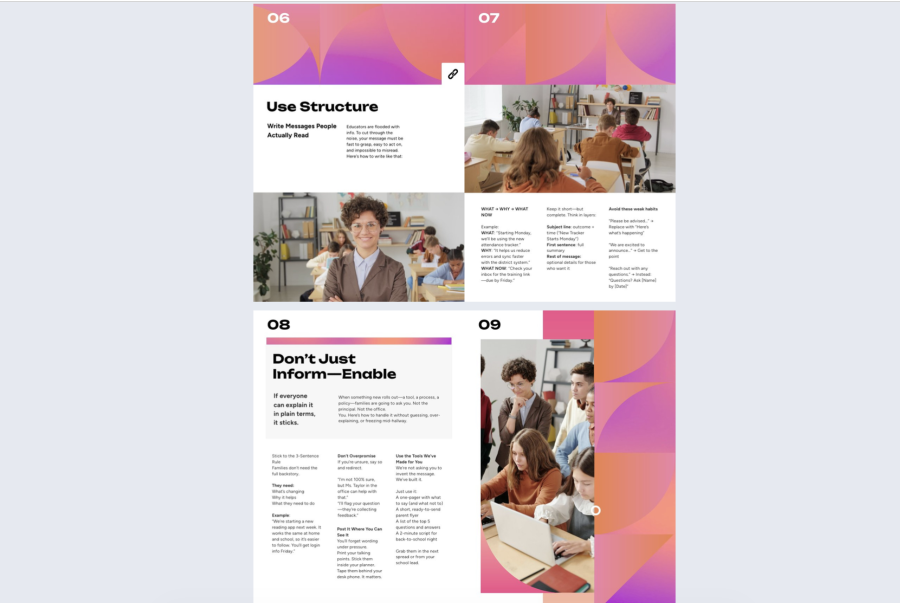
3. School Communication Toolkit Example
A practical resource for teachers and administrators who need to communicate program updates to families. This toolkit helps you create clear, actionable messages that parents will actually read and understand.
It includes ready-to-use flyers and email templates, communication best practices, and examples of what to avoid. Interactive features like embedded videos, audio explanations, and reflective questions make it easy to implement. Ideal for improving parent engagement across your district.
4. Digital Workshop Guide Example
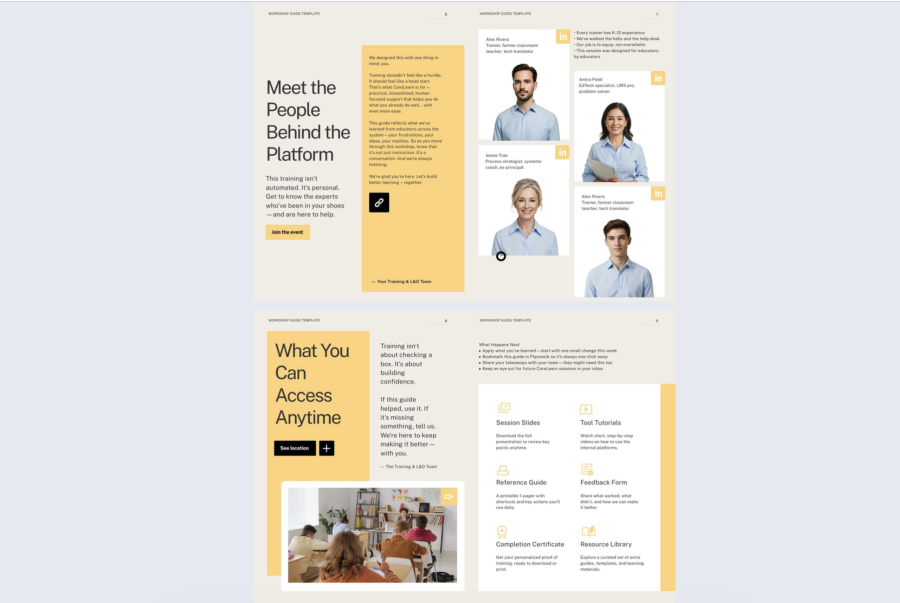
An interactive resource for delivering professional development sessions to educators. This guide includes session introductions, learning objectives, agendas, trainer bios, and follow-up resources—all in one organized document.
Interactive elements like embedded videos, quizzes, maps, and contact forms keep participants engaged. Perfect for hosting virtual or hybrid workshops with a polished, educator-friendly experience.
5. Digital College Enrollment Guide Template
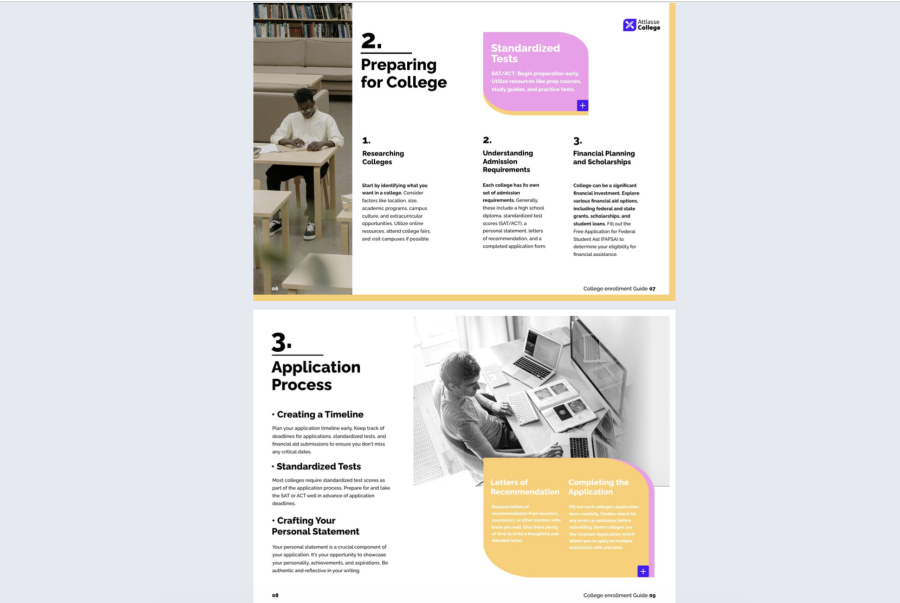
Support prospective students through the enrollment process with this comprehensive guide. It walks applicants through college preparation, the enrollment timeline, and interview preparation.
Add interactive elements like videos, page navigation buttons, and slideshows to make the content more engaging. Use Flipsnack’s AI to generate alt text summaries for accessibility. Share it on your website or social media to reach more applicants.
Put accessibility into practice with Flipsnack
Accessible documents are not optional for universities. They offer equal access, legal compliance, and give everyone a usable reading experience. Static PDFs and print thinking do not match how students, staff, and alumni actually consume information today.
Flipsnack gives universities a practical way to publish accessible versions of the documents they already create, from course syllabi to annual reports. You keep the design and interactivity, while students with screen readers, staff with mobility impairments, and alumni with low vision can still access the same content.
Adopting accessible flipbooks is a simple, visible step toward academic quality and genuine inclusivity, and it shows that no one on campus is an afterthought.
FAQs about accessible university documents
Start with a clear document structure and use proper headings, alt text, accessible tables, and descriptive links. Make sure the PDF has a logical reading order, proper tags, and searchable text. Test the document with accessibility tools and assistive technologies before publishing.
Universities can use automated accessibility checkers to find common issues. They should also test documents with keyboard navigation and assistive technologies such as screen readers. Human review is important because automated tools cannot identify every accessibility problem.
Universal Design for Learning (UDL) encourages educators to create flexible learning experiences for different types of learners. Accessible documents support this goal by making information easier to access and use in different ways.
Use clear headings, descriptive links, readable text, and sufficient color contrast. Add alt text to meaningful images and make sure tables are accessible. If the syllabus is shared as a PDF, check its tags and reading order before publishing.
WCAG 2.2 is a widely used technical standard for digital accessibility, but the specific requirements that apply to a university depend on its location, legal obligations, and type of content. Universities should review their own accessibility policies and legal requirements to determine which standards apply.