Accessible Flipbooks: How to Create Inclusive Content with Flipsnack
Published on: July 21, 2025
Last updated: May 21, 2026
Digital content has never been more widely used, but much of it still isn’t usable by everyone. For millions of people, basic tasks like reading a brochure or navigating a report are impossible when the content isn’t accessible.
Accessible flipbooks solve this. They’re designed to be readable, navigable, and understandable for people who use assistive technologies like screen readers, or who rely on keyboard-only input. When done right, they remove barriers and make your message available to everyone.
Building an accessible flipbook is not just about doing the right thing. It is about reaching more users, creating better experiences, and reducing legal risk. It is about making sure your PDF flipbook is ADA compliant, searchable, and trusted by as many people as possible.
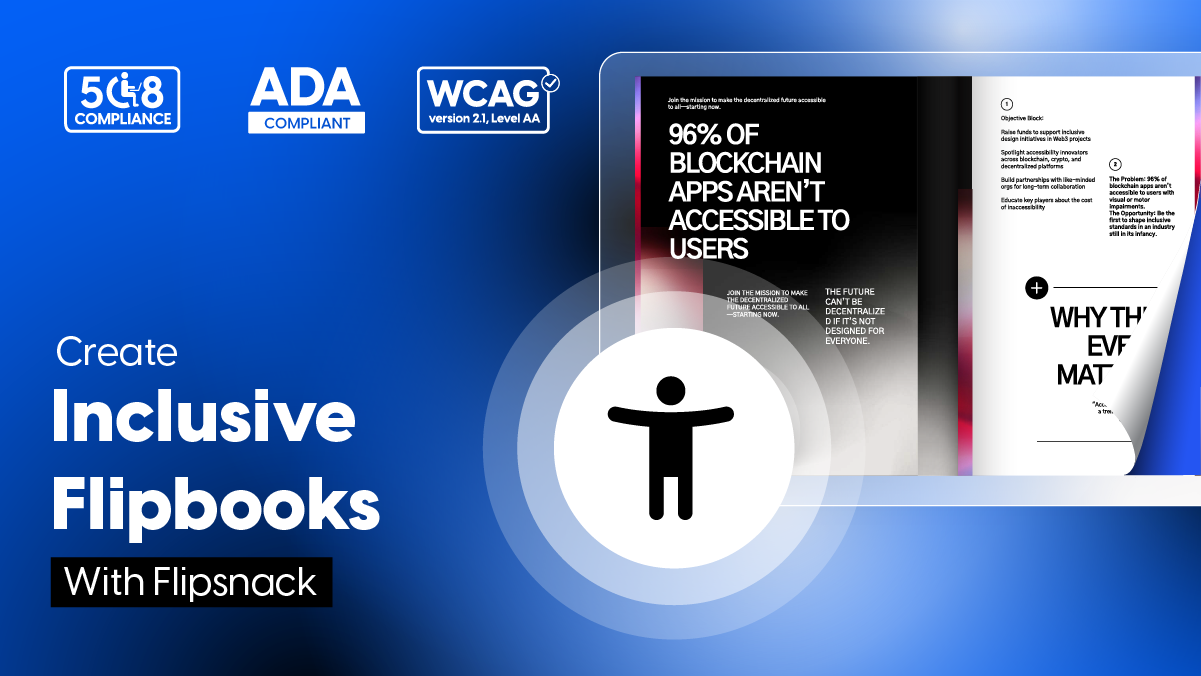
In this guide, we focus on how to create accessible flipbooks using Flipsnack, a digital flipbook maker with built-in WCAG and ADA compliance tools.. Whether you’re uploading a properly tagged PDF or building content with one of Flipsnack’s templates, the goal is the same: ensure your publication meets recognized accessibility standards like WCAG 2.1 AA and ADA compliance, without losing interactivity or design quality.
Key takeaways
- Most PDFs and digital documents aren’t accessible by default, which excludes millions of users.
- To make a PDF accessible, start with a structured source file, use alt text for images, export properly, and run an accessibility checker.
- Flipsnack lets you turn accessible PDFs into interactive flipbooks that still meet WCAG 2.1 AA and ADA compliance standards.
- Accessibility features in Flipsnack include screen reader support, keyboard navigation, and alt text editing.
- Accessible flipbooks meet WCAG 2.1 AA, ADA, Section 508, and the European Accessibility Act (EAA), opening your content to a wider audience and keeping you compliant in the US and EU.
Table of contents
- Why accessible digital flipbooks matter
- What ADA compliance means (and how it relates to section 508 and WCAG)
- What makes PDFs and flipbooks ADA-compliant?
- How to make a PDF accessible
- How to create accessible flipbooks in Flipsnack
- Why Flipsnack is a great platform for accessible flipbooks
- Accessible flipbook templates to start with
- Final thoughts
- FAQ on accessibility
An accessible flipbook is a digital publication built so people with disabilities can read, navigate, and understand it on equal terms with everyone else. That means a person using a screen reader, navigating with a keyboard, or relying on text resizing gets the same content, in the same order, with the same meaning as a sighted mouse user.
In practice, an accessible flipbook has a few things going for it:
- A logical reading order, so screen readers like NVDA, JAWS, or VoiceOver move through the content the way the author intended
- Alt text on every image, so visual content is described and not skipped
- Full keyboard navigation, so users can move between pages, links, and interactive elements without a mouse
- Visible focus indicators and a logical tab order
- A color contrast ratio of at least 4.5:1 between text and background
- Text that can scale up to 200% without breaking the layout
- A clear language declaration, so screen readers use the right pronunciation
Why accessible digital flipbooks matter
1. Reach more people
Accessible flipbooks make your content usable by everyone, including people with visual, hearing, motor, or cognitive impairments. In the U.S. alone, that’s over 61 million adults. If your digital publications aren’t accessible, you’re excluding 1 in 4 potential readers, customers, or students.Whether you’re creating catalogs, reports, guides, or brochures, document accessibility ensures no one is left out. It shows you value inclusivity.
2. Improve SEO and discoverability
Accessible documents are also better for search engines. When your flipbooks are machine-readable, they get indexed more thoroughly. That means higher search rankings, better visibility, and more organic traffic.Elements like clear headings, descriptive alt text for images, and readable structure all contribute to both usability and SEO performance.
3. Enhance user satisfaction and brand trust
When people can actually use your content they stay longer, engage more, and come back. Accessibility features like keyboard navigation and alt text for images make digital flipbooks easier for everyone to read, not just people with disabilities.
Delivering a smooth, accessible experience also strengthens your brand’s reputation. It signals that your organization values quality and cares about all users.
4. Avoid legal risk
Accessibility is a legal requirement in many places. Laws like ADA Title III (U.S.), Section 508 (U.S. public sector), or the European Accessibility Act require digital content to be accessible. Businesses that ignore this risk lawsuits over barriers like unreadable PDFs, missing alt text, or poor keyboard support.Knowing how to make PDF ADA compliant can protect your organization from legal exposure.
What ADA compliance means (and how it relates to section 508 and WCAG)
In the U.S., there are three key standards to know when it comes to digital accessibility:
1. The Americans with Disabilities Act (ADA) requires that all public-facing spaces, including websites and digital content, be accessible to people with disabilities. This applies to both government institutions and private businesses.
2. Section 508 of the Rehabilitation Act mandates that federal agencies ensure all information and communication technology (ICT) is accessible. This includes software, websites, PDFs, online training, and more.
3. The Web Content Accessibility Guidelines (WCAG) provide detailed technical standards for making web content accessible. While the checklist is long, the core idea is simple: always offer an alternative way to access information.
4. The European Accessibility Act (EAA) requires that digital products and services sold in the EU, including digital publications, meet accessibility standards from June 2025 onward. It is built on the EN 301 549 standard, which itself references WCAG. If you publish content for an EU audience, the EAA applies to you.
What makes PDFs and flipbooks ADA-compliant?
To make a PDF accessible, you need to follow a few key principles:
- Add captions for all audio and video content.
- Use alt text for images and graphics so screen readers can describe them.
- Ensure text can be selected and read by assistive technologies like screen readers or voice access tools.
- Make sure users can resize the text and that there’s enough contrast between text and background.
- Include a clear structure, such as headings, bookmarks, or a table of contents, to help users navigate.
These features make it easier for people with visual, auditory, or cognitive impairments to understand and use the content. In a standard PDF, accessibility is mostly about structure and semantics. A properly tagged PDF, ideally conforming to the PDF/UA standard (ISO 14289), gives assistive technologies the structure they need to read content in the correct order. With the right PDF accessibility tools like Adobe Acrobat, even a simple tagged PDF can meet accessibility standards fairly easily.
Flipbooks, however, add another layer of complexity. Unlike static PDFs, flipbooks often include videos, buttons, animations, or interactive navigation. These features make them more engaging but they also introduce more chances for accessibility issues. Interactive elements might not be keyboard-friendly. Embedded media might not have captions. Visual effects might not work well with screen readers.
The main challenge is that the flipbook format itself isn’t ADA-compliant by default.
But that doesn’t mean accessibility is out of reach. It just means you need both the right tools and the right habits. The platform has to support accessibility features, and you (as the content creator) need to use them intentionally.
That’s where Flipsnack comes in.
It gives you a way to take an ADA-compliant PDF and turn it into an interactive flipbook, while still keeping accessibility in mind.
Let’s look at how to create an accessible PDF, then make it interactive with Flipsnack.
How to make a PDF accessible
Turning static PDFs into dynamic flipbooks is the core of our product. But to make a PDF flipbook ADA compliant, you need to start with an accessible source file and build accessibility in from the very beginning.
Here’s how to do it.
1. Start with an accessible source file
Before you export anything to PDF, make sure your original file is already following accessibility best practices. That means:
- Using proper heading levels (like Heading 1, Heading 2, and so on)
- Creating lists with built-in formatting tools
- Writing clear and descriptive link text
- Adding alt text to images and graphics
- Setting the document’s language
Keeping tables simple and using defined headers
Word and PowerPoint both offer built-in accessibility checker tools. If you’re wondering how to make PDF accessible, the answer is to build it right from the beginning.
2. Export the right way
Avoid using “Print to PDF.” This strips out all structure and tags, leaving you with a flat file that won’t work for screen readers.
Instead, use the “Save As” or “Export” option and choose the PDF format that keeps accessibility features. This helps preserve:
- Headings
- Alt text for images
- Table structure
- Language settings
3. Run an accessibility check
After exporting, you can check the file using:
- Adobe Acrobat’s built-in accessibility checker
- PAC 3 (PDF Accessibility Checker)
- A screen reader like NVDA or VoiceOver
Check for reading order issues, missing tags, or unlabeled images. These are the most common reasons a PDF isn’t ADA-compliant.
4. Set permissions and visibility properly
- Make sure your PDF isn’t restricted:
- Avoid passwords
- Allow screen reader access and copying
- Enable link navigation and printing
You can review these settings in Adobe Acrobat under File > Properties > Security.
5. Add alt text for images and set the language
These might seem like small details, but they make a big difference. Screen readers rely on them to function properly.
- Every image or visual element should have clear, helpful alt text
- The document’s primary language should be set correctly so that screen readers pronounce words as intended
- Color contrast should hit at least 4.5:1 between text and background, so readers with low vision can read comfortably
- Text should scale up to 200% without breaking the layout or cutting off content
Skipping these steps is one of the main reasons PDFs fail accessibility tests.
6. Test it in real conditions
You don’t need to be an accessibility expert to do some basic testing. Try:
- Navigating through the PDF using only your keyboard
- Use a screen reader to verify reading flow
- Ask someone with accessibility experience for feedback
These steps are the foundation of how to make a PDF 508 compliant and inclusive. The next step is bringing that content into a flipbook format without losing accessibility, and ideally, adding even more value through interactivity.
How to create accessible flipbooks in Flipsnack
Flipsnack gives you the tools to turn a well-prepared PDF into an engaging, accessible flipbook experience.
Let’s look at how to make that happen.
1. Upload a PDF or start with a template
Log into Flipsnack and upload your ADA-compliant PDF or start fresh using one of our accessible templates. Your PDF will be converted into a flipbook and any existing links in the file will remain clickable, improving navigation and usability for all readers.
2. Add interactive elements
Once your content is in place, you can enrich it with additional interactive elements. These are also accessible through keyboard navigation, which helps users who can’t use a mouse interact with your content more easily.
3. Enable accessibility features
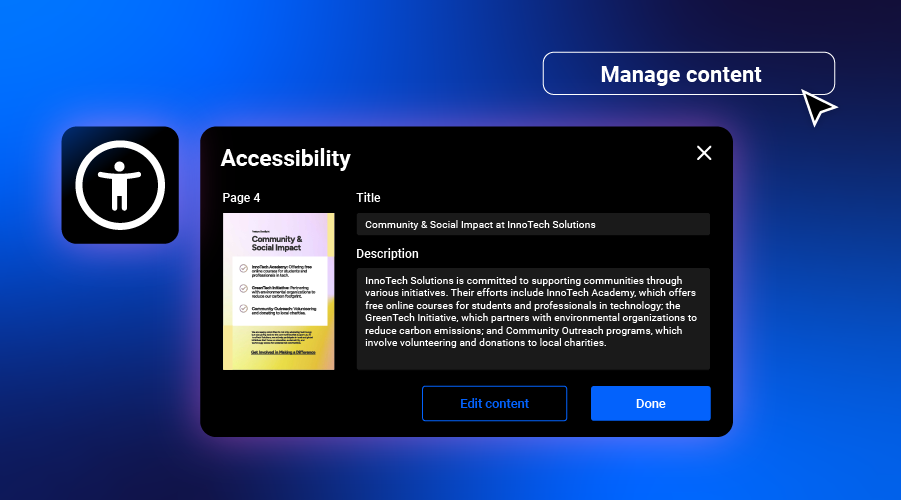
When your flipbook is ready, you can generate an AI summary for each page, extract text directly from the flipbook, or write your own descriptions. These summaries help screen readers interpret the content clearly, page by page.
Here’s an example of a text generated with AI. To see the result, click on the Accessibility icon from the left side of your flipbook:
4. Publish and share your flipbook
Once everything is set up, publish your flipbook and share it however you prefer — via direct link, email, or by embedding it on your website. When someone opens it, they can activate accessibility mode using the keyboard.
Screen readers like JAWS, VoiceOver, and TalkBack will then read the content out loud, giving all users access to the full experience.
Keyboard navigation in accessible flipbooks
For many readers, the mouse is not an option. People with motor impairments, screen reader users, and anyone with a temporary injury rely on the keyboard to move through digital content. If your flipbook breaks that experience, you lose them at the first page turn.
A keyboard navigable flipbook lets users do everything a mouse user can do, using only a keyboard. That covers turning pages, opening interactive elements, following links, activating buttons, and exiting modal windows. It sounds simple, but most flipbook software still gets this wrong.
Here is what to check for in a keyboard navigable digital magazine or flipbook:
- Tab order is logical. The Tab key should move through interactive elements in the same order a reader would expect visually, top to bottom and left to right.
- Focus is always visible. Whichever element has focus should show a clear outline, so users know where they are on the page.
- Page turns work without a mouse. Arrow keys or dedicated shortcuts should flip pages forward and backward.
- All interactive elements are reachable. Buttons, video controls, links, and pop-ups should all accept keyboard input. Nothing should be mouse-only.
- Escape closes overlays. Pressing Escape should close any open modal, lightbox, or expanded view and return focus to where the user was.
- No keyboard traps. Users should never get stuck inside an element with no way to tab out.
Flipsnack handles all of this by default. Every accessible flipbook supports full keyboard control, with logical tab order across pages and interactive elements, visible focus indicators, and standard shortcuts for page navigation. Readers can move through an entire publication without touching a mouse, and screen reader users get the same experience aligned with what their assistive tech expects.
Why Flipsnack is a great platform for accessible flipbooks
Flipsnack simplifies the process of making digital publications accessible by combining powerful features with ease of use. Whether you’re starting from an accessible PDF or building a flipbook from scratch, the platform gives you the tools to meet compliance standards and reach more people.
Accessibility features built in
Flipsnack supports WCAG 2.1 AA compliance, helping you meet recognized accessibility standards without needing external tools or workarounds.
- Screen reader support is built into every accessible flipbook. Flipsnack optimizes structure behind the scenes to make content easier to read with tools like JAWS, VoiceOver, or TalkBack.
- High contrast display options and text scaling improve readability for people with low vision or cognitive impairments.
- The alt text editor is integrated directly into the interface, making it easy to describe images and graphics properly.
- Automatic checks help flag issues early so you can make adjustments before publishing.
- An accessibility statement and conformance documentation are available on request, which matters for enterprise procurement, government tenders, and any organization that needs a VPAT or third-party audit trail.
With these features in place, Flipsnack gives you everything you need to create inclusive, interactive content that goes beyond static PDFs, all without adding unnecessary complexity to your workflow.
Accessible flipbook templates to start with
All flipbooks in Flipsnack can be made accessible, but to make things easier, we also offer ready-made accessible templates you can start from.
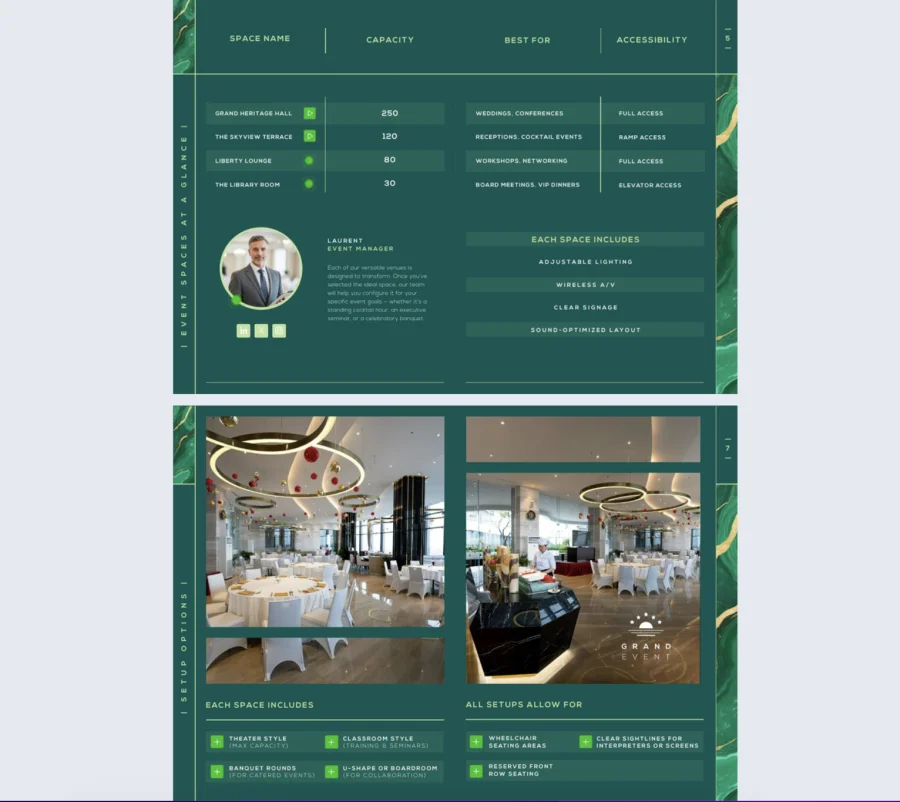
1. Digital hotel event brochure template
Perfect for hotel marketers, event planners, and sales teams, this accessible hotel event brochure template is designed to promote your event spaces to a broad and inclusive audience. It features large, easy-to-read fonts, ADA-compliant layouts, and built-in alt text for images. There’s also space to highlight venue accessibility features, so every guest gets the information they need.

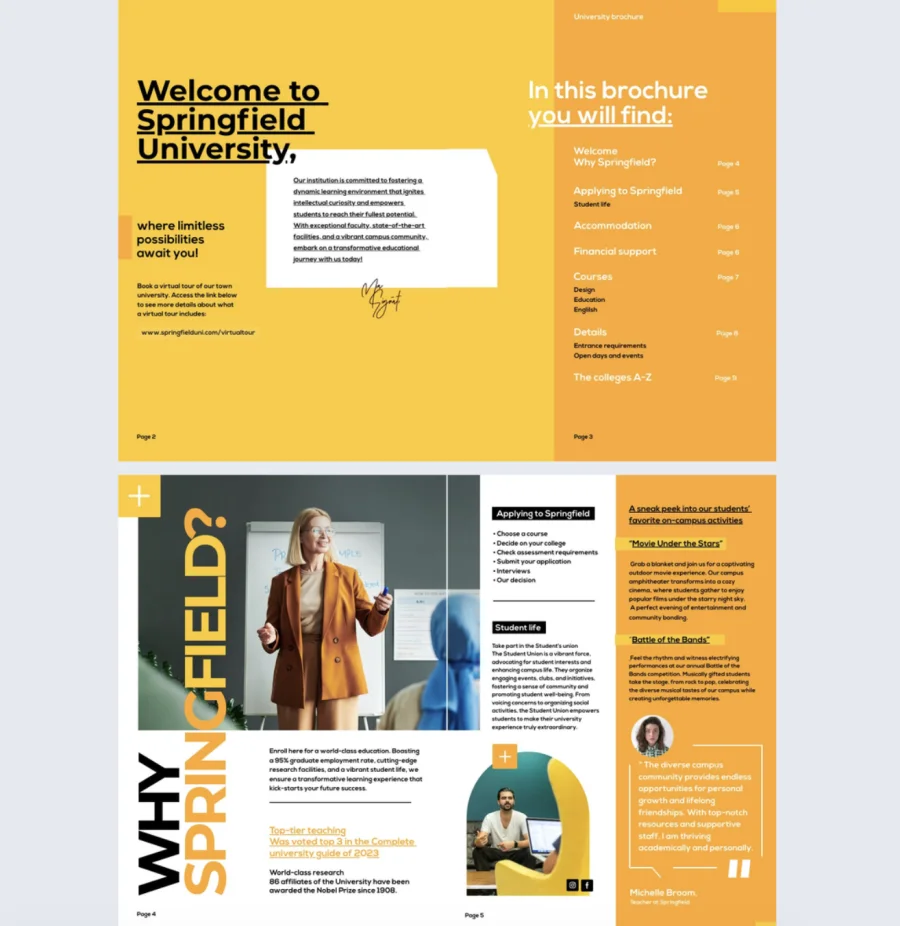
2. Online graduate university brochure template
Promote your graduate program with an inclusive, easy-to-navigate brochure. This graduate university brochure template supports accessibility features like image and video captions, clear structure, and keyboard-friendly navigation, ensuring all prospective students can engage with your content. Add social media links for easy sharing, include detailed program info, and customize the layout with your university’s branding to make a strong, accessible first impression.
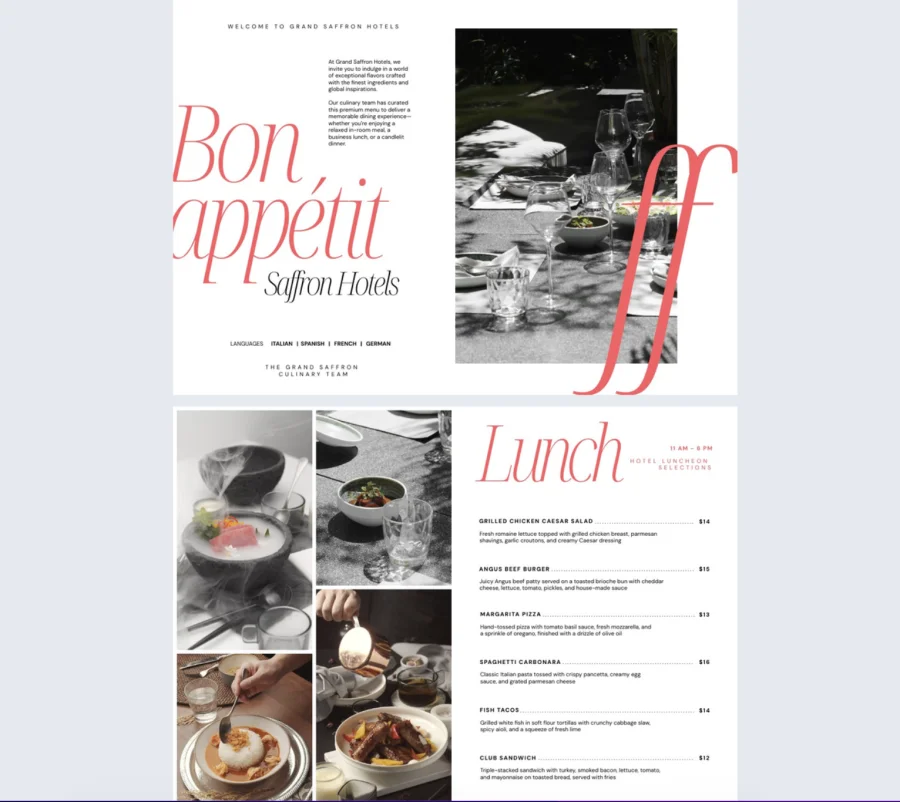
3. Digital hotel menu template
Designed for hotel restaurants, this menu template helps you showcase food and beverage options in a format that’s both polished and inclusive. With built-in accessibility features and AI-powered translation, it’s easy to offer your menu in multiple languages — perfect for international guests. Add videos, GIFs, and branded visuals to enhance engagement, all while keeping the design on-brand and easy to navigate for everyone.
Accessible flipbooks for non-profits
Non-profits have a stronger case for accessibility than almost any other type of organization. Your audience is broad by design. Donors, volunteers, beneficiaries, grant officers, board members, and the public all need to read the same annual report, impact brief, or program guide. If your content is not accessible, you are quietly excluding some of the people you exist to serve.
There are also practical reasons to take accessibility seriously as a non-profit:
- Grant compliance. Many federal, state, and EU grants now require digital deliverables to meet WCAG 2.1 AA or Section 508 standards. An accessible flipbook keeps you eligible.
- Donor trust. Accessibility signals that your organization takes inclusion seriously, not just in messaging but in execution. That matters to donors who care about how you operate.
- Wider reach for impact reports. Your annual report should be readable by every supporter, including those using assistive technology. An accessible PDF flipbook gets indexed better in search and works for more readers.
- Lower legal exposure. Non-profits are not exempt from ADA Title III. Public-facing digital content is held to the same standard as for-profit organizations.
Flipsnack is a strong fit for non-profit teams that need to publish accessible content without a dedicated accessibility specialist on staff. The platform handles WCAG 2.1 AA conformance, keyboard navigation, alt text, and screen reader support out of the box, which means smaller teams can produce ADA-compliant flipbooks without outsourcing or buying separate accessibility software.
Final thoughts
Accessible flipbooks help you reach more people, improve search performance, and reduce the legal risk that comes with publishing content that is not ADA compliant or WCAG conformant.. If your PDF isn’t accessible, it’s leaving readers behind. Use the right structure, add alt text for images, run an accessibility checker, and choose tools like Flipsnack that support WCAG and ADA compliance from the ground up.
Start with an accessible PDF, turn on accessibility features, and test before publishing. That’s how you make your content usable, not just visible.
FAQ on accessibility
An accessibility checker scans digital content like PDFs, websites, or documents to flag issues that block people with disabilities from using it. It catches problems such as missing alt text, low color contrast, broken heading structures, and elements that fail keyboard access. Free tools like WAVE, axe, and Lighthouse cover most automated checks, and Word, Acrobat, and Google Docs all have built-in options too. Even so, no tool catches everything. Manual testing is still the only way to spot issues like unclear link text or confusing layouts.
Yes. In Flipsnack, you can go back into the editor at any time to adjust accessibility settings, add or update page descriptions, or regenerate AI summaries. Any changes you make can be saved and republished without needing to recreate the flipbook from scratch.
Not all templates are automatically accessible. Some may require adjustments, like improving color contrast or adding alt text to visuals. That’s why it’s important to use the accessibility checker and manually review your flipbook before publishing.
Yes. When accessibility mode is enabled in your flipbook and the reader uses a compatible screen reader (like JAWS, VoiceOver, or TalkBack), the software will recognize the structure and begin reading the content aloud once the reader activates the flipbook.
Scanned PDFs are essentially images unless they’ve been run through OCR (Optical Character Recognition). You’ll need to convert the scanned file into selectable, text-based content before using any PDF accessibility tools or uploading it to Flipsnack.
An accessible PDF is a static document with tags, alt text, and a defined reading order. An accessible flipbook takes that same content and turns it into an interactive web publication, while preserving the underlying accessibility features. The flipbook adds keyboard-navigable page turns, interactive elements, and a reader interface that works with assistive technology. The PDF is the foundation. The accessible flipbook is what readers actually experience.