The Ultimate Guide to PDF SEO: How to Rank Your Documents in Google
Published on: August 14, 2025
Last updated: October 20, 2026
In August 2026, SEOs started posting Search Console screenshots of PDFs falling to zero impressions. IRS tax forms dropped out of results. So did state employment forms and long-running lead magnets. Google acknowledged the reports but hasn’t named a cause (Something Inc., August 2026).
Two months later, Google explained on its own podcast how it handles PDFs. The short version: a PDF only ranks if Google can turn it into clean, readable text.
That’s the real problem with most business PDFs. The content is fine. The format hides it.
This guide covers how Google and AI search engines read PDFs in 2026, the settings that get a PDF indexed, and when to publish the same document as an HTML5 flipbook instead.
What is PDF SEO?
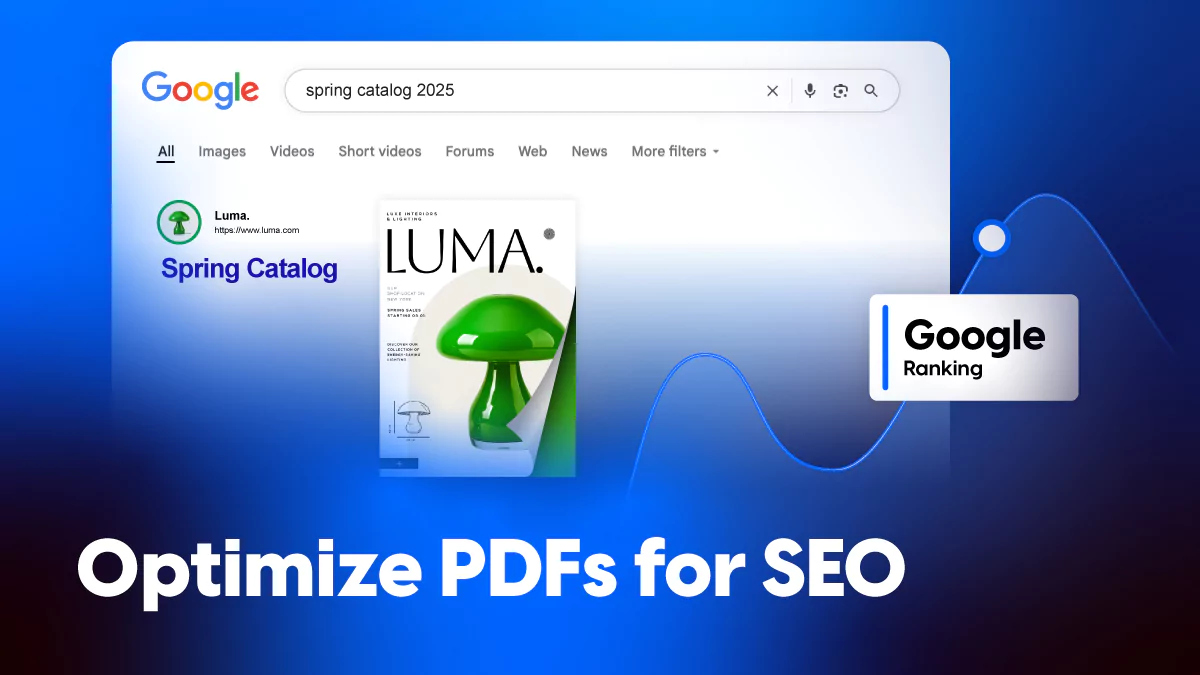
PDF SEO is the practice of preparing PDF files so search engines and AI answer engines can crawl, index, and rank them, using extractable text, descriptive document properties, clear headings, and links. A well-optimized PDF can appear in Google results, AI Overviews, and AI Mode. Poorly built ones stay invisible, even when the content inside them is excellent.
How Google handles PDFs
Google converts every PDF it crawls into an HTML version and indexes that version, not the file itself. Links inside the PDF count as regular links. Text that lives only in images usually doesn’t count at all. If the conversion produces clean text, the PDF can rank like a web page.
What Google does with a PDF after crawling it
On the October 2026 episode of Search Off the Record, Google’s Martin Splitt and John Mueller walked through the process (Search Engine Journal summarized it):
- Conversion. Google turns the PDF into HTML before indexing.
- Links. Text links inside PDFs pass through like normal links.
- Images. Pictures inside PDFs have no own URL, so they rarely reach Image Search.
- Recrawls. Google refetches PDFs less often than HTML pages.
- Size. Googlebot reads the first 64MB of a PDF, versus 2MB for other supported files (Google Search Central).
In search results, PDFs still carry a [PDF] label. On mobile, readers must download the full file before they see anything, and fixed layouts don’t reflow when they zoom.
Why some PDFs disappeared from Google in August 2026
Starting around August 12, 2026, site owners reported PDFs losing most or all of their impressions. The drop overlapped with Google’s August 2026 spam update, which ran August 18 to 21. Mueller said he’d look into it, but no cause has been confirmed.
If you publish PDFs, check your exposure now. In Search Console, open the Performance report, filter pages by URLs containing .pdf, and compare the last 28 days with the 28 before. A sharp drop tells you which documents need an HTML version first.
How do AI search engines read and cite PDFs?
AI search engines can read PDFs only when the text is selectable. Google confirmed PDFs can appear in AI Overviews and AI Mode for the same reason they rank in regular search: they’re converted to HTML first. ChatGPT, Perplexity, and Gemini need the same extractable text to quote a passage.
Extractable text is the minimum, not the advantage. AI tools cite passages they can lift cleanly: a definition, a numbered step, a table row. A PDF often loses that structure during conversion. Headings flatten into body text, tables break into loose numbers, and multi-column layouts merge in the wrong order.
Three things make a document easier for AI tools to cite:
- Selectable text. No scanned pages, no text baked into images.
- Real structure. Tagged headings, lists, and tables that survive conversion.
- A stable URL. One address that stays current when the content changes.
PDFs struggle most with the third point. Google recrawls them rarely, and Mueller noted that an updated file may need a new URL before Google notices. That breaks every link and citation pointing to the old one.
For the wider playbook on structuring content for AI answers, see our guide on optimizing marketing materials for AI search.
PDF vs HTML page vs flipbook: which works better for SEO and AI?
A plain HTML page is the easiest format for search engines. A PDF preserves exact layout but gives up most SEO controls. An HTML5 flipbook sits in between: it keeps your designed layout and adds a crawlable web page around it.
| Capability | PDF file | HTML page | HTML5 flipbook (Flipsnack) |
| Indexed by Google | Yes, if text is selectable | Yes | Yes, when public with crawlable text |
| Meta title and description | Document properties only | Full control | Full control, AI generation available |
| Schema markup | Not supported | Supported | Page-level, set by the platform |
| Keeps print layout | Yes | No | Yes |
| Mobile reading | Full download, no reflow | Responsive | Responsive viewer |
| Updates under the same URL | Rarely recrawled | Yes | Yes |
| Reader analytics | Downloads only | Web analytics | Page-level statistics |
| Works offline and in print | Yes | Limited | Download option |
HTML wins on pure search control. Flipbooks win when the design itself carries meaning, like a catalog or lookbook, and you still need the content found. PDFs win when the file has to leave the browser.
Which documents should stay PDFs?
Keep a PDF when the reader needs a file, not a page. Forms that get printed, contracts that get signed, and documents that procurement systems require all belong in PDF. Everything people find through search should have a web version, with the PDF offered as a download.
| Document type | Best format | Why |
| Product catalogs and lookbooks | Flipbook with crawlable text | Design matters, and buyers search for products |
| Brochures and sales collateral | Flipbook or HTML page | Needs tracking and updates without re-sending |
| Reports and whitepapers | HTML page plus PDF download | Findings should rank; readers may want a file |
| Printable forms and contracts | Readers print, sign, or file them | |
| Technical manuals and spec sheets | HTML page or flipbook, PDF backup | Searchable sections beat one 80-page file |
| Restaurant menus | HTML page or flipbook | Google’s own example: a PDF beats no menu, a page beats a PDF |
Use the table as a triage list. Start with the PDFs that already get impressions or backlinks, because those have the most to lose.
How to optimize a PDF for SEO before you publish
Optimizing a PDF means fixing what Google reads after conversion: the text, the headings, the document properties, and the links. Most of the work happens in the source file before you export it, so build these steps into your design process.
1. Start with keyword research
Pick one primary keyword for the document and three to five related terms. Use tools like Google Keyword Planner, Ahrefs, or Semrush, and check what already ranks. If the top results are all web pages, a PDF will struggle; that’s your signal to publish an HTML version.
2. Structure the document with real headings
Treat the PDF like a web page. Use your design tool’s paragraph styles for H1, H2, and H3, so the export carries real heading tags rather than big bold text.
- H1: one per document, with the main keyword.
- H2: one for each major section.
- H3: sub-points inside a section.
A document over 25 pages also needs a clickable table of contents, which Adobe recommends for SEO as well.
3. Name the file for search
The file name usually becomes part of the URL. Use lowercase words separated by hyphens, and drop dates or version numbers you’ll change later.
- Weak: Catalog_FINAL_v3.pdf
- Strong: spring-outdoor-furniture-catalog.pdf
4. Fill in the document properties
Google uses the PDF’s Title property as the clickable headline, and falls back to the file name when it’s empty. Open File > Properties in Acrobat and complete these fields (Digital.gov covers each one):
- Title: under 60 characters, keyword near the start.
- Subject: a plain description, about 160 characters.
- Keywords: comma-separated related terms.
- Language: set it manually so the file isn’t misread.
- Author: your organization’s name, not one employee.
Then turn on “Show Document Title” in the Initial View settings, so browsers display your title instead of the file name.
5. Write alt text, knowing its limits
Add alt text to every chart, product photo, and diagram. It helps screen readers and gives Google text to work with. It won’t make the image itself rank, though, so never put pricing, specs, or key findings inside an image alone.
6. Link out to your web pages
Links inside PDFs work like normal links, so use them. Connect product names to product pages and policies to the full policy. Use descriptive anchor text, like “see the warranty terms,” and never “click here.” Our guide shows four ways to add links to a PDF.
7. Keep the file light
Googlebot reads up to 64MB of a PDF, but mobile readers won’t wait for that download. Compress images and embed only the fonts you use. In Acrobat, Save as Other > Reduced Size PDF also turns on Fast Web View, which lets the first pages open before the rest finishes loading. Here are five more ways to reduce PDF file size.
Match the file name, the Title property, and the H1. Three consistent signals beat three clever variations.
How to check if your PDF is searchable
A searchable PDF has a real text layer that you can select, copy, and search. A scanned or image-only PDF is a picture of text, so Google and AI tools have nothing to read.
Mueller’s test takes ten seconds: open the PDF, select all, copy, and paste into a plain text editor. If the text comes through in the right order, Google can probably read it. If you get nothing, or a jumble, you have a problem.
To fix an image-only PDF, run optical character recognition (OCR). In Acrobat, use Scan & OCR > Recognize text. Then proofread the result, because OCR misreads small type, tables, and decorative fonts.
How to control which PDFs Google indexes
Not every PDF should rank. If an HTML page covers the same content, point Google to the page and keep the PDF as a download. PDFs can’t carry meta tags, so these controls live in your server’s HTTP headers:
- Canonical header. Add Link: <https://example.com/page>; rel=”canonical” to point at the HTML version.
- Noindex header. Use X-Robots-Tag: noindex for PDFs that should never appear in results.
- 301 redirect. Retire an outdated PDF by redirecting it to the page that replaces it.
- New URL on update. Google rarely recrawls PDFs, so a revised file may need a new address.
Don’t rely on robots.txt to hide a PDF. Blocking the crawl doesn’t stop Google from indexing the URL if other sites link to it. Ask your developer to set headers, since most CMS upload tools can’t.
How to make PDFs accessible to readers and crawlers
Accessible PDFs and indexable PDFs share most of the same requirements. Tags, reading order, and alt text help screen readers, and they also help Google convert the file into clean HTML.
- Tag the PDF so headings, lists, and tables are labeled.
- Set a logical reading order for multi-column layouts.
- Add alt text to every meaningful image.
- Check color contrast for body text.
- Use descriptive link text throughout.
Our complete guide to PDF accessibility walks through each fix in Acrobat.
Publishing as a flipbook takes part of this work off your plate. Flipsnack’s player is built to WCAG 2.1 Level AA, ADA, and Section 508 standards, with keyboard navigation, screen reader support, and a widget that lets readers adjust type size and contrast.
How to turn a PDF into a flipbook search engines and AI can read
Flipsnack converts your PDF into an HTML5 flipbook, then publishes the text inside it as crawlable HTML on the same page. Readers see your original design. Search engines and AI tools read the text underneath, so a designed catalog gets indexed like a web page.
Step 1: Upload your PDF
Upload the file to the PDF to flipbook converter. Flipsnack keeps your layout, fonts, and links, so you don’t rebuild anything.
Step 2: Publish it as Public
Set the visibility to Public when you publish. Unlisted and private flipbooks carry a noindex tag, so Google skips them on purpose. You can switch a flipbook from Unlisted to Public later, but not back.
Step 3: Write the title and description
Use your main keyword in the flipbook title, because it feeds both the meta title and the URL. Then write a unique description that leads with what the document is and who it’s for.
Step 4: Set the meta title, description, and AI summary
From the flipbook’s Overview page, open More options > Optimize SEO and go to the Search appearance tab. Write your meta title and description by hand on any plan. On Business and Enterprise plans, click Generate to have AI draft the title, description, and a summary for AI tools from your content, then edit them before saving.
Step 5: Generate text for crawlers
In the same panel, open the Text for crawlers tab and click Generate. Flipsnack extracts your headings, chapters, and body copy and publishes them as HTML below the viewer, with a generated table of contents. This feature is on Business and Enterprise plans, and each generation uses 10 AI credits (Flipsnack Help Center).
The extracted text doesn’t refresh automatically. After you edit the flipbook, click Regenerate so search engines and AI tools see the current version. The URL stays the same either way, so every link and citation keeps working.
How to make your PDF easier to use once readers land
Ranking gets readers to the document. Usability decides whether they act on it. Google’s helpful content guidance rewards pages people can navigate quickly, and long documents rarely pass that test without help.
- Add internal search. Long catalogs and manuals need a search bar or clickable contents, so readers jump to the item they came for.
- Place clickable CTAs. Put a “Request a quote” or “Contact sales” button at the end of key sections, so readers act without leaving.
- Embed forms. A lead form inside a flipbook captures interest at the moment it peaks.
Flipbooks handle all three in the viewer, including search across every page on desktop and mobile. Explore the full set of interactive features.
How to track PDF and flipbook performance
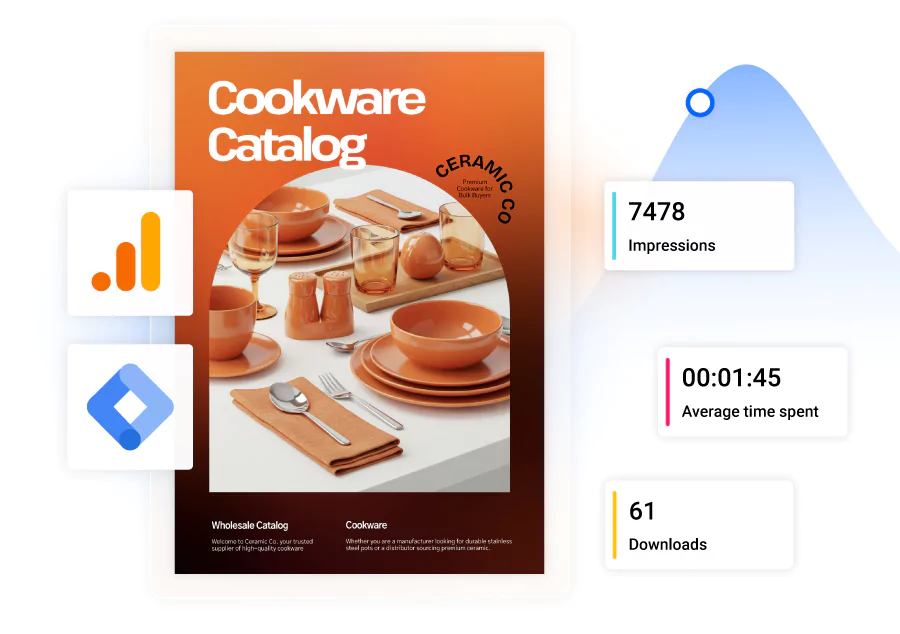
A PDF’s search performance shows up in Search Console, but its reader behavior mostly doesn’t show up anywhere. Track both, so you know which documents earn traffic and which ones keep readers.
For PDF files:
- Search Console. Filter the Performance report by URLs containing .pdf to see impressions, clicks, and queries.
- Download events. Use Google Analytics or Google Tag Manager to record each download.
- AI referrals. In Google Analytics, watch referral traffic from chatgpt.com, perplexity.ai, and gemini.google.com to the pages that host your PDFs.
For flipbooks, Flipsnack statistics report views, time spent per page, clicks on links and products, device and location, and form completions. Trackable links show how each audience segment engages. See how flipbooks make PDF tracking easier for a side-by-side setup.
PDF SEO checklist
Run every PDF through this list before you publish it.
| Check | What good looks like |
| Format choice | The document belongs in PDF, or has a web version |
| Searchable text | Select-all and paste returns clean text |
| Headings | Tagged H1, H2, and H3 from paragraph styles |
| File name | Lowercase, hyphenated, keyword-led |
| Title property | Under 60 characters, matches the H1 |
| Subject and keywords | Filled in, plain language |
| Language | Set manually |
| Alt text | On every meaningful image |
| Links | Descriptive anchors to relevant web pages |
| File size | Compressed, Fast Web View on |
| Indexing control | Canonical or noindex header where needed |
| Tracking | Search Console filter and download events in place |
If a document fails three or more of these, rebuilding it as a web page or flipbook is usually faster than patching the PDF.
Make your PDFs readable before you make them rank
Google can index a PDF, and AI tools can quote one. Both depend on the same thing: clean text in a structure that survives conversion. Get that right, fill in the document properties, and link the file into your site.
When a document matters for search and the design matters too, publish it as a flipbook with crawlable text. You keep the layout, and readers, Google, and AI tools all get a page they can use.
A PDF nobody can read is just a picture of your best work.
Frequently asked questions about PDF SEO
Yes. Google crawls PDFs, converts them to HTML, and indexes the text, as long as the text is selectable. Scanned or image-only PDFs need OCR first. Google reads up to the first 64MB of each PDF file.
PDFs can rank, but they’re rarely the best format for SEO. They lack schema markup and full meta tag control, and Google recrawls them less often than web pages. Use PDFs for printable or downloadable documents, and give search-critical content an HTML or flipbook version.
ChatGPT and other AI tools can read PDFs that have selectable text, but they quote clearly structured content more reliably. Headings, lists, and tables often break when a PDF is converted. A web page or a flipbook with crawlable text gives AI tools cleaner passages to cite.
Yes. Google confirmed in October 2026 that PDFs can appear in AI Overviews and AI Mode, because they’re converted to HTML and indexed like other pages. The same rules apply: selectable text, clear structure, and a relevant topic.
Run optical character recognition (OCR) on the file, for example with Acrobat’s Recognize text tool, then proofread the result. To confirm it worked, select all the text, copy it, and paste it into a plain text editor. Clean text in the right order means search engines can read it.
Choose HTML when the goal is search traffic, because it gives you meta tags, schema, and responsive design. Choose PDF when readers need a file to print, sign, or file. For designed documents like catalogs, a flipbook with crawlable text keeps the layout and still gets indexed.