How to Embed Digital Flipbooks on Any Website or Platform
Published on: September 6, 2024
Last updated: June 15, 2026
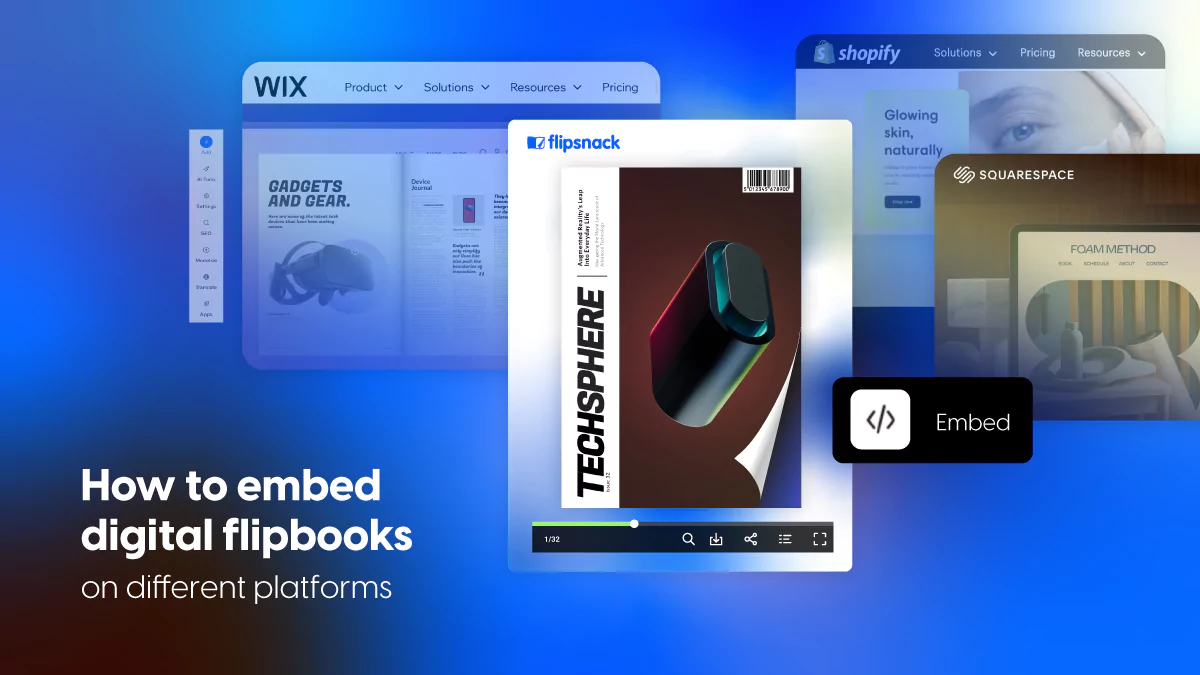
Embedding a flipbook on your website puts your content directly in front of your audience — no redirects, no downloading, no leaving the page. Whether you’re adding an interactive catalog to a product page, a company newsletter to your intranet, or a digital brochure to a landing page, the process comes down to copying your Flipsnack embed code and pasting it into the right spot on your platform of choice.
This guide covers how to embed a flipbook on WordPress, Wix, Squarespace, Shopify, SharePoint, Webflow, Weebly, and more — including what to watch out for on each platform before you publish.

Table of contents
- Why embed your flipbook on websites and platforms?
- How to get the flipbook embed code from Flipsnack
- How to embed a flipbook on WordPress
- How to embed a flipbook on Wix
- How to embed a flipbook on Squarespace
- How to embed a flipbook on Shopify
- How to embed a flipbook on Weebly
- How to embed a flipbook on Medium
- How to embed a flipbook on LinkedIn
- Embedding a flipbook on social media
- Embedding flipbooks in emails and newsletters
- Best practices for embedding flipbooks that convert
- Share your flipbook anywhere—Start with Flipsnack
- Frequently asked questions about embedding flipbooks
Why embed your flipbook on websites and platforms?
Embedding your Flipsnack flipbook—whether it’s a product catalog, digital magazine, or interactive brochure—offers more than just convenience. It can elevate your content strategy across multiple channels.
1. Expand your visibility across platforms
When you embed flipbooks on platforms like Squarespace, Shopify, or LinkedIn, you increase your chances of reaching a wider, more engaged audience. Whether it’s a blog, a product page, or a LinkedIn post embed, your content appears in more relevant contexts.
2. Create a seamless user experience
Instead of redirecting users to an external link, an embedded flipbook allows them to interact with your content right where they are—whether that’s a Shopify store, a Squarespace landing page, or a company blog.
3. Integrate naturally with your website design
Flipbooks can be customized to match the look and feel of the page, making it easy to embed interactive brochures or presentations without disrupting the platform’s design—be it WordPress, Shopify, or any CMS.
4. Strengthen your SEO strategy
Embedding optimized flipbooks can support your SEO efforts by increasing dwell time, improving page engagement, and offering keyword-rich content in surrounding text. This is especially effective when combined with embedded LinkedIn posts or product showcases that enhance topical relevance.
How to get the flipbook embed code from Flipsnack
Before you can embed your flipbook, you’ll need to get the embed code from Flipsnack. Here’s how:
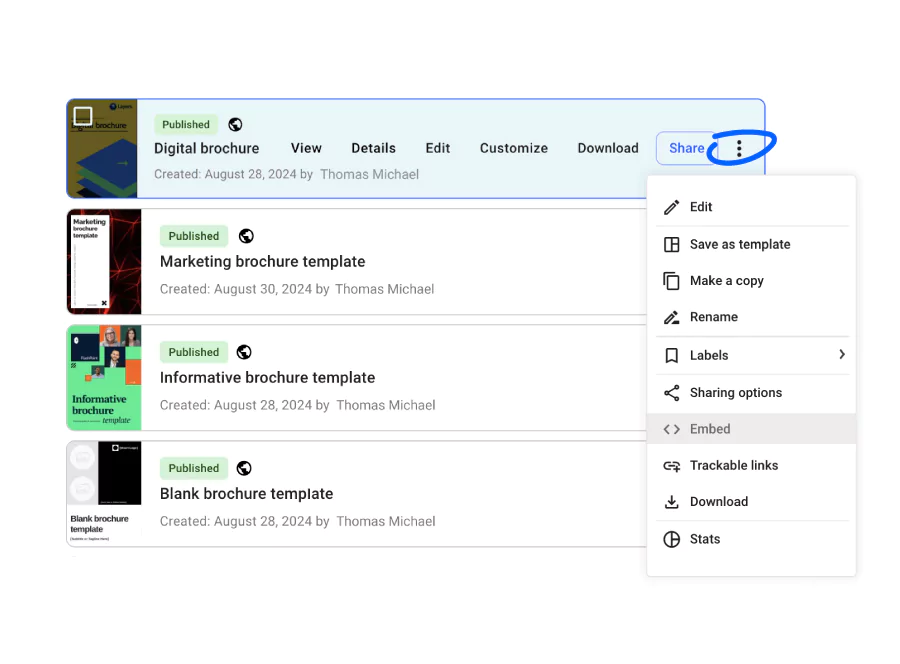
1. In the Main Dashboard, navigate to the flipbook you want to embed.
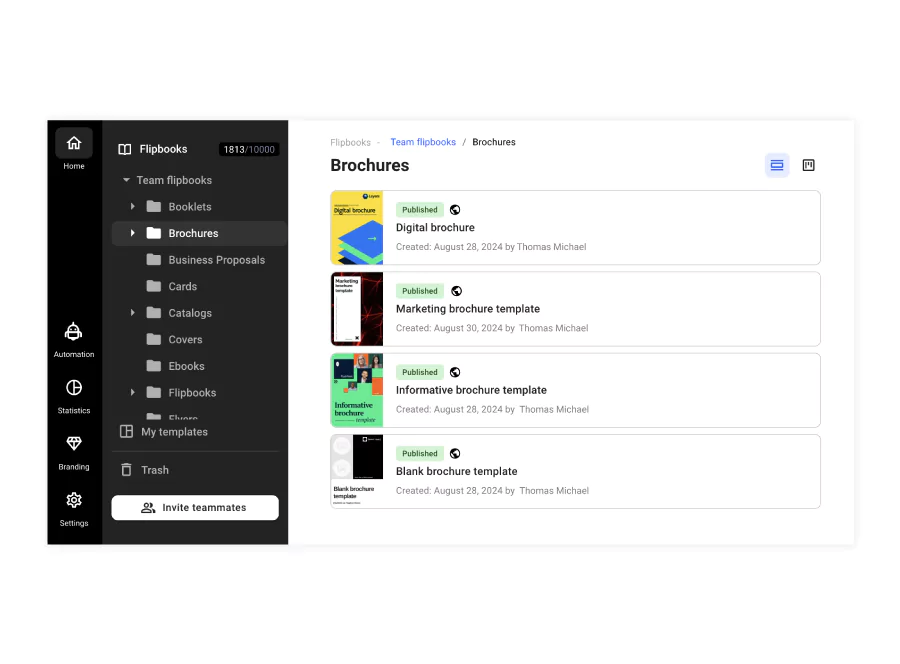
2. Click on the three dots icon to access different options, and click on Embed.
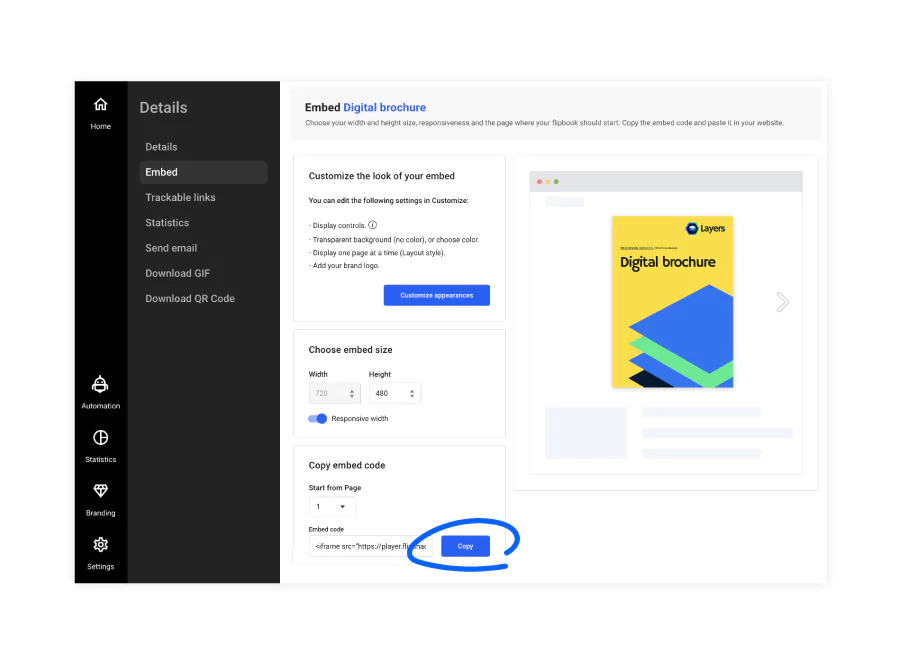
3. On the new page, you can see a preview of the embed, access the customization page, and set different embed options. Choose the starting page for the embed, and copy the embed code.
Let’s look at how to embed your flipbook on popular platforms.
How to embed a flipbook on a plain HTML site
If you’re working with a custom-built website or a static HTML page, you don’t need a CMS or website builder to embed your flipbook. Any page that supports HTML can display it. Embedding a Flipsnack flipbook on a plain HTML site can help you:
- Add interactive product catalogs or brochures to custom landing pages
- Embed digital magazines or reports directly in corporate intranets
- Display interactive content on microsites or campaign pages without a full CMS
- Open the HTML file for the page where you want to embed the flipbook.
- Locate the section of the page where the flipbook should appear and place your cursor there.
- Paste the Flipsnack embed code directly into the HTML at that position.
- Save the file and load the page in your browser to confirm the embed displays correctly.
Note: Make sure your flipbook is set to public or unlisted visibility before embedding. Private flipbooks cannot be embedded on external sites.
Benefits: Embedding on a plain HTML site gives you the most control over placement and sizing. There are no editor restrictions or platform limitations — if the page renders HTML, the flipbook will display. This makes it a reliable option for developers building custom pages, campaign microsites, or any site not running on a standard CMS.
How to embed a flipbook on WordPress
WordPress is widely used for blogs, business websites, and e-commerce stores. Embedding a flipbook on WordPress can help:
- Showcase product catalogs for online stores
- Present digital magazines or newsletters for media sites
- Display interactive annual reports for corporate websites
- Offer downloadable content in an engaging format for lead generation
1. Open your WordPress post or page editor.
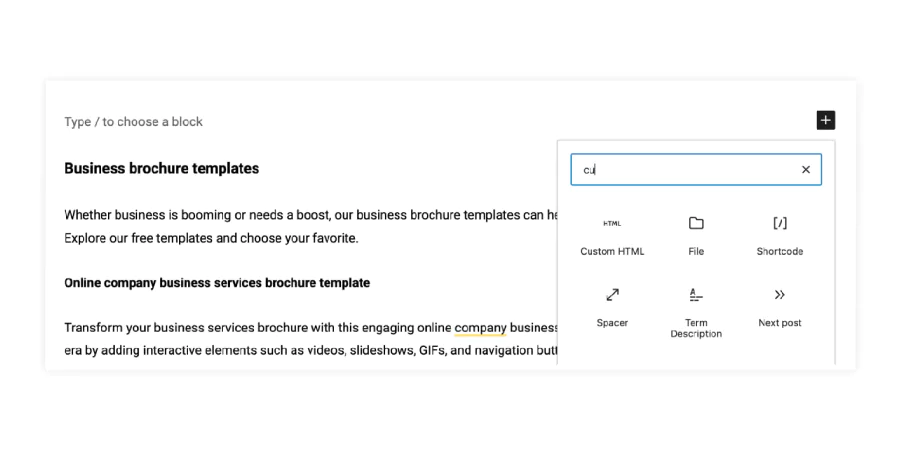
2. Click on New block, then Custom HTML.
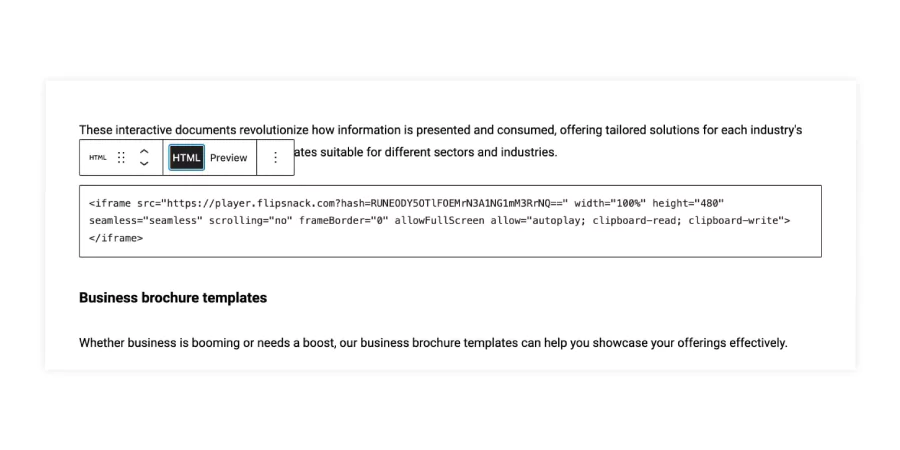
3. Paste the Flipsnack embed code in the HTML block.
4. Update or publish your post.
Benefits: Embedding flipbooks in WordPress can significantly enhance your website’s content. It allows bloggers to transform traditional posts into interactive experiences, helps businesses showcase product catalogs dynamically, and enables online magazines to offer a true-to-print reading experience. This can lead to increased user engagement, a longer time on the page, and a more professional appearance for your WordPress site.
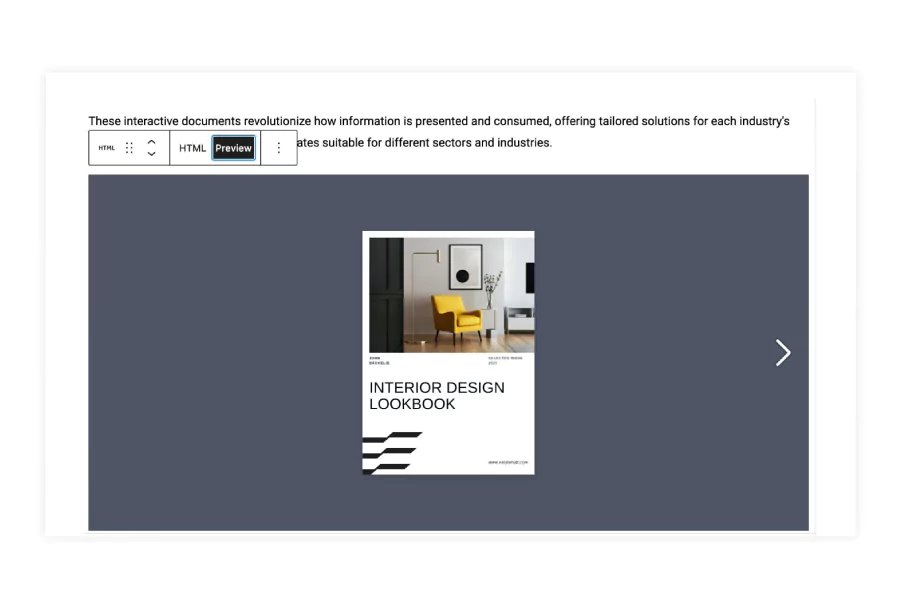
Here is the embedded flipbook embedded in WordPress:
WordPress variations to know about
The steps covered above work for most WordPress setups, but there are a few important differences depending on which version or page builder you’re using.
WordPress.com vs. WordPress.org
WordPress.org (self-hosted) fully supports HTML embeds on all plans — the Custom HTML block method described above works without restrictions. WordPress.com has plan-dependent limitations: the Business plan or higher is required to use custom HTML blocks. If you’re on a lower WordPress.com plan, you won’t be able to paste the embed code directly. In that case, share your flipbook via its direct link instead and link to it within your content.
Elementor
If you’re building your WordPress pages with Elementor, skip the Custom HTML block and use the HTML widget instead. In the Elementor editor, drag an HTML widget onto your page, paste the Flipsnack embed code into the widget’s code field, and click Update. The flipbook will render inline within your Elementor layout.
Divi
For Divi users, add a Code module to your page or section. Open the module settings, paste the Flipsnack embed code into the code field, and save. The flipbook will appear in the position where the module is placed. Divi’s visual builder lets you adjust the surrounding layout without affecting the embed itself.
How to embed a flipbook on Wix
Wix is popular among small businesses and creatives. Embedding a flipbook on Wix can:
- Exhibit portfolios for photographers or designers
- Present menus for restaurants
- Display property brochures for real estate agents
- Showcase lookbooks for fashion brands
1. Edit your Wix site.
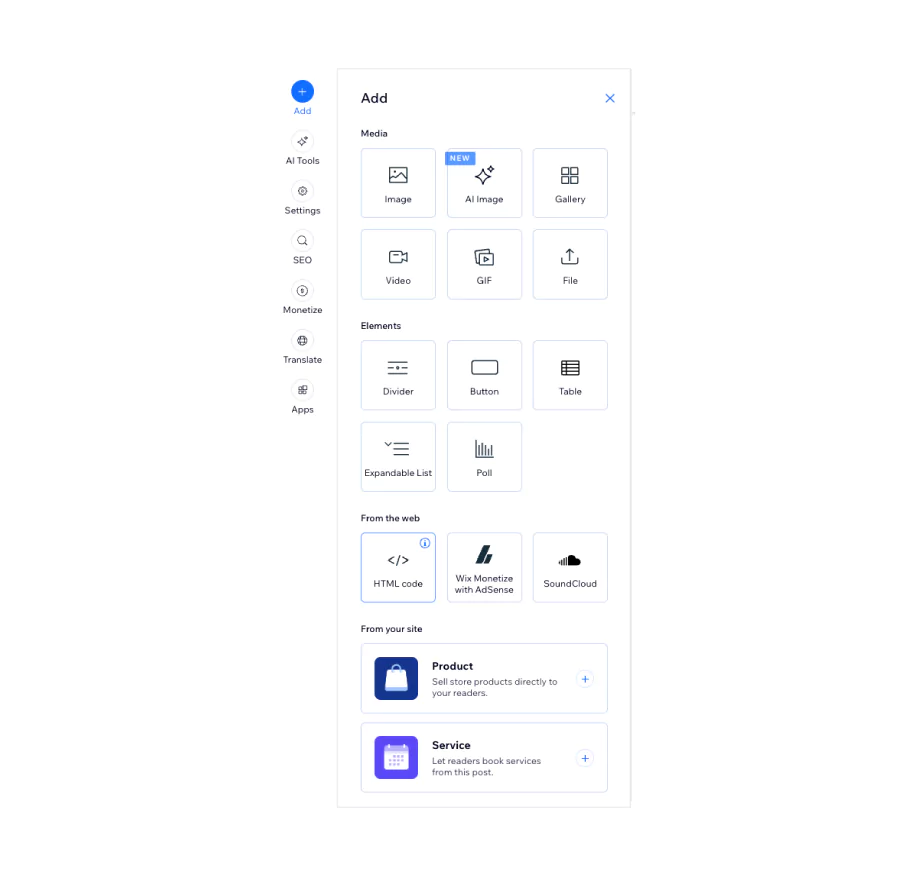
2. Click the Add button on the left sidebar, then on HTML Code.
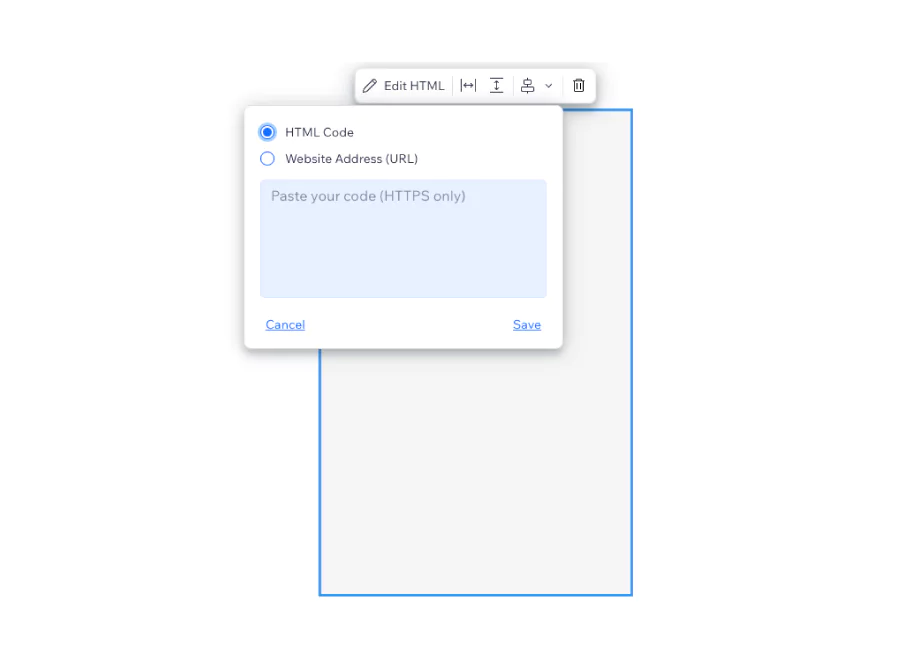
3. Click on the element, choose Edit HTML, set it to HTML Code, paste your Flipsnack embed code into the box, and click Save.
4. Adjust the size and position as needed.
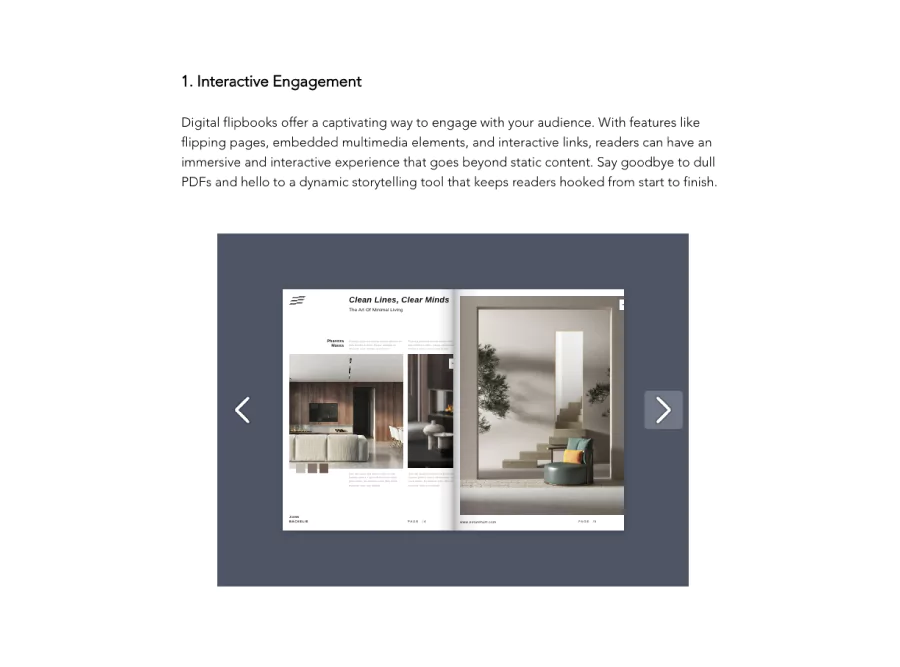
Here is the embedded flipbook in Wix:
Benefits: Integrating flipbooks into your Wix website can elevate your design and user experience. For creative professionals, it offers an elegant way to display portfolios. Small businesses can use flipbooks to present service brochures or product catalogs in a more engaging format. Event planners can showcase interactive event programs. This interactive element can help Wix sites stand out, potentially increasing visitor engagement and conversion rates.
How to embed a flipbook on Squarespace
Squarespace is known for its aesthetic templates, which are often used by creatives and small businesses. Embedding a flipbook on Squarespace can:
- Present digital art catalogs for galleries
- Showcase event programs for conference organizers
- Display course catalogs for educational institutions
- Offer interactive guides for travel and tourism businesses
- Edit the page where you want to embed your flipbook.
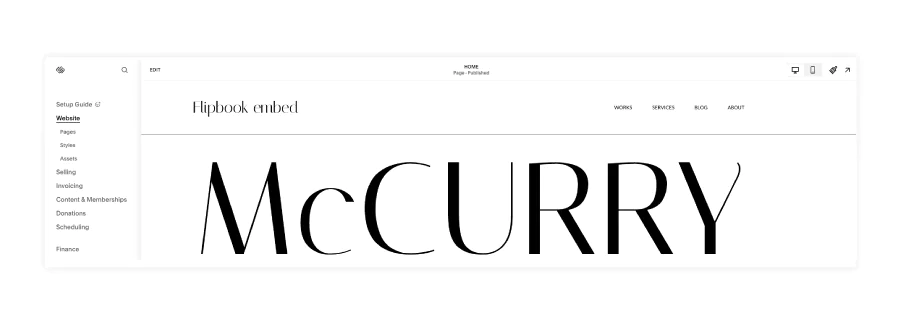
- Click Add Block, then click on Embed.

- Choose the element, click on Code snippet, Embed data, then paste the Flipsnack embed code into the Code block.
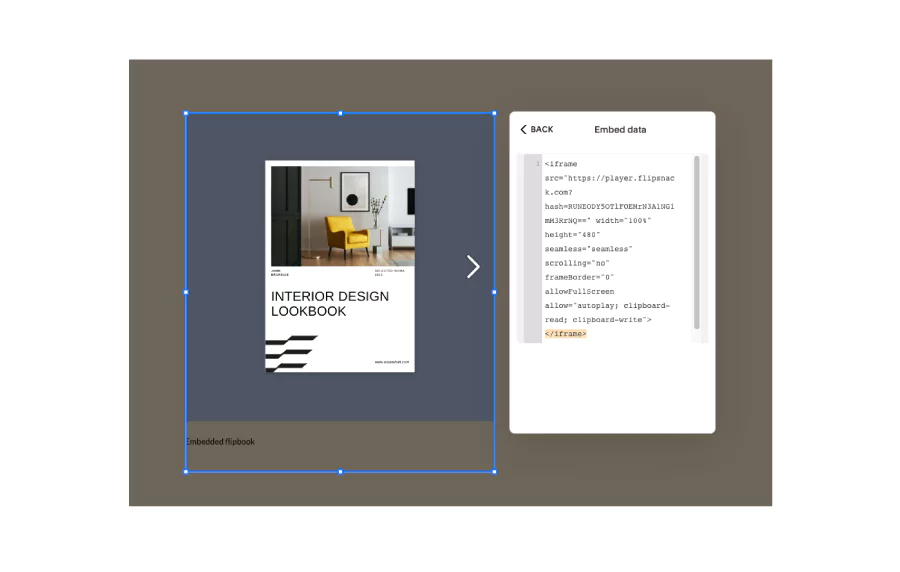
- Add a custom image or a description.
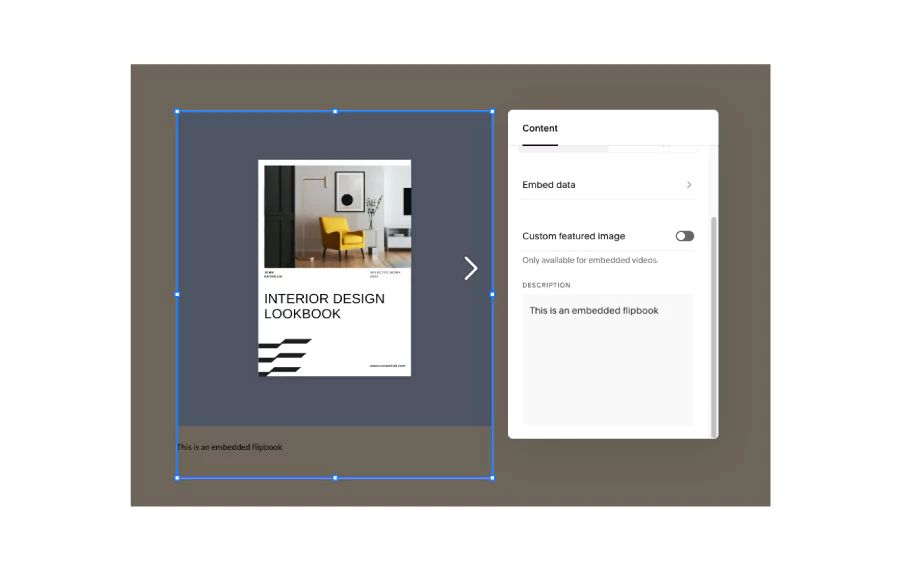
- Adjust the block settings if necessary.
- Once complete, click on Save, then Exit.
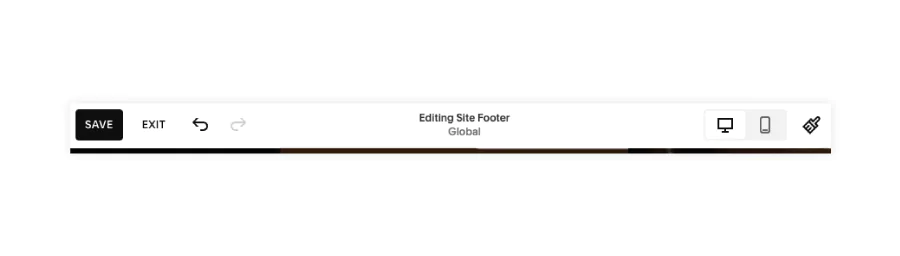
And here is the embedded flipbook in Squarespace:
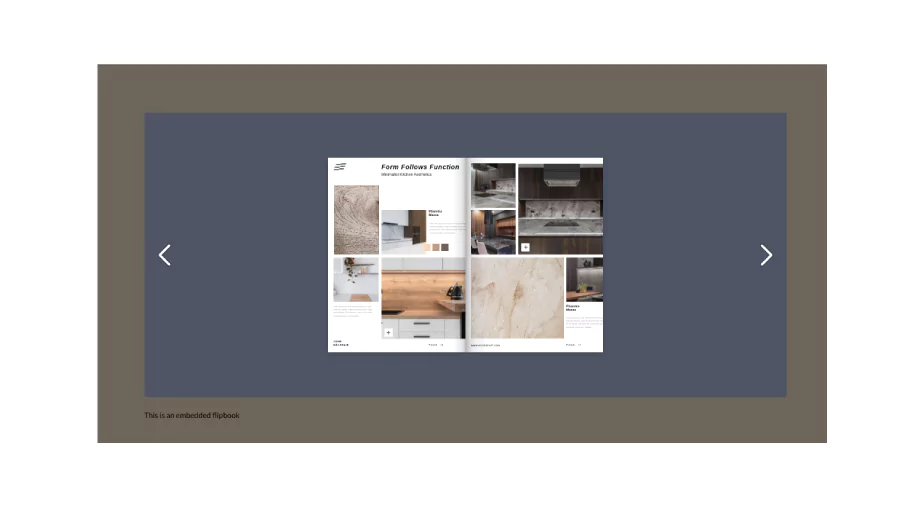
Benefits: Embedding flipbooks in Squarespace can complement the platform’s sleek, design-focused approach. It’s particularly beneficial for visual artists and photographers to display their work in a gallery-like format. Restaurants can present their menus in a more upscale, interactive way.
For content marketers, flipbooks can transform whitepapers or case studies into captivating, easily digestible formats. This can enhance your Squarespace site’s overall aesthetic while providing visitors with a unique, interactive experience.
How to embed a flipbook on Shopify
Shopify is a leading e-commerce platform. Embedding a flipbook on Shopify can:
- Display interactive product catalogs
- Showcase user manuals or product guides
- Present lookbooks for seasonal collections
- Offer digital versions of print catalogs
- Go to your Shopify admin and select the page where you want to embed the iframe.
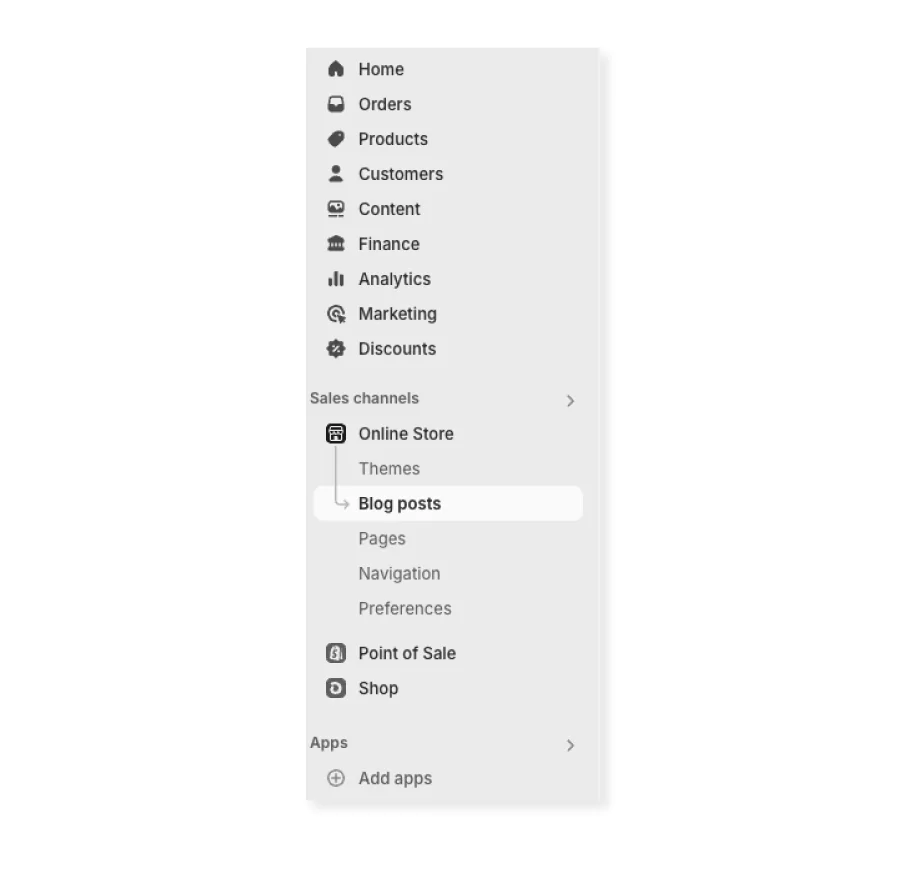
- Once you have selected the page (in this case, a blog post), click the Show HTML button.
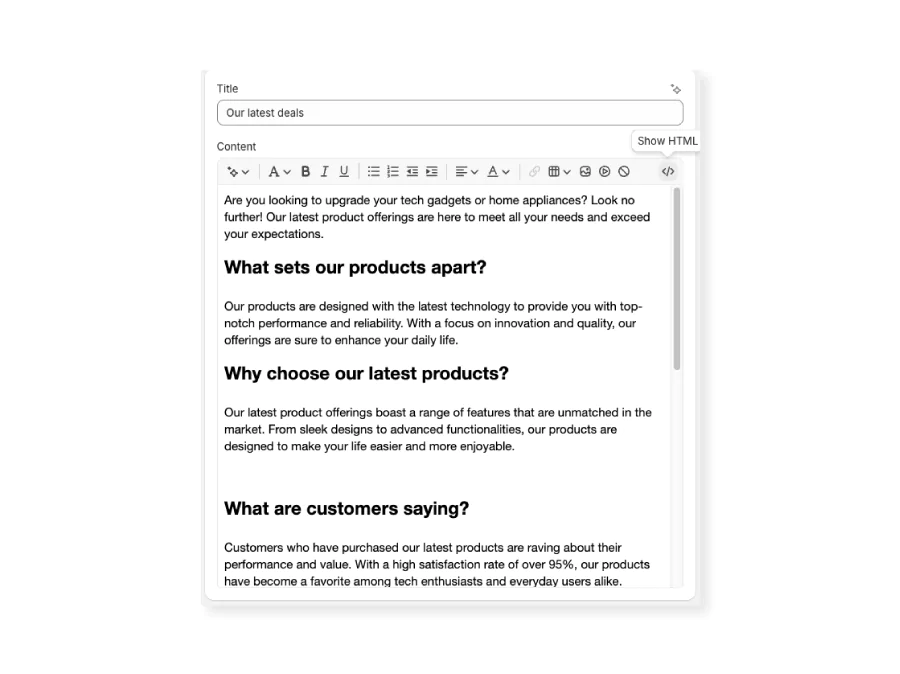
- Paste the HTML code of your iframe into the HTML block.
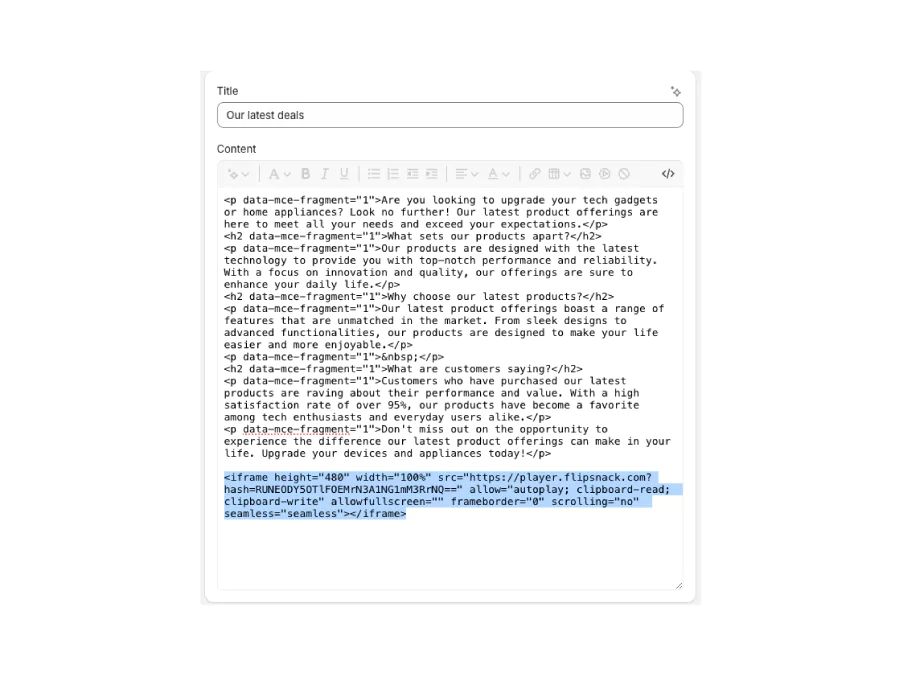
- Click Save to apply the changes.
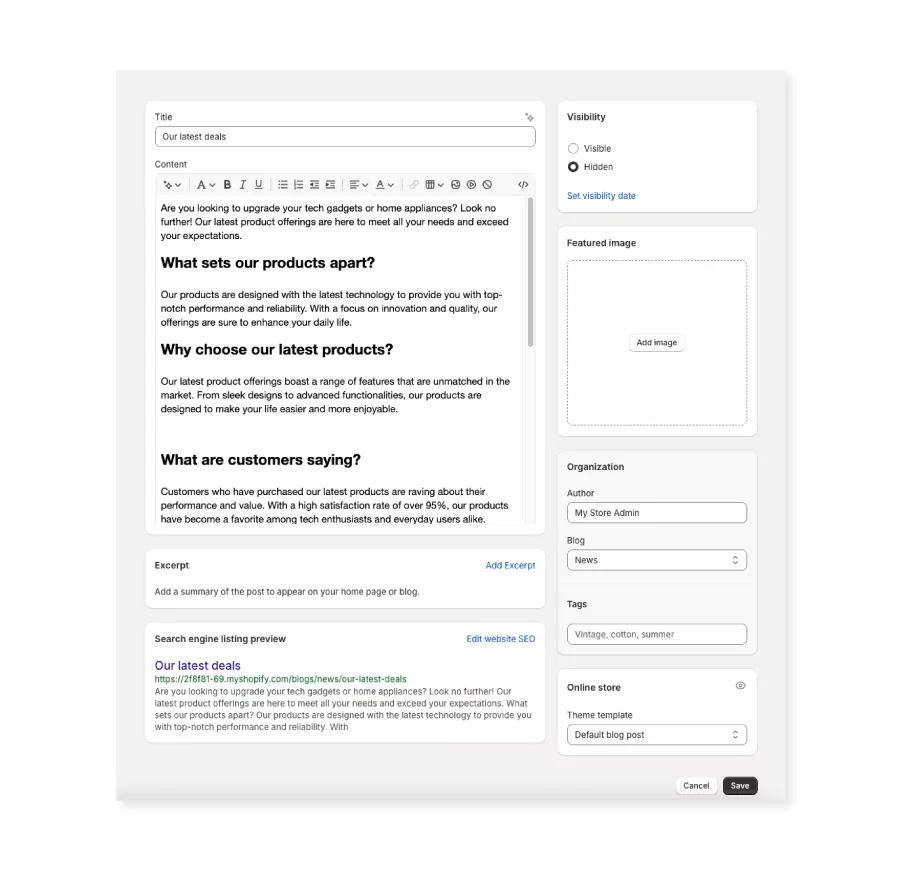
And here is the embedded flipbook in Shopify:
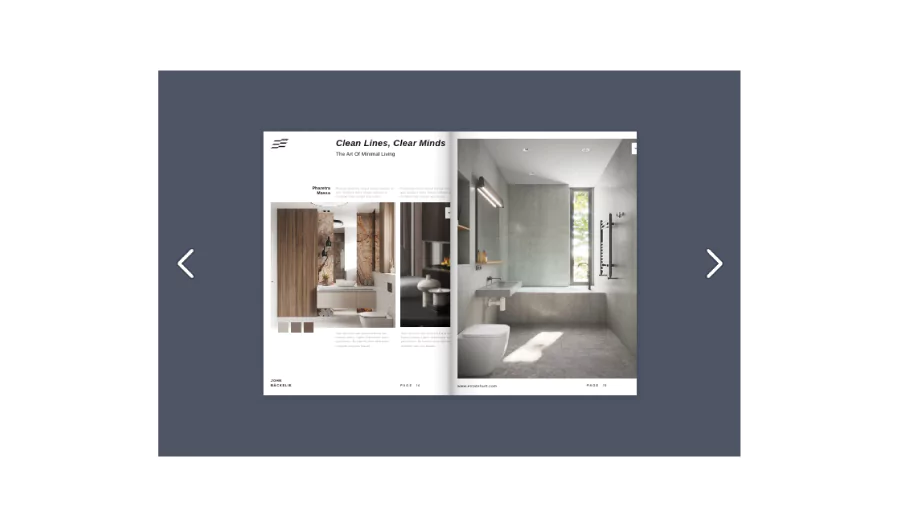
Benefits: Embedding flipbooks in Shopify can transform your product catalogs, lookbooks, or user manuals into interactive experiences, potentially increasing customer engagement and sales.
How to embed a flipbook on SharePoint
SharePoint is widely used by enterprise teams for internal communications, document management, and company intranets. Embedding a flipbook on SharePoint can help you:
- Share internal newsletters, policy documents, or company updates in an engaging format
- Present training materials and onboarding guides directly on intranet pages
- Display product catalogs or sales enablement content for internal teams
- Replace static PDF attachments with interactive, trackable flipbooks
Important: SharePoint uses domain-based security restrictions for embedded content. Before following these steps, ask your SharePoint administrator to whitelist the Flipsnack domain (flipsnack.com) in the HTML Field Security settings. Without this, the embed will show an error instead of the flipbook.
- Open the SharePoint page where you want to embed the flipbook and click Edit.
- Click the + icon to add a new web part, then search for and select Embed.
- In the embed panel that appears, paste your Flipsnack embed code into the Website address or embed code field.
- Click Publish or Republish to make the changes visible to your team.
Benefits: Embedding flipbooks in SharePoint brings interactive content directly into the tools your team already uses every day. Instead of linking out to PDFs that open in a separate tab, your colleagues can browse a fully interactive flipbook — with page-flip navigation, embedded links, and video — without leaving the intranet page. This is especially valuable for HR teams distributing onboarding materials, internal comms teams publishing company newsletters, and sales enablement managers keeping product content current.
How to embed a flipbook on Weebly
Weebly is a user-friendly website builder. Embedding a flipbook on Weebly can:
- Showcase portfolios for freelancers
- Display event brochures for local businesses
- Present course materials for online educators
- Offer interactive company profiles for startups
- Create a new Weebly page or edit an existing one.
- Drag and drop the Embed Code element on the page.
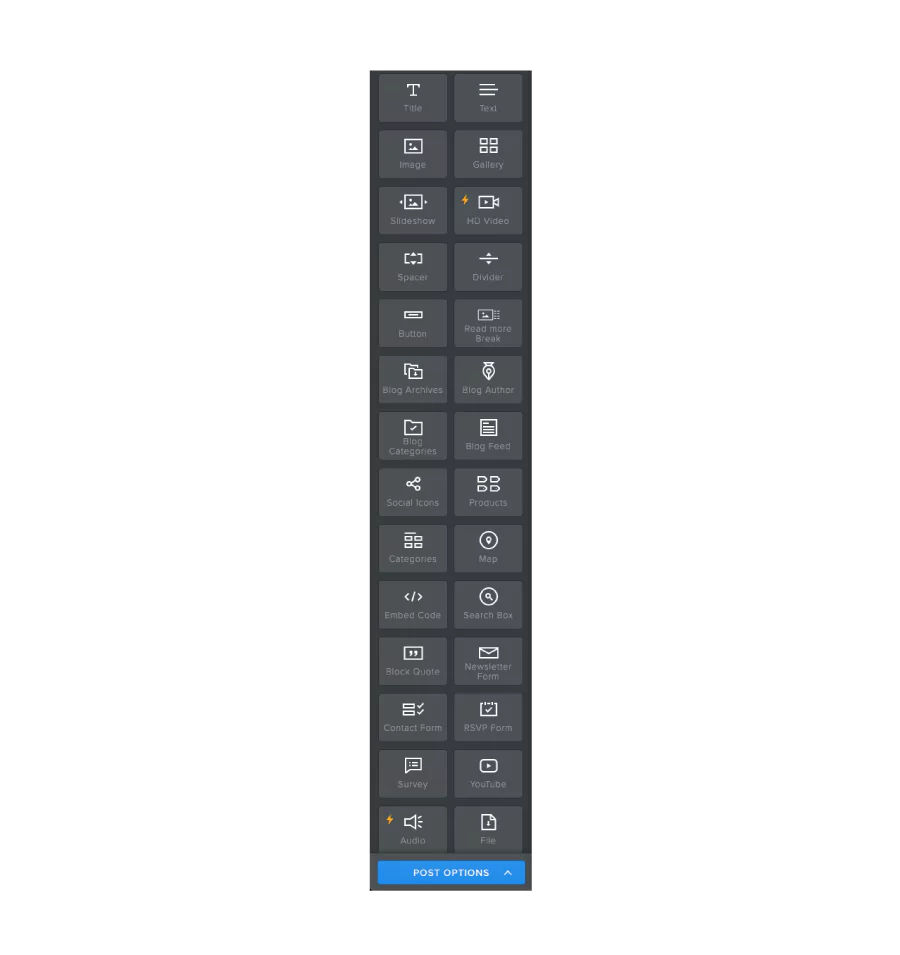
- Click inside the embed code element and select Edit Custom HTML.
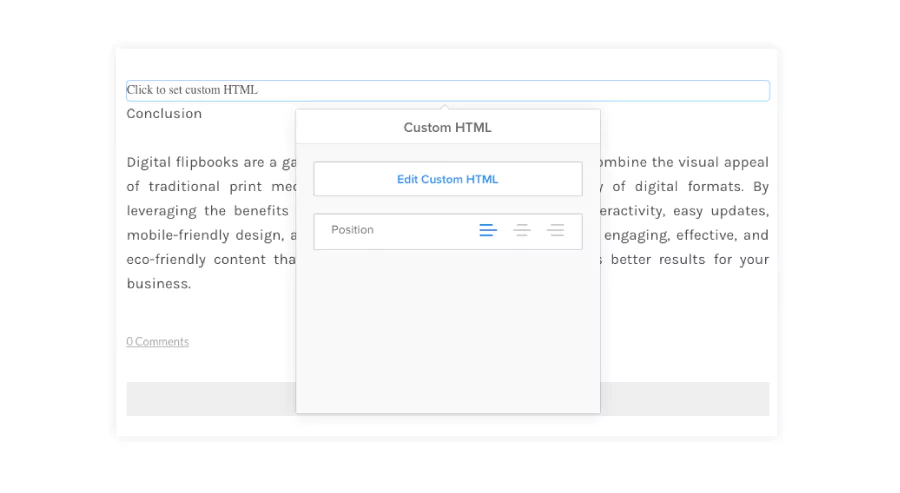
- Paste the Flipsnack embed code into the pop-up window.
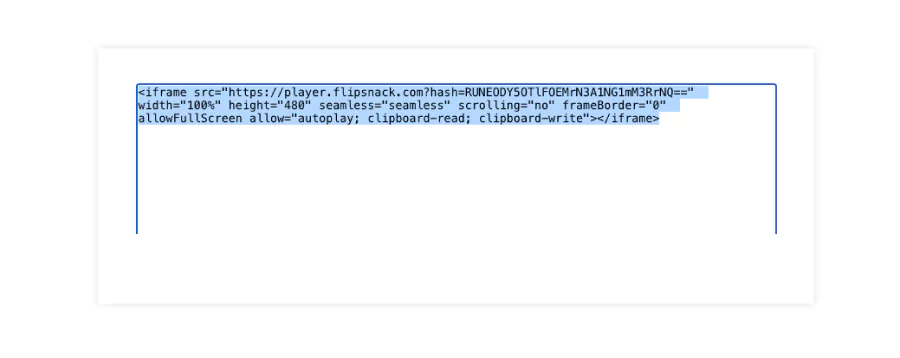
- Click Save, Update, or Publish in the upper right corner.
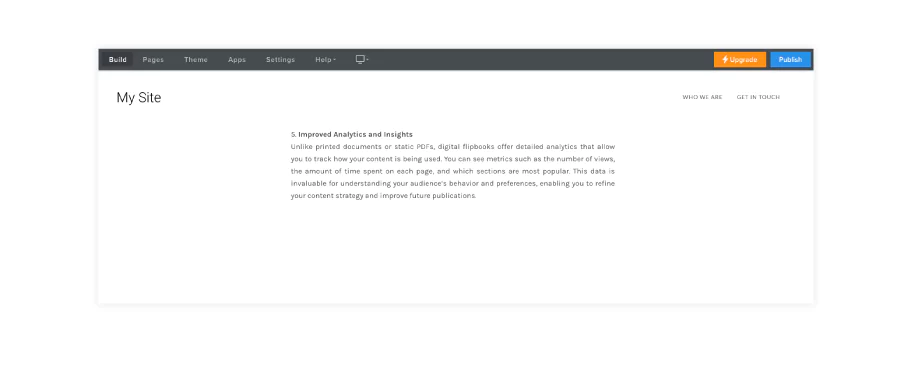
And here is how an embedded flipbook looks in Weebly
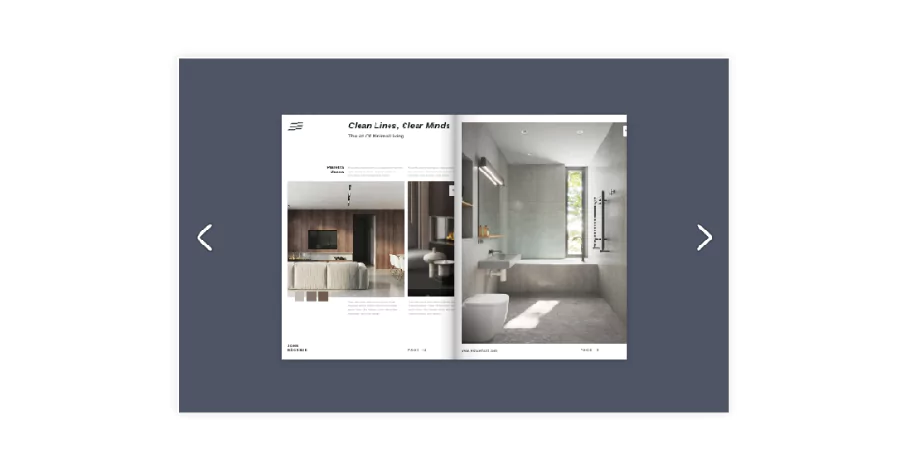
Benefits: Flipbooks can add a professional touch to Weebly sites, making them ideal for small businesses, personal blogs, or community organizations looking to present information engagingly.
How to embed a flipbook on Webflow
Webflow is a visual web design tool popular with designers and marketing teams who want full design control without writing code. Embedding a flipbook on Webflow can help you:
- Showcase interactive lookbooks or product catalogs on e-commerce pages
- Display digital magazines or reports on content hubs
- Present client proposals or case studies on agency portfolio sites
- Add interactive brochures to campaign or service landing pages
- Open your Webflow project and navigate to the page where you want to embed the flipbook.
- In the left sidebar, click the + icon to open the Add Elements panel.
- Search for Embed and drag the HTML Embed component onto the canvas in the position where you want the flipbook to appear.
- Click the embed element to open the HTML Embed Code Editor, then paste your Flipsnack embed code into the field.
- Click Save & Close, then adjust the size and position of the embed element as needed within your layout.
- Click Publish and select your domain to make the changes live.
Benefits: Webflow’s visual editor makes it easy to place a flipbook precisely within a polished design without touching the underlying code. The embed component slots naturally into any layout, and because Webflow gives you full control over surrounding design elements, you can frame the flipbook with custom headings, CTAs, and brand visuals for a seamless on-page experience.
How to embed a flipbook on Medium
While direct embedding isn’t possible, sharing flipbooks on Medium can:
- Enhance long-form articles with interactive content
- Provide supplementary materials for stories
- Increase engagement with visual storytelling
Unfortunately, Medium does not directly support embedding HTML iframe codes.
However, you might consider:
- Create a new story on Medium.
- Instead of embedding, you can add a link to your flipbook.
- Write an engaging description to encourage readers to click through.
Benefits: While not a direct embed, sharing flipbooks on Medium can enhance your storytelling, especially for long-form content or visual stories.
How to embed a flipbook on LinkedIn
LinkedIn is a business and employment-focused social media platform. Embedding flipbooks on LinkedIn can:
- Enhance professional presentations and thought leadership articles
- Showcase company reports and whitepapers
- Present industry research in an engaging format
- Offer interactive resumes or portfolios
- Start writing a new LinkedIn article.
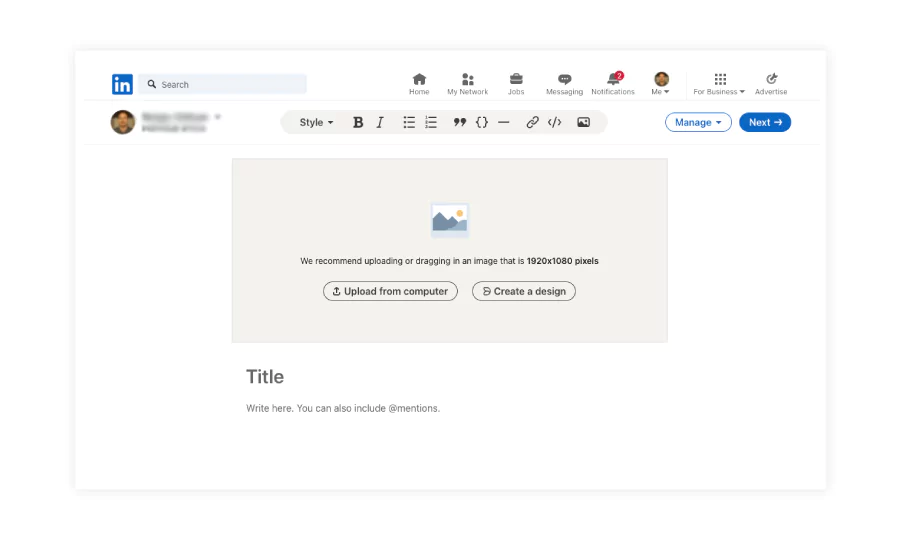
- Click on the “Add Embed” icon in the editor and paste the URL of your Flipsnack flipbook.
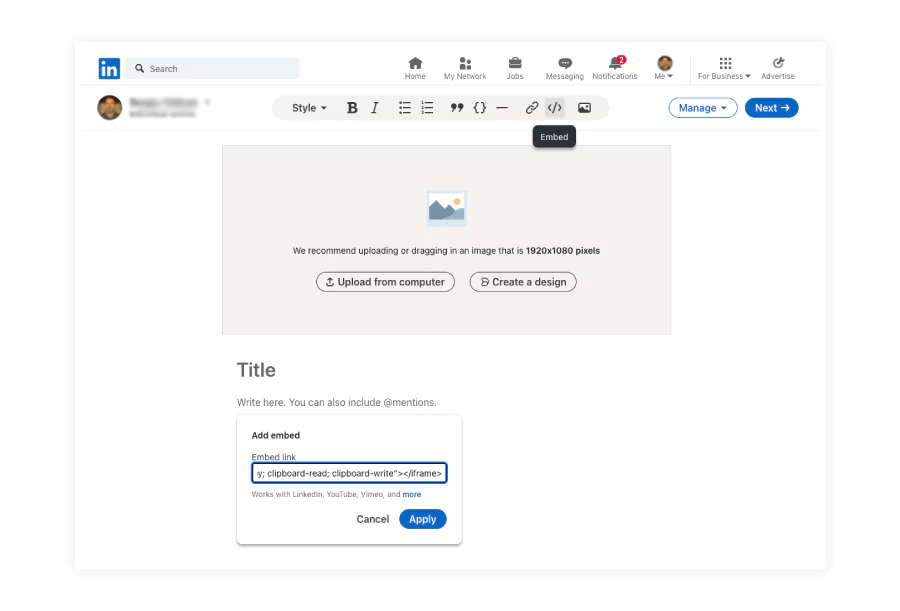
- Keep in mind that some restrictions might apply. If the embedded code isn’t accepted, you could post the link to the flipbook in the article.
- Once done, publish your article.
Benefits: Embedding flipbooks in LinkedIn articles can enhance professional content, making reports, portfolios, or thought leadership pieces more engaging and interactive.
Let’s take a look at two other popular sharing methods: social media and email. Although you can’t embed your flipbooks on social media or email, there are workarounds:
Embedding a flipbook on social media
While social media platforms don’t allow direct embedding in the same way as websites or blogs, you can still share your flipbook interactively:
- Create a post with the link: Share the direct link to your flipbook in a post. Flipsnack’s shareable link opens your flipbook in a new tab with all interactive elements intact.
- Use visual previews: On platforms like Facebook, Twitter, or Instagram, share a preview of your flipbook (a screenshot or video snippet) along with the link. This can drive traffic to your embedded flipbook.

Embedding flipbooks in emails and newsletters
Emails and newsletters are another excellent way to share your flipbook with a targeted audience:
- Use an image or button: Most email platforms don’t support HTML embeds directly. Instead, insert an image or button in your email that links to your flipbook.
- Add a call-to-action: Add a solid call-to-action to recipients to click the image or button.
- Track engagement: Use Flipsnack’s analytics to monitor how many users access your flipbook through email.
Customizing your flipbook embed before you publish
Before you copy the embed code and paste it into your platform, Flipsnack gives you several options to control how the flipbook looks and behaves once it’s live. It’s worth taking a few minutes to go through these settings — they can make a significant difference in how readers experience your content.
Choose your starting page
By default, the embed opens on the cover of your flipbook. If you want to highlight a specific section — say, a featured product on page 8 or an article that starts on page 12 — you can set a custom starting page before copying the code. This is especially useful when embedding on a product page or campaign landing page where the cover isn’t the most relevant entry point.
Set your embed dimensions
You can choose between a responsive embed, which scales automatically to fit the container it’s placed in, or fixed dimensions with a set width and height in pixels. Responsive works well for most blog posts and content pages. Fixed dimensions give you more control on pages where precise layout matters, like a carefully designed landing page or a Webflow section with specific spacing.
Enable a transparent background
If your website uses a colored or patterned background, enabling the transparent background option lets the flipbook viewer blend into the page design rather than sitting inside a white box. This is a small detail that makes a noticeable difference on branded pages.
Restrict embedding to specific domains
If you only want the flipbook to display on your own website — and not be embedded by anyone else who copies your code — you can set a domain restriction in Flipsnack. This locks the embed so it will only render on the domains you specify, which is particularly useful for gated content, internal documents, or any flipbook you don’t want appearing on third-party sites.
Keep in mind: private flipbooks can’t be embedded
Before publishing your embed, make sure your flipbook’s visibility is set to public or unlisted. Private flipbooks will not render on external pages — viewers will see an error instead of the content. If you need to share sensitive content in an embedded format, use Flipsnack’s password protection or SSO options, which allow controlled access while still supporting embedding.
Your edits sync automatically
If you update the flipbook after embedding it — changing pages, updating content, swapping images — you don’t need to generate a new embed code or re-paste it anywhere. The embedded version updates automatically wherever it’s live. This makes it easy to keep product catalogs, pricing documents, or seasonal brochures current without any extra steps on the website side.
Best practices for embedding flipbooks that convert
1. Optimize for mobile and tablet users
Always use Flipsnack’s responsive embed code to ensure your flipbook adapts to any screen size. Preview the embed on both desktop and mobile to avoid cut-off content or usability issues.
2. Adjust size for context
Match the embed dimensions to your content layout. For blog posts, a smaller inline flipbook may suffice. On product or campaign pages, go with a larger, full-width embed to make the content the hero.
3. Choose placement strategically
Don’t just embed for the sake of it. Place flipbooks where they replace static PDFs, supplement product info, or enhance visual storytelling—like a catalog next to a featured product or a digital brochure on a services page.
4. Keep it fresh and aligned
Update flipbooks regularly to reflect current offerings or messaging. An outdated embed can reduce trust and engagement, especially on high-traffic pages.
5. Surround with relevant text
Search engines can’t read flipbook content—yet. So add SEO-friendly text, headings, and even an excerpt of your flipbook nearby. For example, if embedding on a blog, add a keyword-rich summary or context paragraph.
6. Don’t overuse flipbooks
Flipbooks are powerful—when used intentionally. Avoid embedding them on every page. Instead, use them as focal points where interactivity matters: portfolios, annual reports, digital magazines, or gated lead magnets.
Share your flipbook anywhere—Start with Flipsnack
Creating engaging content is only half the equation—delivering it in the right context is what drives results. Whether you want to embed a flipbook in a Shopify product page, integrate one into a Squarespace portfolio, or complement a LinkedIn post with a branded catalog, Flipsnack offers the flexibility and tools to make it happen.
With Flipsnack, you can design professional, interactive flipbooks in minutes—no coding or design experience required. Our responsive embed options make it easy to showcase your content across any platform your audience uses, from websites and blogs to newsletters and social media.
If you’re looking for a seamless way to enhance your digital presence, increase content engagement, and simplify distribution, Flipsnack is built to support your goals. Try it today and see how easy it is to turn static documents into dynamic experiences your audience will want to explore.
Worth reading next
Frequently asked questions about embedding flipbooks
No, it can actually help. An embedded flipbook encourages visitors to spend more time on your page, which improves session duration, a signal search engines pay attention to. The flipbook content itself isn’t directly crawled by Google, so it won’t add keyword density to your page. But the text you write around the embed (headings, descriptions, context paragraphs) is fully indexed.
Flipsnack’s free plan lets you create and share flipbooks via a direct link, but embedding on external websites requires a paid plan. If you want to embed a flipbook on your website without a Flipsnack watermark, you’ll need a premium subscription. You can check the current plan options on the Flipsnack pricing page to find the right fit for your needs.
Your changes go live automatically. When you edit and republish a flipbook in Flipsnack, every embedded version of it updates at the same time — no need to generate a new embed code or make any changes on your website. This means you can keep product catalogs, pricing sheets, or seasonal brochures current without touching your CMS.
Private flipbooks cannot be embedded on external pages — viewers will see an error instead of the content. If you need to control who sees your embedded flipbook, use Flipsnack’s password protection or SSO options instead. These let you restrict access while still displaying the flipbook in an embedded format, which makes them a good fit for internal documents, member-only content, or enterprise intranet pages.