How to Replace Images in a PDF Without Redesigning the Whole Document
Published on: July 28, 2026
You spent hours getting this PDF right, and now a single photo, logo, or graphic is out of date. You do not want to rebuild the entire document just to fix one image. Maybe you are a marketer updating brand assets, a business owner refreshing a report, or a designer working without the source file. Either way, the process is quicker and simpler than rebuilding the file from scratch.
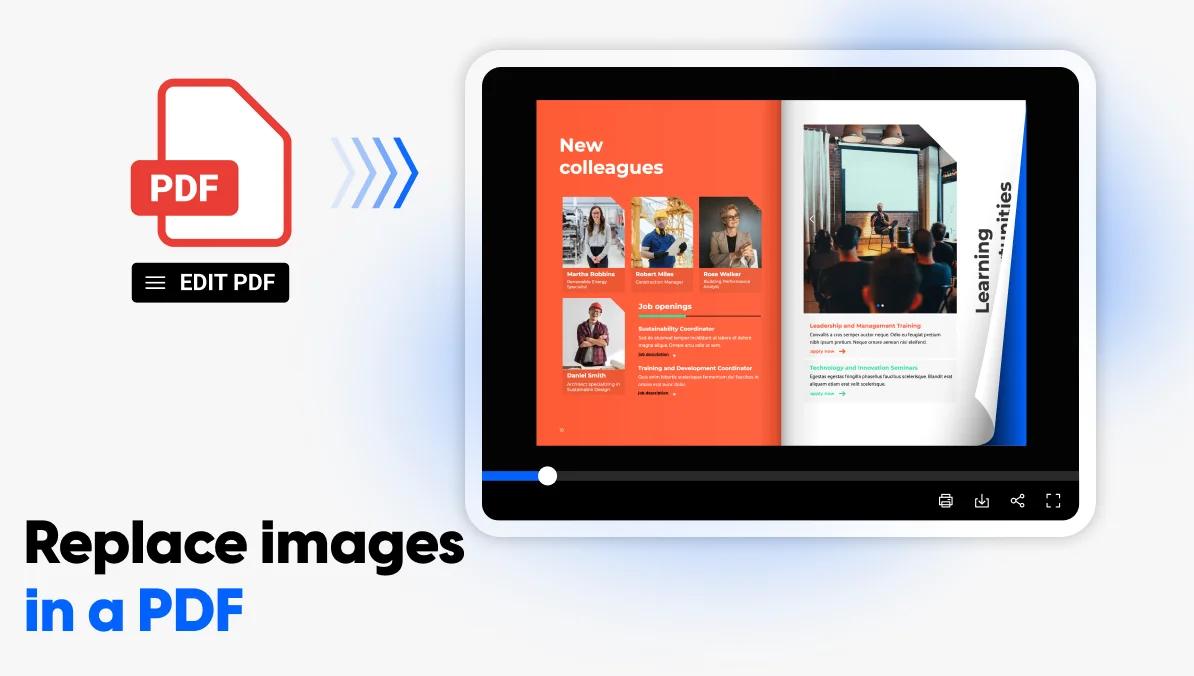
To replace images in a PDF without redesigning the document, use an editor that detects each image as its own object. Select the old photo, logo, or graphic, upload the replacement, match the original dimensions and crop, then preview the result. If you cannot select the image, the PDF may be flattened, scanned, or protected.
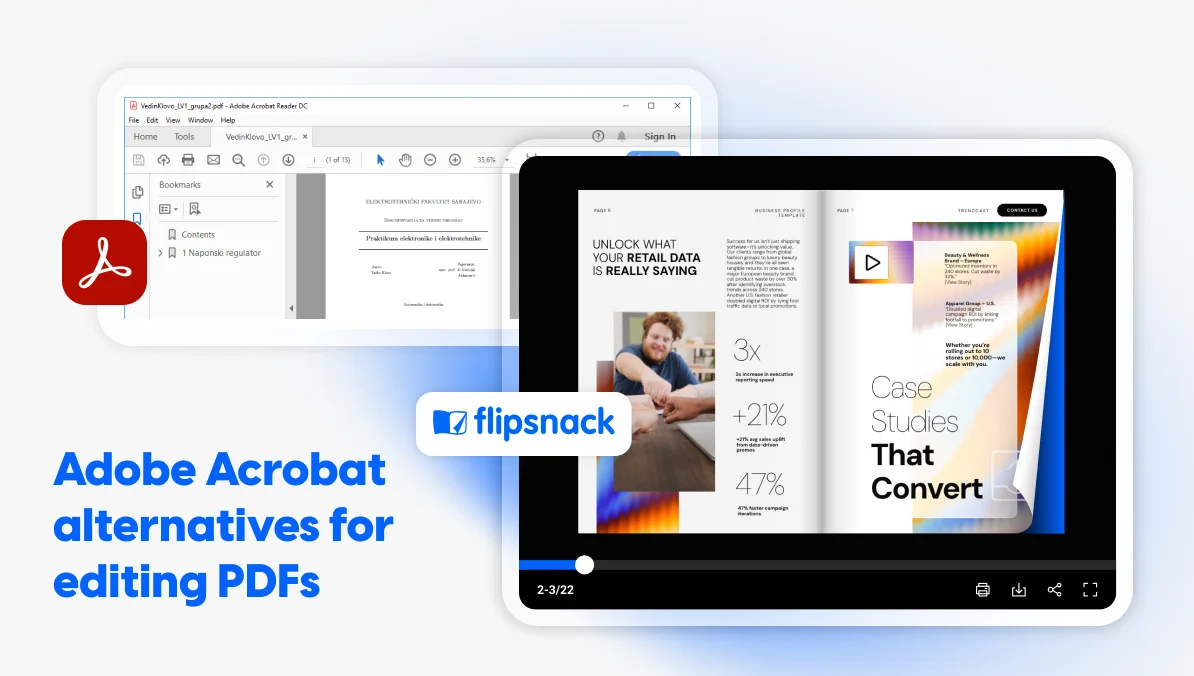
With Flipsnack you can replace a detected visual or add an image to a PDF, adjust its placement, and publish the updated document as an interactive flipbook without rebuilding every page.
Table of contents
- Can you replace an image in a PDF without redesigning it?
- How to replace an image in a PDF with Flipsnack
- How to change a picture in a PDF without losing quality
- What to do when the PDF image cannot be selected
- Final checklist before publishing the updated PDF
- Frequently asked questions
- Update the image, not the entire PDF
Can you replace an image in a PDF without redesigning it?
Yes. You can edit images in a PDF without redesigning the page when each picture remains a separate, detectable object. The editor lets you replace the image and then check its crop, size, position, and alignment without rebuilding the surrounding page. In flattened or scanned PDFs, the image is merged into the page, so you cannot swap it right away.
| PDF type | Direct replacement | Best approach |
| Editable or vector PDF | Usually possible | Select and replace the image |
| Flattened PDF | Usually not possible | Re export the source file or rebuild the affected area |
| Scanned PDF | Not as a separate object | Edit the page image or recreate that section |
| Password protected PDF | Only with permission | Unlock editing with the correct permissions |
| PDF with complex effects | Results may vary | Simplify or rasterize the replacement asset |
Replacing exchanges the current image while keeping its frame and placement. Adding, on the other hand, places a separate image on the page without removing anything. Editing simply changes the crop, size, or position of the image you already have. This guide focuses on replacing an existing image.
How to replace an image in a PDF with Flipsnack
Flipsnack’s Edit PDF feature is currently in Beta and available on all plans. It automatically converts the detected text, images, shapes, and fonts into editable content inside Design Studio, so you can replace a single image while leaving the rest of the page untouched. Results may vary based on how the PDF was created.
Choose the right PDF editing flow
First, decide how much of the PDF you need to edit:
- Edit the full PDF: From the Homepage, select Create, choose PDF, and select Upload more files. Upload the PDF and select Continue.
- Make an editable copy: Find the publication on the Homepage, open its three-dot menu, and select Make editable copy (Beta). Open the new copy in Design Studio.
- Convert one page: Open the publication in Design Studio and go to the page you want to change. Select Edit page, then confirm Edit page again in the pop-up.
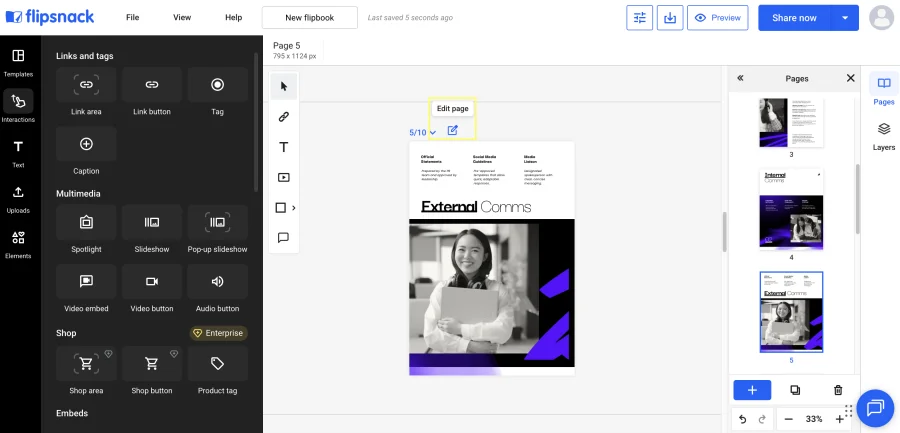
Steps to replace the image in Design Studio
Once Flipsnack has converted the supported PDF elements into editable content, follow these steps:
- Open the editable copy or converted page in Design Studio.
- Select the old product photo, logo, headshot, or header image. If Flipsnack detected it as a separate image, its editing options would appear.
- Use those options to replace it. You can upload a new file or choose an image from the Uploads panel. This lets you substitute a picture in a PDF document or change a photo in a PDF file, and the surrounding page stays unchanged.
- Adjust the crop, size, aspect ratio, alignment, position, and transparency. Check that nearby text and objects stay in place.
- Preview the result and select Share now. For a new publication, choose its visibility and select Publish. For an existing published flipbook, select Update to keep the same link.
If you cannot select the image or no image-editing options appear, first confirm that the PDF or page has been converted through the Edit PDF flow. If it has, the picture may be flattened into the page, converted into a static image because of complex effects, or locked in Design Studio. A flattened or scanned page will not become a set of separate image objects simply by converting it again.
How to change a picture in a PDF without losing quality
You can change a picture in a PDF without losing quality by matching three attributes: the original aspect ratio, the required resolution, and the file format.
Start with the aspect ratio. Replacing a landscape image with a portrait one may stretch the picture or require a heavy crop. Choose an image with proportions that match the existing frame to preserve its shape and alignment.
Next, check the resolution. A small image enlarged to fill a large frame will look blurry or pixelated. For online viewing, the image’s pixel dimensions matter more than print level DPI, and 96 DPI is often enough. Use higher resolution only when the publication also needs to be printed.
Then choose the right format:
| Format | Best for | Important attribute |
| JPG | Photographs | Smaller file size |
| PNG | Logos and graphics | Supports transparency |
| SVG | Vector logos and illustrations | Remains sharp when resized |
Flipsnack’s media library supports JPG, JPEG, PNG, GIF, and SVG. JPG, PNG, and GIF files can be up to 20 MB, while SVG files can be up to 1 MB.
Finally, balance image quality with file size. Large, uncompressed images can slow down the publication, while excessive compression can create blur and visual artifacts. Use low compression, high quality export settings and check the result at its intended display size before publishing.
What to do when the PDF image cannot be selected
If clicking the image does not select it, the picture may not be stored as a separate object. To make the PDF image editable, identify what prevents the editor from detecting it and use the appropriate fix.
The PDF is flattened or scanned
In a flat or scanned PDF, the picture is merged into one page-wide image. There is no separate object to select.
- Return to the source file and export a new, editable PDF.
- Try converting only the affected page into editable content.
- If the image remains merged with the page, rebuild or replace only that page instead of the entire document.
The PDF contains complex effects or clipping masks
Gradients, shadows, clipping masks, and complex vectors may prevent elements from converting correctly.
- Simplify complex vectors and effects before exporting.
- Rasterize effects that do not need to remain editable.
- Remove clipping masks where possible.
- Export as PDF/X-4 with compatibility set to Acrobat 5 (PDF 1.4) or later, as recommended in Flipsnack’s PDF guidelines.
The PDF is password protected
A password protected PDF may block content editing. Unlock the file with the correct password or permissions before uploading it, and only modify documents you are authorized to edit.
The image appears segmented or misaligned
Flattening, spreads, unusual margins, or complex effects can cause images to break into pieces or shift after import.
- Export the PDF as single pages rather than spreads.
- Remove hidden or locked layers from the source file.
- Preview the page at different zoom levels.
- Reposition any elements that moved during conversion.
When should you edit one image or replace the entire PDF in Flipsnack?
The best workflow depends on how much content needs updating and whether you already have a revised PDF. Use the table below to choose the quickest option.
| Situation | Recommended Flipsnack workflow |
| One detected image must change | Select and replace the image |
| One page needs several changes | Select Edit page and convert that page |
| Several pages need updates | Edit the full PDF |
| You want to preserve the original | Make an editable copy |
| A finished, revised PDF already exists | Replace the uploaded PDF |
When you replace the entire PDF, Flipsnack can preserve its share link, existing interactions, and their statistics. The replacement must have the same number of uploaded pages as the original PDF. If the page count differs, add the new PDF separately and transfer the necessary elements manually.
Final checklist before publishing the updated PDF
Before publishing, check the following:
- Match the original aspect ratio to avoid stretching or squashing the image.
- View the image at normal size and enlarged to confirm it remains sharp.
- Preserve transparency on logos and graphics that need a clear background.
- Review the crop to ensure no important content is missing.
- Confirm that the image matches the original alignment and position.
- Compare the page with the original to ensure nearby text and objects have not moved.
- Test all links and interactive elements.
- Select the correct visibility setting.
- Keep the original document or create an editable copy when needed.
- Preview the result on both desktop and mobile.
Frequently asked questions
Yes. A browser-based editor such as Flipsnack lets you replace detected PDF images without installing Adobe Acrobat.
Not always. If the image is stored as an editable object, you can replace it directly. The source file may be necessary when the PDF is flattened, scanned, password-protected, or contains complex effects.
You can add an image to a PDF as a separate element instead of swapping an existing one. You will need to set its size, position, and placement manually.
Yes. Edit the existing published flipbook, then select Share now and Update. The share link remains unchanged. Replacing the full PDF can also preserve its interactions and statistics when the new file has the same number of pages.
Flipsnack’s Edit PDF feature is currently in Beta and available on all plans, including the Free plan. Other actions, such as downloading the updated file, remain subject to your plan’s limits.
Update the image, not the entire PDF
One outdated visual should not mean rebuilding an approved document. When the image is a separate object, you can swap it in minutes and leave the layout, the text, and every other element exactly where they belong. That way, you refresh a finished file without redoing the work that was already signed off.
Upload your PDF to Flipsnack, choose the right editing flow, and replace the image in Design Studio. Preview the page to check the crop, alignment, and quality, then publish the updated version to the same link.