What is a PDF? Complete Guide to the Portable Document Format
Published on: October 8, 2025
Last updated: November 4, 2026
Someone asks for “the final version as a PDF.” You hit export, attach the file and move on. Contracts, invoices, annual reports, and benefits guides all travel this way, often without anybody asking what happens inside that file.
That reflex is earned. PDFs keep fonts, images, and layouts identical on every screen, printer, and operating system. Few digital formats have held that much trust for more than three decades.
That reliability has edges, though. A PDF guarantees how your document looks. It can’t tell you whether anybody read it.
This guide explains what a PDF is, how the format works internally and which ISO standards govern archiving, printing and accessibility. You’ll also learn how to create one, where PDFs still outperform everything else, and what teams use once a static file stops being enough.
A PDF (Portable Document Format) is a file format, created by Adobe in 1993, that stores text, fonts, images and layout inside one self-contained file so a document displays identically on any device, operating system or printer.
Since 2008, PDF has been an open standard maintained by the International Organization for Standardization as ISO 32000, so any company can build software that creates or opens PDFs. The current version, PDF 2.0, is defined in ISO 32000-2:2020. Adobe reports that more than 2.5 trillion PDFs are created every year.
Table of contents
Who created the PDF, and why?
The short answer: Adobe co-founder John Warnock created the PDF. His 1991 Camelot Project paper described a way to share documents that looked identical on any computer, and Adobe launched the format in 1993. In 2008, PDF became an open ISO standard, free for anyone to implement.
Before PDF, sending a document meant hoping the recipient had your software, your fonts, and your operating system. Most didn’t. Layouts shifted, characters turned into symbols and printed pages broke in unpredictable places.
Warnock’s idea was to describe each page the way a printer sees it. Every page carries its own fonts, images, and positioning, so nothing depends on the reader’s machine.
Milestones that shaped the format:
- 1991: John Warnock outlines the concept in the Camelot Project paper.
- 1993: Adobe introduces PDF alongside the first version of Acrobat.
- 1994: Acrobat Reader 2.0 becomes free, removing the biggest barrier to adoption.
- 2008: ISO publishes ISO 32000-1, and PDF becomes an open standard.
- 2017: PDF 2.0 (ISO 32000-2) arrives as the first version developed entirely within ISO. A revised edition followed in 2020.
That openness explains the format’s reach. Browsers, Preview on Mac, and every major mobile operating system open PDFs without a plug-in or a paid license.
How PDFs work
The short answer: A PDF stores everything a page needs inside one file: text, embedded fonts, images, and the exact coordinates of each element. Viewers don’t reflow or reinterpret that content. They draw every page precisely as saved, which is why a PDF looks identical on a laptop, a phone or a printer.
A Word file describes content and lets each computer arrange it. A PDF describes the finished page and locks it.
That fixed-page model is what makes PDFs dependable. It’s also why they’re harder to edit than a Word document and awkward to read on small screens.
PDF file structure and technical aspects
The way a PDF organizes information sets it apart from other digital document formats. It doesn’t rely on external fonts, programs, or layouts. Instead, every file carries its own instructions for how text, images, and pages appear.
This allows different PDF file types to meet specific needs in business, publishing, and long-term storage, which keeps the format consistent across devices and platforms.
What’s inside a PDF file
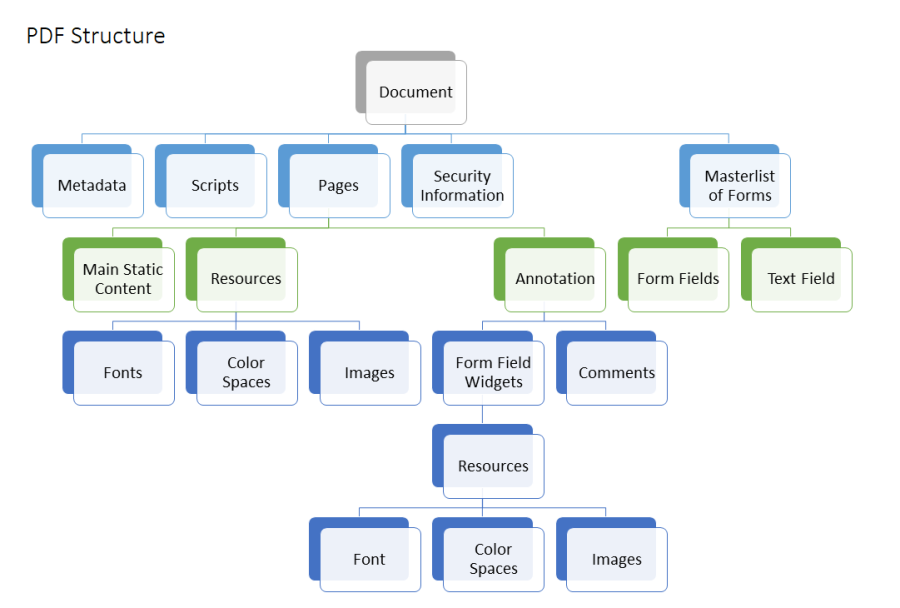
Every PDF follows the same four-part structure, defined in ISO 32000:
Trailer. Closing data points software to the cross-reference table and to the document’s root object, where rendering begins.
Header. The first line declares the version, such as %PDF-1.7 or %PDF-2.0.
Body. Individual objects make up the document: pages, text streams, fonts, images, links, and form fields.
Cross-reference table. An index records where each object sits, so a viewer can jump to page 200 without reading pages 1 through 199.
Inside the body, visual content comes in two forms:
- Vector graphics. Text, charts, and logos are stored as mathematical paths, so they stay sharp at any zoom level.
- Raster images. Photos and scans are stored as pixels and compressed. Uncompressed photography is the usual reason files balloon, and shrinking PDF file size starts there.
Fonts get embedded too, often as a subset containing only the characters you used. Text exported from Word or InDesign stays real text, so readers can search and copy it, and search engines can index PDF content. A scanned page is different: it’s a picture of words until optical character recognition (OCR) adds a text layer.
Which PDF standards exist, and when do you need them?
Beyond the core specification, ISO maintains specialized subsets. Each one restricts or extends the format for a particular job.
| Standard | ISO number | Built for | Use it when |
| PDF 2.0 | ISO 32000-2 | The core format | Always, as the baseline every other standard builds on |
| PDF/A | ISO 19005 | Long-term archiving | Records must stay readable for decades (legal, finance, government) |
| PDF/X | ISO 15930 | Commercial printing | You’re sending artwork to a print shop and need exact color |
| PDF/E | ISO 24517 | Engineering documents | You share drawings, schematics, or technical models |
| PDF/UA | ISO 14289 | Universal accessibility | Documents must work with screen readers and keyboard navigation |
Most everyday business documents never need a subset. If yours face archiving rules, print production, or accessibility law, choose the standard at export, not afterward. PDF/A, for example, prohibits encryption, JavaScript and embedded audio or video, because future software may not support them. For tagging and screen-reader requirements, see our PDF accessibility guide.
How do you create a PDF?
The short answer: You can create a PDF from almost any app without extra software. Use the built-in Print to PDF option on Windows or Mac, or export directly from Word, Google Docs or InDesign. Dedicated tools like Adobe Acrobat only matter when you need to combine files, add security, or meet a specific ISO standard.
| Starting point | How to export a PDF |
| Any app on Windows | File > Print > choose Microsoft Print to PDF > Print, then name and save the file |
| Any app on Mac | File > Print > open the PDF menu (bottom left) > Save as PDF |
| Word, Excel, PowerPoint | File > Save As or Export > choose PDF |
| Google Docs, Sheets, Slides | File > Download > PDF Document (.pdf) |
| LibreOffice | File > Export As > Export as PDF |
| InDesign or other design tools | File > Export > Adobe PDF, then pick a preset such as PDF/X for print |
| Several existing files | Use Acrobat’s Combine Files or a PDF merging tool |
Print to PDF is fastest, but it often drops clickable links and bookmarks. Exporting from the original program keeps hyperlinks, headings, and tags intact, so choose export whenever the option exists.
Need a standard from the table above? Pick it at export. Word offers a PDF/A checkbox under Options, and InDesign ships with PDF/X presets. For layout-heavy files, our guide to exporting from InDesign for the web covers resolution and compression settings.
What are the advantages and disadvantages of PDF?
The short answer: PDFs excel at fidelity, compatibility, security and archiving. They struggle with small screens, updates, accessibility, and measurement. Use a PDF when a document must look exactly right and stay unchanged. Pick something else when people need to read, click, or act on it.
Where PDFs win:
- Layout fidelity. Fonts, images, and spacing stay identical for every recipient.
- Universal access. Any browser or phone opens the file without paid software.
- Built-in protection. Passwords, permissions, and digital signatures make PDFs the default for contracts. See how to lock a PDF.
- Archival reliability. PDF/A keeps records readable decades from now.
Where PDFs struggle:
- Fixed pages on phones. Readers pinch, zoom, and scroll sideways. Nielsen Norman Group has recommended against PDFs for on-screen reading for two decades.
- Frozen content. Every correction means a new file, a new send, and old versions still circulating.
- Zero reader data. Once downloaded, you can’t see who opened it or where they stopped. Here’s how teams handle PDF tracking.
- Accessibility gaps. Tagging for screen readers is possible but laborious, so most PDFs skip it.
None of these weaknesses make PDF obsolete. They mean it’s the wrong tool for some jobs, and our comparison of seven PDF alternatives shows which format fits which job.
How can you make a PDF interactive and trackable?
The short answer: Upload the PDF to a digital publishing platform such as Flipsnack. Your pages keep their original layout, but they open as a mobile-friendly link where you can add interactive elements, edit content, and see engagement data.
Flipsnack keeps your PDF as the source file and turns it into a flipbook built for reading:
- Edit after publishing. Change text and images in Design Studio, so corrections go live under the same URL instead of a new attachment.
- Add interactivity. Embed video, links, and product tags, so readers act on the page instead of leaving it.
- Track engagement. Statistics show views, time per page, and clicks, so sales and marketing know who read what.
Keep the original PDF for signatures, print, and archiving. Use the flipbook for everything people need to read.
Conclusion
PDFs continue to hold an important place in the world of digital document formats. The ability to preserve formatting, maintain a professional appearance, and work reliably across devices ensures they remain the go-to choice for contracts, formats, and archival records.
A PDF solves one problem better than any other format: making a document look the same everywhere. That’s why contracts, records, and print files still depend on it.
Reading, updating, and measuring are different jobs. Match the format to the job, not the habit.
A PDF proves what you sent. It can’t prove that anyone read it.
Frequently asked questions about PDFs
PDF stands for Portable Document Format. Adobe introduced the format in 1993, and it has been an open ISO standard (ISO 32000) since 2008.
Yes. Creating and opening PDFs is free on Windows, Mac, iOS, Android, and every major browser. You only pay for advanced tools, such as Adobe Acrobat Pro, when you need to edit, combine, or secure files at scale.
A Word document is built for editing, so its layout can shift between computers. A PDF is built for distribution, so its layout stays fixed everywhere. Teams usually write in Word and export to PDF for sharing.
Yes, but not as easily as the original file. Small text changes work in Acrobat, Preview, or browser-based editors. Larger rewrites are faster in the source document. Our guide to editing a PDF without Acrobat compares the options.
PDFs from trusted senders are generally safe. Because the format can carry links, forms, and JavaScript, unexpected attachments deserve the same caution as any other file. Keep your PDF reader updated.